
Documentation · Revolutionary Blocks 1.44.14
Revolutionary Blocks, from first page to finished site.
How to build pages in the visual editor, style them for every device, use the widget library, work with the Multipurpose theme's color mode, convert Elementor pages and keep your site fast.
Released version 1.44.9
Current release setup and checks
Build WordPress pages with native widgets, responsive settings and controls for the theme color modes.
- Accordion media answers, Disclosure and Action block controls are included in the released package.
- Native image frames, column card destinations, Text link controls and section background priority reduce the need for custom code.
- Native adaptive disclosure panels and independent Text paragraph typography are included.
- Video widgets support posters, explicit preload, inline phone playback and selectable WebVTT captions.
- Icon Box image icons have their own image width and optional dark mode and light mode images. Image Box has an image width control. Saved boxes keep their current size until you change it.
- Decorative frame controls introduced in the withdrawn Blocks 1.44.2 release are removed in 1.44.3. Do not use 1.44.2.
- FAQ structured data includes textual questions with visible answers. Screenshot disclosures, media answers and descriptive accordion headings are excluded.
- Hero backgrounds support separate tablet and mobile images. Company Info follows the theme footer logo selection in each color mode.
Check your setup
- Use the widget settings and responsive previews for desktop, tablet and phone.
- Preview linked cards, keyboard focus and accordion content in both theme modes before publishing.
Quick start
Up and running in minutes
Step 1
Install and activate
Upload revolutionary-blocks-1.44.14.zip under Plugins, Add New, then activate. You will find it under Revolutionary Plugins, Blocks.
Step 2
Open a page in Blocks
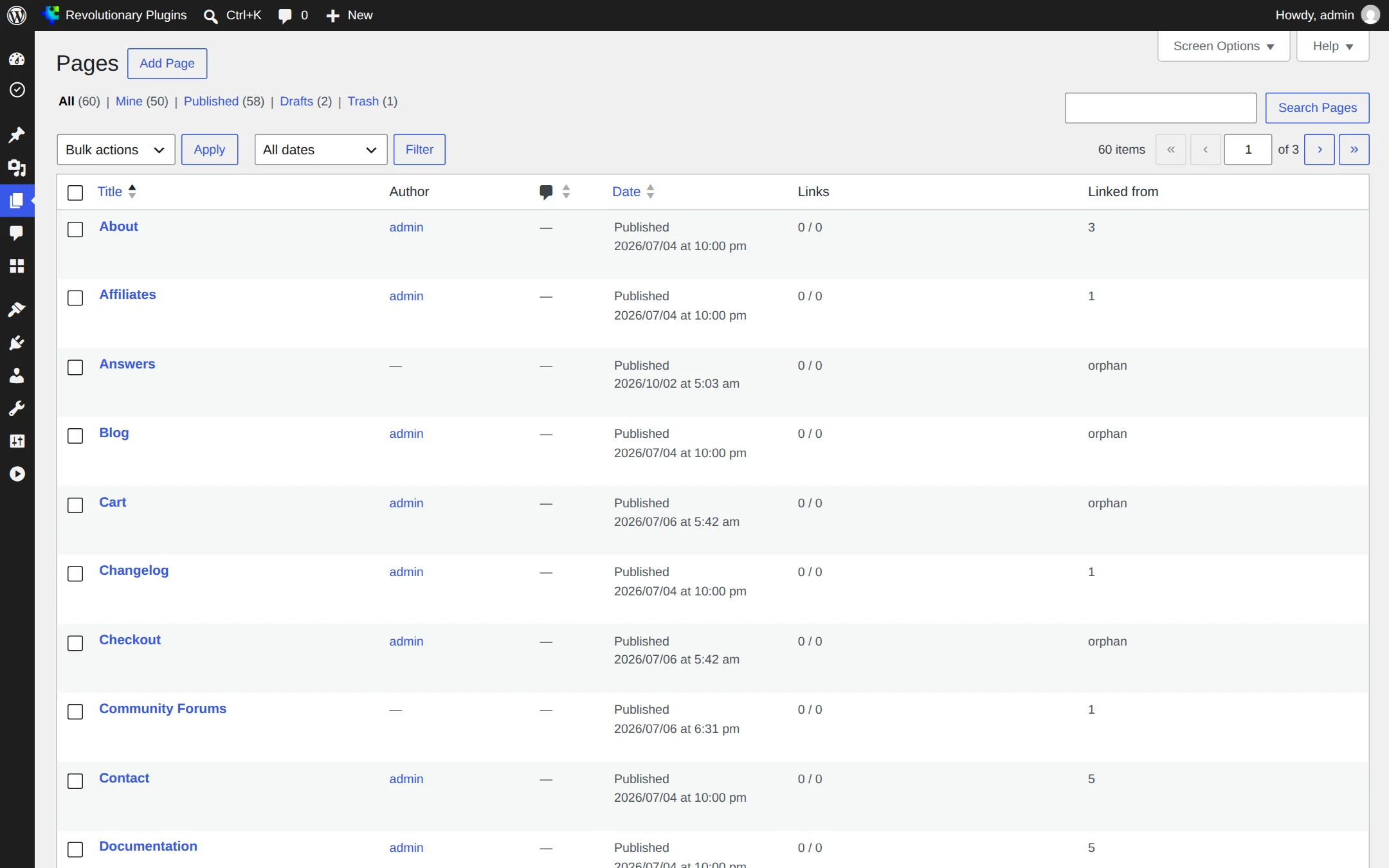
On the Pages list, hover a page and click Rev. Blocks, or use the Revolutionary Blocks box on the edit screen.
Step 3
Drop in widgets
Add a section, pick a column layout, and drag widgets from the Widgets panel onto the canvas. Style them in the inspector.
Step 4
Save and preview
Click Save. Every save records a revision and builds the page's CSS file. Preview opens at the device width you chose.
On this page
Start here
Getting started
Revolutionary Blocks needs WordPress 5.8 or later and PHP 7.4 or later. It adds its own visual editor alongside the WordPress block editor, which keeps working as before.
Install
- 1. Go to Plugins, Add New, Upload Plugin and choose revolutionary-blocks-1.44.9.zip.
- 2. Click Install Now, then Activate.
- 3. Open Revolutionary Plugins, Blocks to see the dashboard.
Activation also installs a small must-use plugin that keeps the Revolutionary Plugins menu in a tidy order. It does nothing else.
License and updates
Updates come from the Revolutionary update server using your site's Revolutionary bundle license. Enter the key once in Multipurpose Dashboard, Welcome and every Revolutionary plugin on the site is covered. Without a license nothing is locked: you see an admin notice and do not receive updates.
Where Blocks can be used
Pages and posts can use Blocks by default. Each page chooses its own editor, so you can build some pages in Blocks and leave others in the WordPress editor.
The dashboard
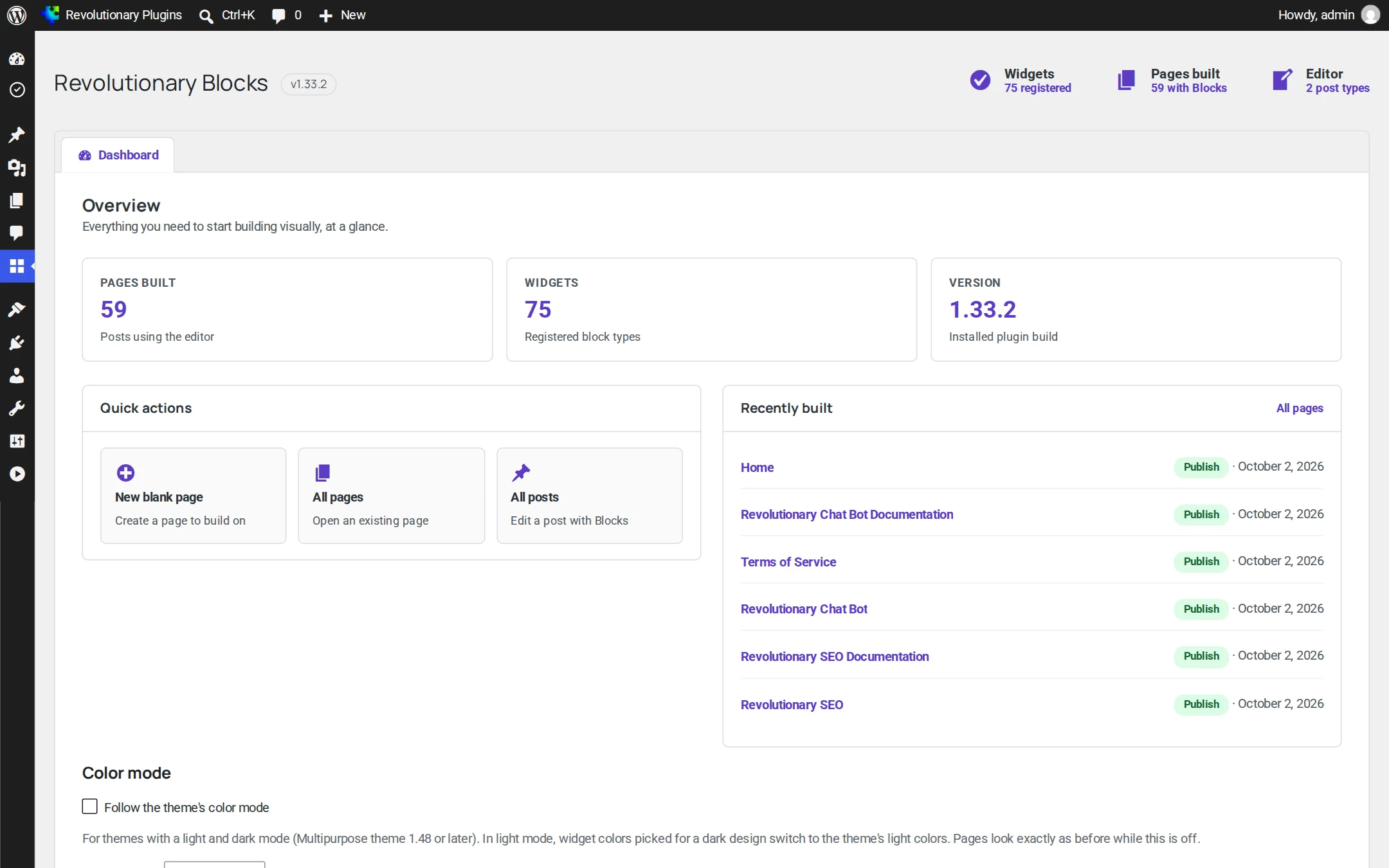
Revolutionary Plugins, Blocks shows status chips for registered widgets, pages built and the post types Blocks can edit, along with quick actions and a Recently built list you can jump back into. Administrators also see the Color mode card here, with the Follow the theme's color mode switch and the optional Highlight color. See Color mode and the Multipurpose theme.
Walkthrough
Building your first page
Every Blocks page is made of sections. A section holds one or more columns, and columns hold widgets. You can also place an inner section inside a column for more complex layouts.
- 1. Create or open a page. On the Pages list, click Rev. Blocks under its title, or click Build with Revolutionary Blocks in the side box on the edit screen.
- 2. Add a section and choose a column structure.
- 3. Drag widgets from the Widgets panel into a column.
- 4. Click a widget to edit it in the inspector: text and links on Content, looks on Style, spacing, visibility and animation on Advanced.
- 5. Click Save, then Preview to see the published result.
The editor
Editor tour
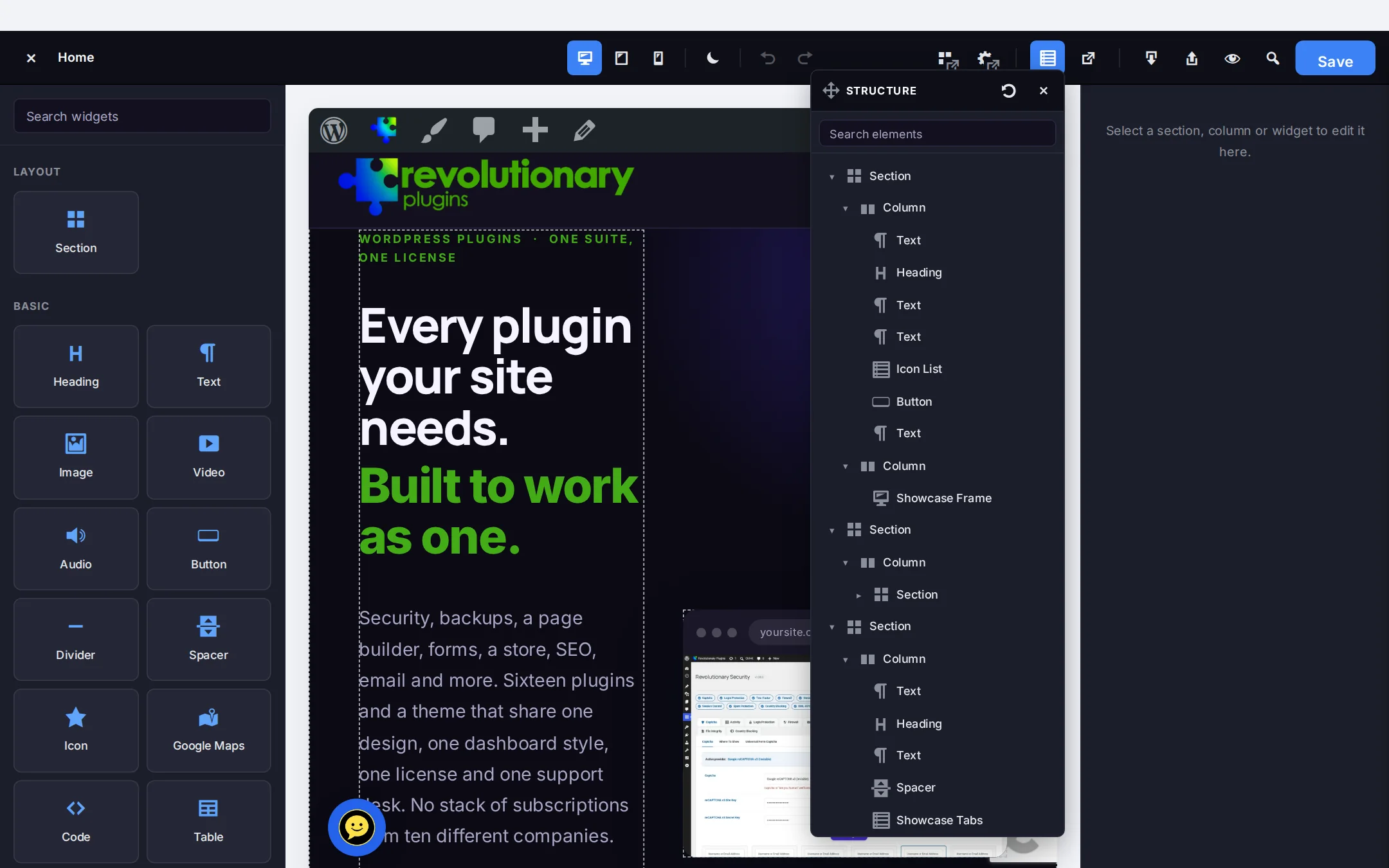
The canvas sits in the middle, with the Widgets panel, the inspector and the structure tree around it.
Resizing columns
- Drag the divider between two columns to resize them. A live readout shows the width in pixels and percent.
- Hold Shift to snap to 5 percent steps, or Alt to snap to 10 pixel steps.
- Double-click a divider to make the two columns equal.
- Drag a column into another section to move it there.
The inspector
Each element has Content, Style and Advanced tabs, and many widgets add a Hover tab. Controls with a device icon can take a separate value for tablet and mobile.
Structure tree
The structure tree lists every section, column and widget in page order. Use the arrow keys to move through it, click to select, and press F2 to rename an element.
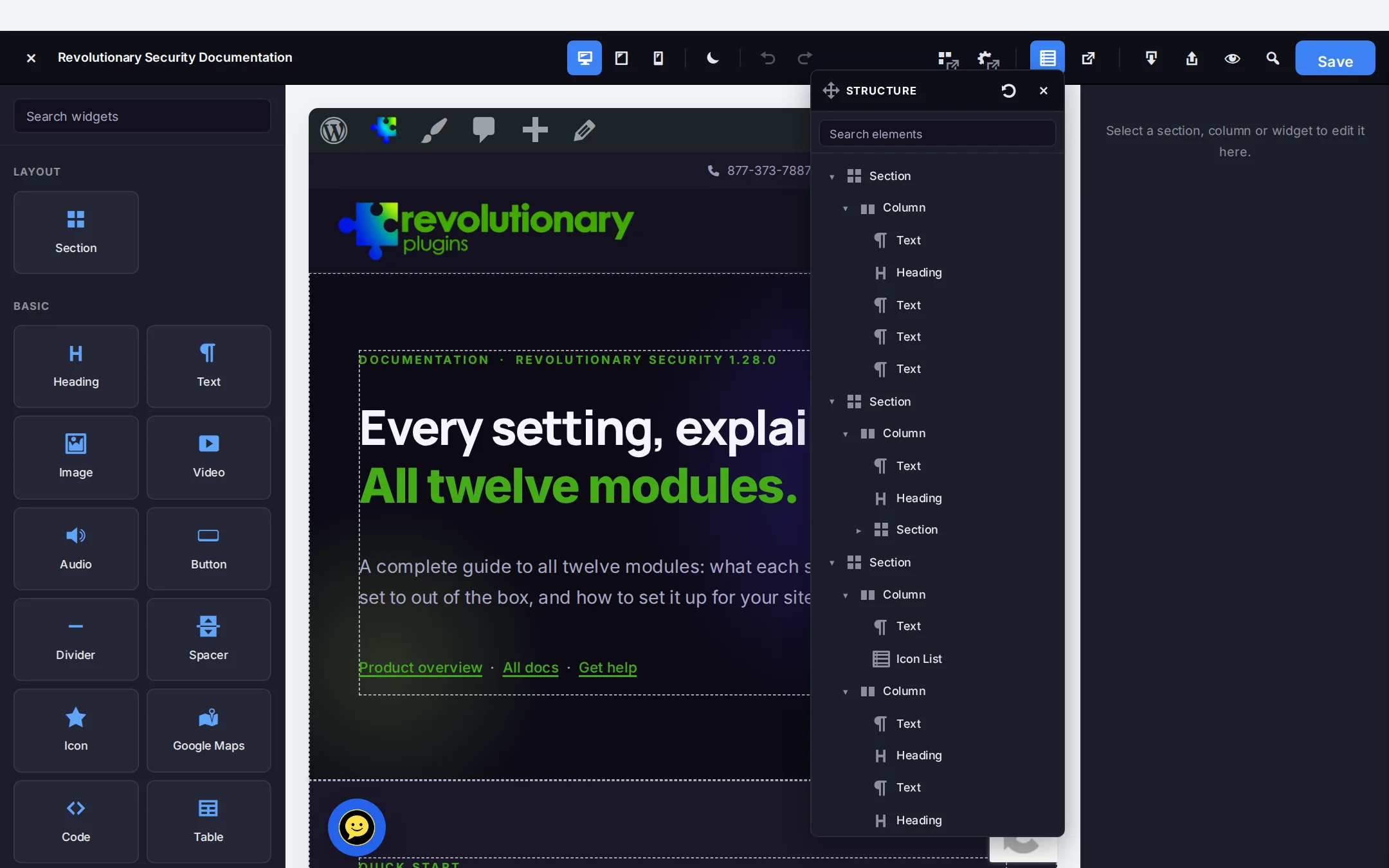
Pop-out panels
Widgets, Settings and Structure can each open in their own window, which is handy on a second monitor. The canvas then uses the full width of the main window.
Keyboard shortcuts
Undo and redo work from the keyboard, along with other editor shortcuts. Open the Keyboard shortcuts panel in the editor for the full list.
Design
Styling and responsive design
Style is set per element, and every responsive control can differ between desktop, tablet and mobile.
| What | Where | Notes |
|---|---|---|
| Typography | Style tab | Font family, size, weight, line height and more, per device |
| Colors and gradients | Style tab | Solid colors, preset gradients or your own |
| Spacing | Advanced tab | Margin and padding, per device |
| Borders and shadows | Style tab | Border style, width, color, radius and box shadow |
| Visibility | Advanced tab | Hide on desktop, tablet or mobile |
| Entrance animation | Advanced tab | 15 effects with duration and delay, can differ per device |
| Custom CSS | Advanced tab | Extra CSS for one element |
Breakpoints
Tablet styles apply at 1024 pixels and below, mobile styles at 767 pixels and below. Mobile falls back to the tablet value, and tablet falls back to desktop, so you only set what changes. On phones, columns stack to full width.
Section backgrounds
Sections take a color, image, gradient or video background. A gradient over an image acts as a scrim, which keeps text readable. The background scroll effect can be Fixed, Parallax, Reverse parallax, Two-layer parallax, Zoom, Horizontal drift, Fade to color or Ken Burns.
Entrance animations
Fade in, slide up, down, left or right, zoom in, flip up, scale up, blur in, rotate in, tilt in, reveal up, swing in, bounce in and flip on the Y axis. Duration runs from 100 to 3,000 milliseconds.
Hover effects
On widgets with a Hover tab, change the background and border color on hover, add a lift, grow, tilt, slide or shine transform, and choose a soft, medium, hard or glow shadow. Sections and columns do not have hover controls, so put hover cards on a widget such as Icon Box.
Library
Widget reference
The Widgets panel groups all 72 built-in widgets into categories. Search the panel by name to find one quickly.
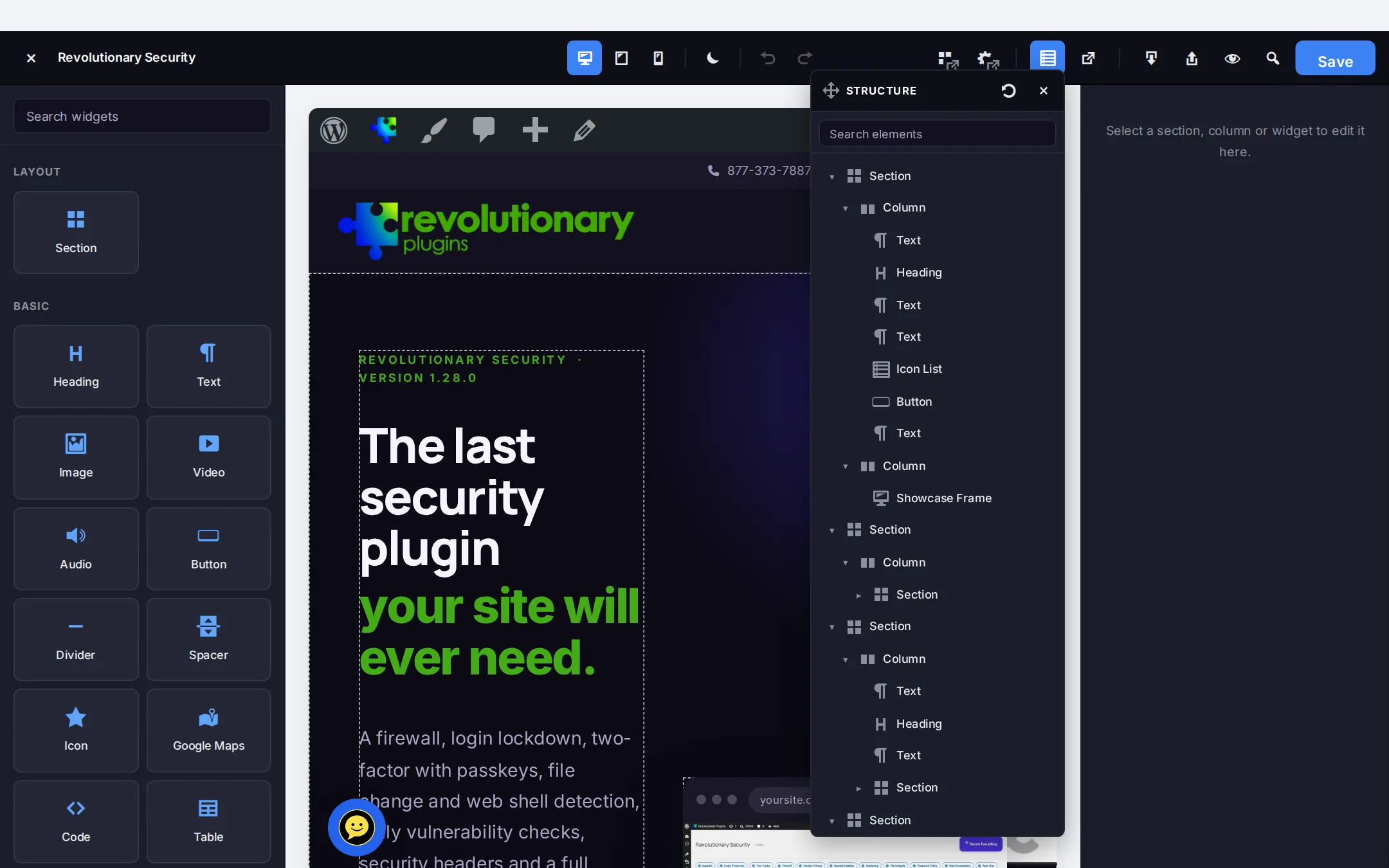
| Category | Widgets |
|---|---|
| Basic | Heading, Text, Image, Button, Divider, Spacer, Icon, Video, Audio, Google Maps, Table, Counter, Code, Shortcode |
| General | Form, Tabs, Toggle, Icon Box, Image Box, Icon List, Image Carousel, Image Gallery, Progress Bar, Alert, Rating, Social Icons, Menu Anchor, Read More |
| Layout | Accordion |
| Marketing | Hero, Call to Action, Pricing Table, Price List, Testimonial, Animated Headline, Flip Box, Horizontal Scroll Cards, Countdown, Timeline, Blockquote, Before / After, Logo Carousel |
| Media | Showcase Hero, Showcase Frame, Showcase Carousel, Showcase Tabs |
| Site | Site Logo, Site Title, Page Title, Post Excerpt, Breadcrumbs, Company Info |
| WordPress | Search, Recent Posts, Recent Comments, Categories, Tag Cloud, Archives, Navigation Menu, Calendar, Sidebar, WP Widget, Forums, Tickets, Testimonials Form |
| Forums | Forum Boards, Recent Threads, Forum Search |
| Tickets | Submit a Ticket, My Tickets, Tickets by Status, Ticket View |
Widgets for other Revolutionary plugins
The Forums, Forum Boards, Recent Threads and Forum Search widgets need Revolutionary Forums, the ticket widgets need Revolutionary Ticketing, Testimonials Form needs Revolutionary Testimonials, and Form places a Revolutionary Forms form. If the plugin is not active, the widget shows nothing to visitors.
Showcase widgets
Showcase Frame wraps a screenshot or video in a browser or app window with an address bar. Showcase Tabs pairs a list of features with a picture for each, and can advance on its own. Showcase Hero is a framed full-width hero, and Showcase Carousel scrolls feature cards sideways.
Icons
Icon, Icon Box, Icon List and Social Icons draw from a library of 2,140 SVG icons: Font Awesome solid, regular and brand sets plus a curated collection.
Safety
Revisions, recovery and accessibility
Blocks is designed so you do not lose a layout.
- Revisions. Every Save records a normal WordPress revision that includes the layout. Restore it from the Revisions screen as you would any revision.
- Crash recovery. Unsaved changes are mirrored in your browser. If the tab closes or the browser crashes, the editor offers them back the next time you open the page.
- Undo and redo. Step back and forward through your changes while you edit.
- Export and import. Download a page layout as JSON and import it into another page, on this site or another.
Accessibility checker
The editor checks the page as you build and lists problems you can fix before publishing.
| Check | What it flags |
|---|---|
| Alt text | Images with no alt text. Mark an image Decorative when it needs none. |
| Landmarks | Sections used as landmarks without a label |
| Headings | Skipped heading levels, such as an H2 followed by an H4 |
| Contrast | Text that fails WCAG AA contrast, with the measured ratio |
Theme
Color mode and the Multipurpose theme
The Multipurpose theme can offer visitors a light and a dark color mode. Blocks can take part in both.
Follow the theme's color mode
Turn this on in the Color mode card on the Blocks dashboard. It is off by default. In light mode, native widgets switch to the theme's light surface, text and border colors. In dark mode, your page looks exactly as you designed it. Buttons, brand colors and colors that already use a CSS variable are left alone.
Highlight color
Optional. Rich text set in this color shows in light mode as dark text on a highlighter of that color, so a bright accent stays readable on white.
Light and dark images
Image, Image Box, Showcase Frame and each Showcase Tabs item have optional Image for dark mode and Image for light mode fields, each with its own alt text. The swap is plain CSS on the theme's color mode attribute, and the picture that is not showing loads lazily.
Theme button style
Turn on Use theme button style on a Button to use the theme's call-to-action style. It follows the color mode automatically.
Custom headers and footers
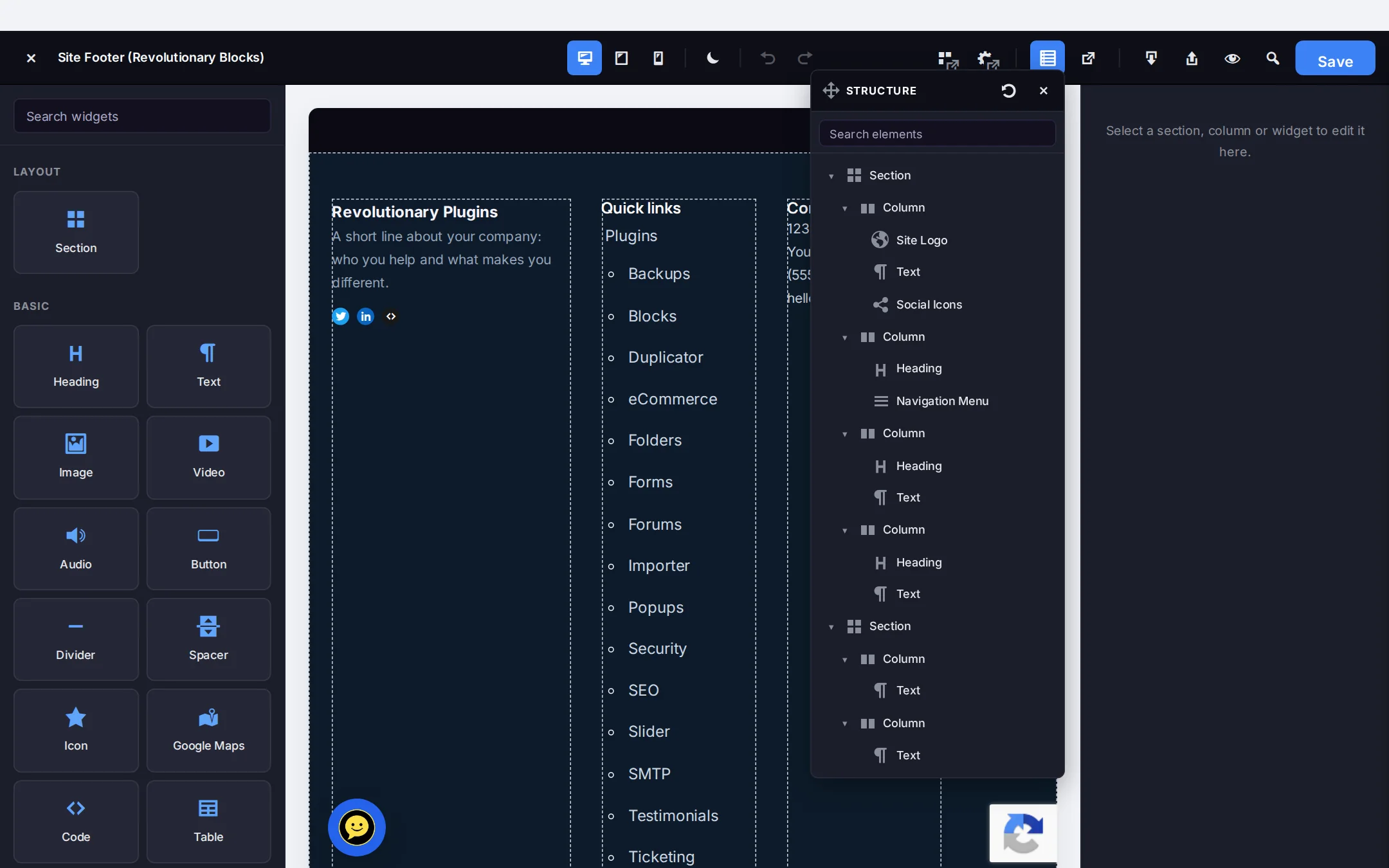
In the Multipurpose Dashboard, set the header or footer layout to Custom and pick a Blocks layout. Build it with Site Logo, Navigation Menu, Social Icons, Company Info and Button.
Speed
Performance
Blocks decides what each page loads, page by page.
- Per-page CSS. Each page's styles are compiled into a static file in your uploads folder. It rebuilds on its own the next time the layout changes.
- Scripts on demand. A widget's script loads only on pages that use that widget.
- Lazy loading. Images and embeds lazy-load by default.
- Fonts. A page requests only the Google Fonts its typography uses. The editor canvas still loads the full set so the font picker can preview them.
- Image sizes. Images from the Media Library get width, height, srcset and sizes attributes.
Priority image
Turn on Priority image on the one Image or Showcase Frame that matters most above the fold. It loads immediately with high fetch priority instead of lazily. Use it on one image per page.
Migration
Converting from Elementor
Pages and posts built with Elementor get a Convert from Elementor row action on the Pages and Posts lists.
- 1. Open Pages (or Posts) and hover an Elementor page.
- 2. Click Convert from Elementor.
- 3. Open the converted page in Blocks and review it.
What converts
- Sections, containers and columns, including multi-column rows
- Headings, text, images, buttons and other matching widgets
- Pro Slides, to a Hero per slide or an Image Carousel
- Hero sections with a background image, to the Hero widget
- Info boxes, to Image Box
- Testimonial carousels, to the Testimonial widget
- Site logo and navigation menu
Widgets with no match keep their content as HTML so nothing is lost.
Advanced
SEO fields and developer notes
Hooks and storage for developers, plus the Revolutionary SEO connection.
SEO fields
With Revolutionary SEO active, the editor can analyze the rendered page and generate the SEO title, description, Open Graph and Twitter fields. They are saved to the SEO plugin's own fields.
| Hook or key | Type | Use |
|---|---|---|
revblocks/register_widgets | Action | Register your own widgets |
revblocks_follow_color_mode | Filter | Turn color mode following on from a theme |
revblocks_google_fonts_families | Filter | Remove families your theme serves locally |
revblocks_google_fonts_url | Filter | Change or empty the Google Fonts address |
_revblocks_data | Post meta | The page layout |
_revblocks_enabled | Post meta | Whether the page uses Blocks |
revblocks_settings | Option | Plugin settings, including the post types Blocks can edit |
Blocks adds no shortcodes, Gutenberg blocks or WP-CLI commands of its own.
Current native controls
Native media, links and disclosure controls
Use widget and section settings to build the design before adding custom presentation code.
- Image frame controls set responsive width, height, crop position and fit.
- Column card controls provide a destination, visible link label, whole-card click behavior and focus ring while retaining nested controls.
- Text controls cover reading measure, link colors and underline thickness, bold text color, touch targets and wrapping inline lists.
- Section background priority emits a responsive preload for the selected media.
- Accordion media answers, Disclosure and Action block controls are available. Adaptive disclosure panels provide flow anchors, floating positions and keyboard-contained modals. Video widgets support posters, explicit preload, inline phone playback and selectable WebVTT captions.
Preview the published result on desktop and phone in both theme modes. Keep a revision before changing an existing page. The installed site may run a later version than the package described here.
Troubleshooting
Common questions
The action only appears on Elementor pages that do not have a Blocks layout yet. Once a page has been built or converted in Blocks, it is hidden so it cannot overwrite your work.
No. Blocks only requests the families a page uses. A page set in theme or system fonts needs nothing extra.
Click Save in the editor, then purge any page cache. The page's CSS file rebuilds automatically, but a cached copy of the old HTML can still point at the previous file.
Pages and posts are enabled by default. Availability on a custom post type depends on the site's revblocks_settings configuration.
Unsaved edits from a session that closed without saving, kept in your browser. Restore them to continue, or discard them to keep the saved version.
Stuck on something?
Search the forums, open a ticket, or write to us. A real person reads every message.