

Documentation · Revolutionary Folders 0.5.1
Revolutionary Folders, file by file.
How to create folders, send uploads into them, move and copy files safely, bring stray files into the library, and script it all with the REST API and WP-CLI.
Released version 0.4.6
Current release setup and checks
Organize the Media Library in real folders on disk.
- Folder organization changes media storage rather than merely adding virtual tags.
- The latest release refreshes the translation template without changing the folder workflow.
Check your setup
- Back up the uploads directory and database before reorganizing an existing library.
- Move a small sample and check the image on an existing page before moving more files.
Quick start
Up and running in minutes
Step 1
Install and activate
Upload the plugin under Plugins, Add New, and activate it.
Step 2
Create a folder
Open Revolutionary Plugins, Folders, Folder Manager and create your first folder.
Step 3
Select it
Click the folder. From now on your uploads are saved there.
Step 4
Tidy what you have
Drag existing files onto folders in the tree, or select several and click Move.
On this page
Start here
Where everything lives
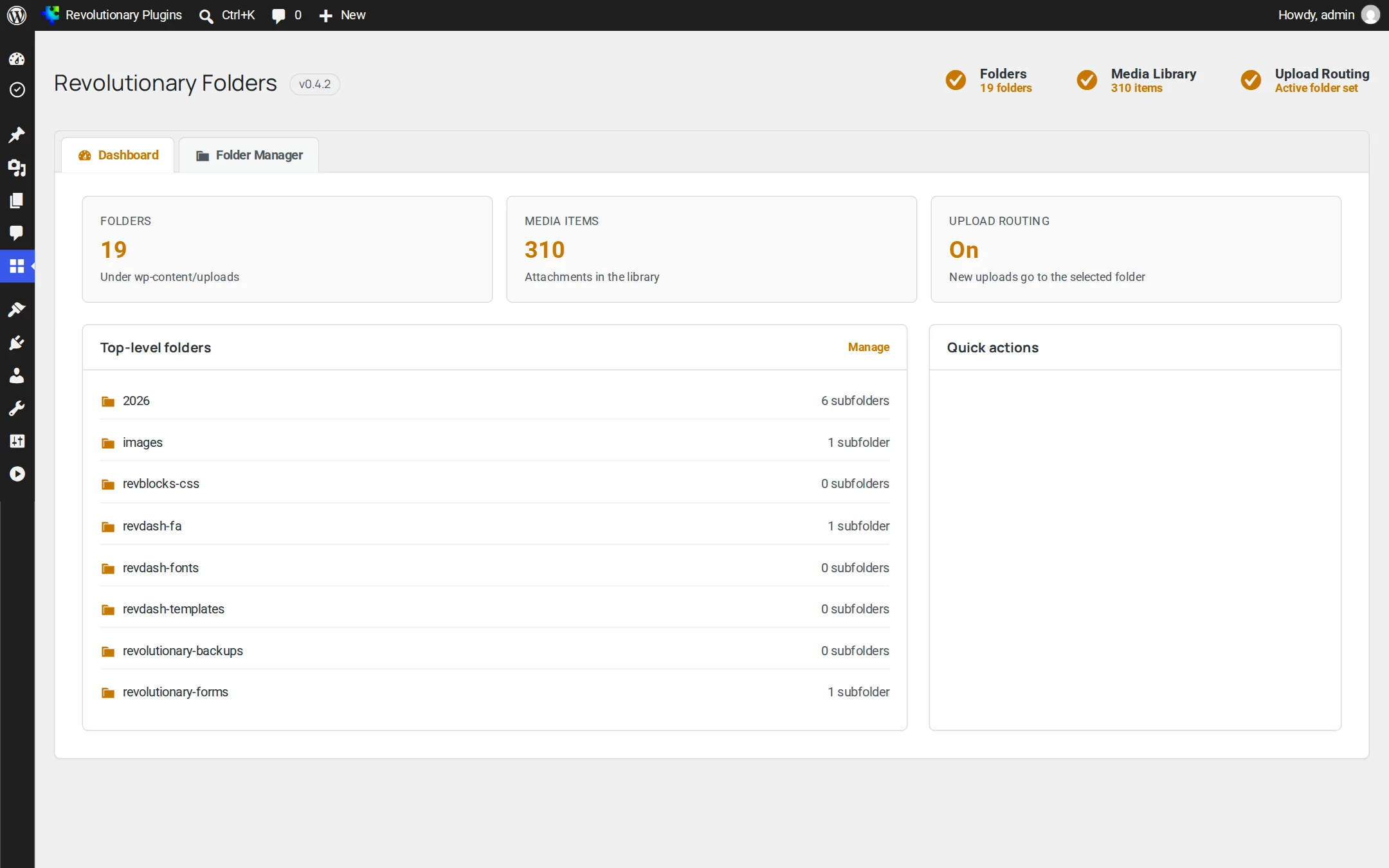
Folders is under Revolutionary Plugins, Folders, with two tabs: Dashboard and Folder Manager. Anyone with the upload_files capability can use it.
Requirements
- WordPress 5.8 or later
- PHP 7.4 or later
License and updates
Your Revolutionary license key is entered once for the whole suite, in Multipurpose Dashboard, Welcome. Folders uses it only for automatic updates. Features are not locked without it.
The Dashboard tab
Shows how many folders and media items you have, whether upload routing is on, your top-level folders and quick links. Upload routing: Root means no folder is selected, so uploads use the normal WordPress dated folders.
Folder Manager
Creating and organizing folders
The Folder Manager shows the folder tree on the left and the files in the current folder on the right.
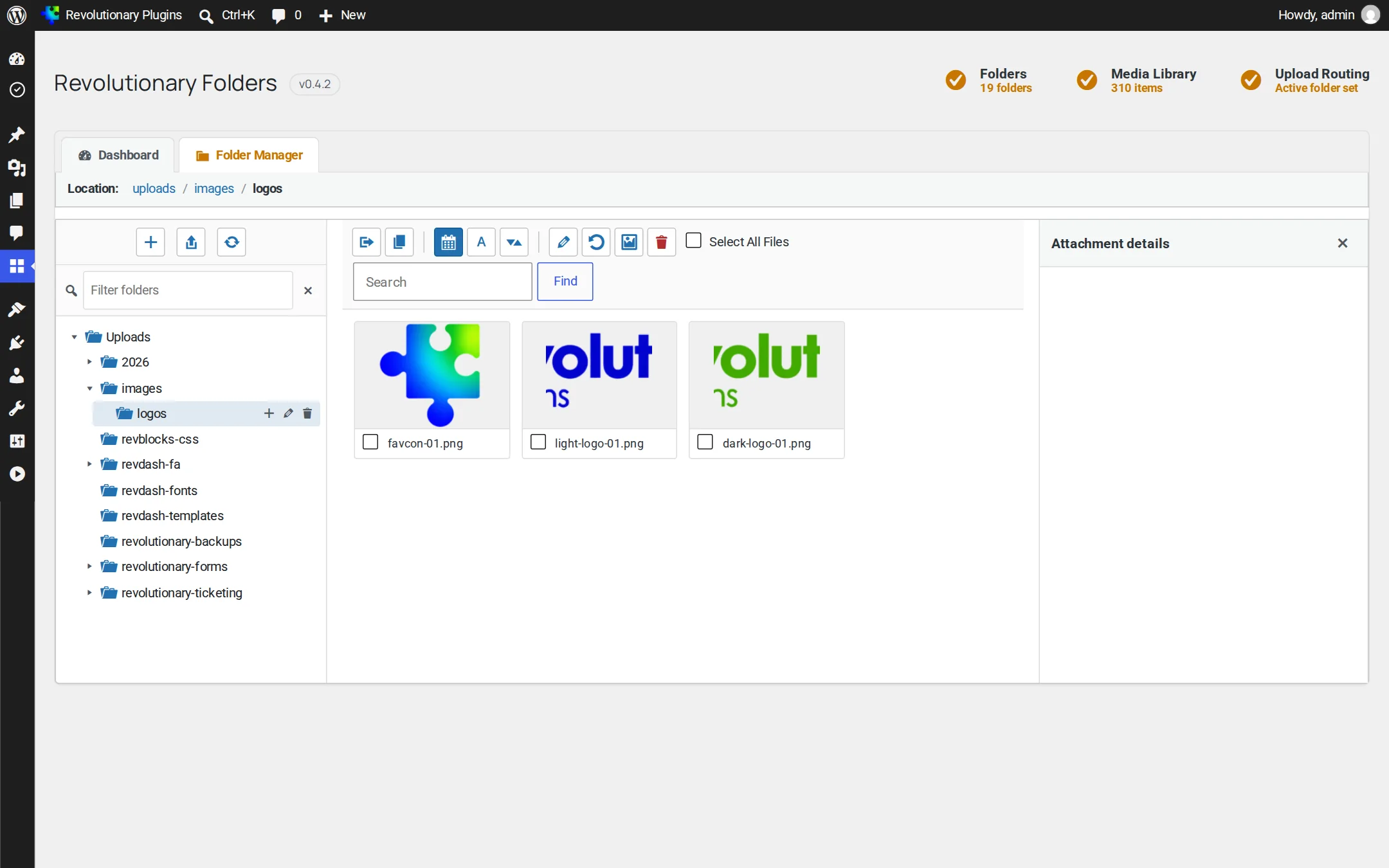
- Create a folder, or a subfolder inside the one you are viewing.
- Rename a folder. The stored paths of every Media Library item inside are updated to match.
- Filter the tree by name with the box above it.
- Collapse branches of the tree. The open and closed state is remembered.
- Breadcrumbs above the grid take you back up a level.
- Deep links: the current folder is kept in the page address, so you can bookmark or share it.
Upload routing
Choosing where uploads go
Click a folder in the Folder Manager to make it your active upload folder.
- Uploads from Add Media, the Media Library and the block editor are all saved into your selected folder.
- The choice is per user. Your selection does not change anyone else's.
- Select the root of the tree to go back to WordPress's normal year and month folders.
Working with files
Moving, copying and renaming files
Use the toolbar, or drag and drop.
| Toolbar button | What it does |
|---|---|
| Upload | Opens a drag-and-drop panel that uploads into the current folder, with progress |
| Refresh | Reloads the current folder |
| Move / Copy | Moves or copies the selected files to another folder |
| Sort / Reverse | Changes the order of the grid |
| Rename | Renames the selected file |
| Sync | Registers loose files in this folder as Media Library items |
| Regenerate | Rebuilds image sizes for the selected files |
| Delete | Deletes the selected files |
Selecting files
- Click to select one file.
- Shift-click to select a range.
- Ctrl or Cmd click to add or remove a file.
- Drag a file, or the whole selection, onto a folder in the tree to move it.
Bulk Move, Copy and Delete show a summary to confirm first, and list any files that failed when they finish.
Slide-out editor
Editing file details
Click a file to open the editor on the right.
- Edit the Title, Alt Text, Caption and Description.
- Copy the file URL with one click.
- See the file name, type, size, dimensions and upload date.
Maintenance
Sync from disk and thumbnails
Two tools for files that did not arrive through WordPress.
Sync from disk
Use Sync after copying files in by FTP, a migration or another plugin. It registers the loose files in a folder as Media Library items and lists any it refused by name. Only administrators can run it.
Regenerate thumbnails
Rebuilds the image sizes for the files you select. Permission is checked for each item.
SVG files
SVGs are handled only when Revolutionary Security is active with SVG uploads turned on. Sync and Regenerate sanitize each SVG and skip any that cannot be verified. Without Security, Folders does not import SVGs.
Everywhere else
Folders in the Media Library and block editor
Your folders are available outside the Folder Manager too.
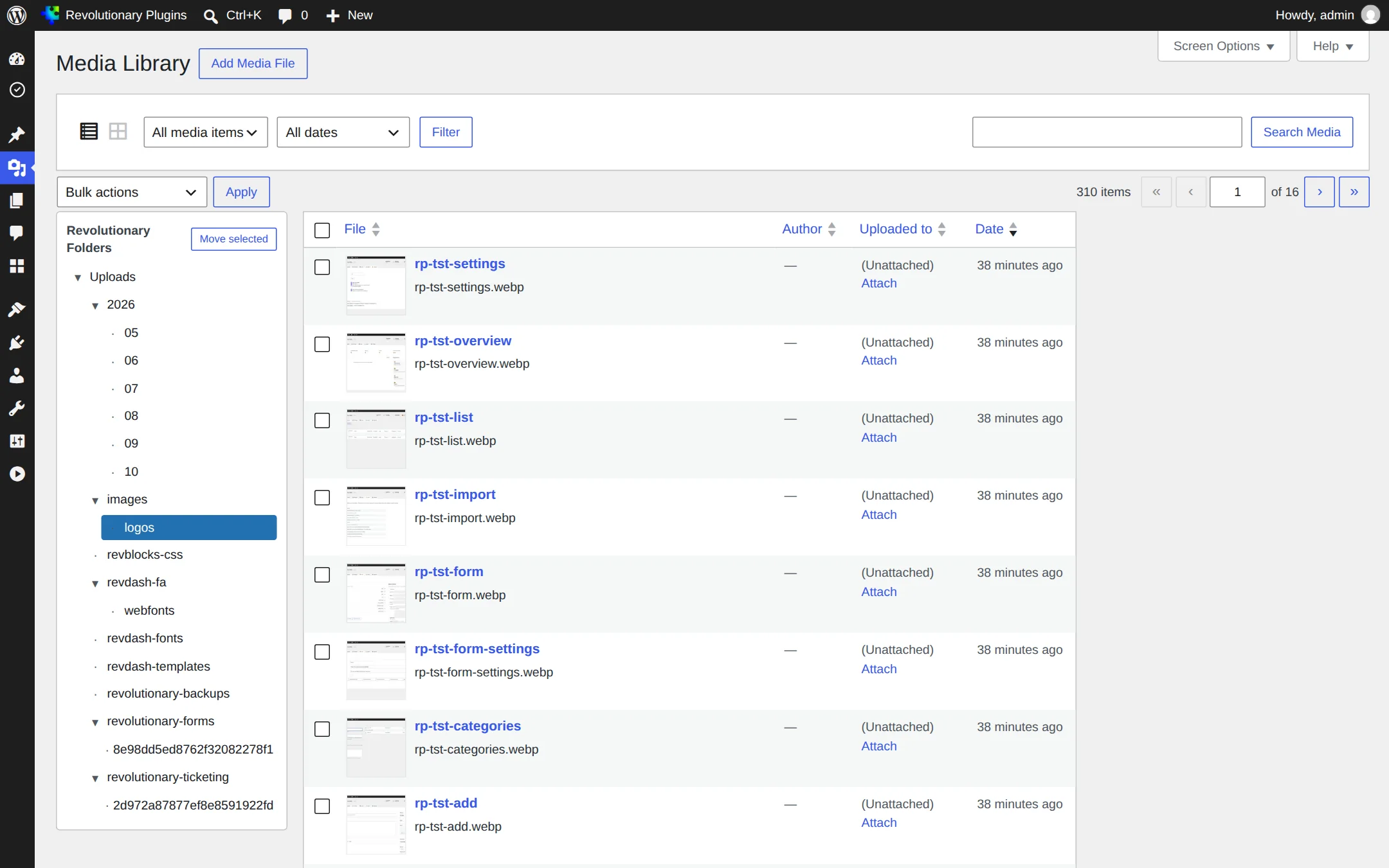
Media Library list view
Switch the Media Library to list view to see a folder tree beside the table. Tick files and click Move selected to move them into a folder.
Block editor media window
When you add an image in the block editor, the media window has a folder dropdown. Choosing a folder filters the library to it and sends new uploads there.
For developers
REST API and WP-CLI
Everything in the Folder Manager is also available from code. See the REST namespace revolutionary-folders/v1 and the wp revfolders commands.
REST API
| Route | Methods |
|---|---|
/folders | GET, POST, DELETE |
/folders/rename | POST |
/folders/selected | GET, POST |
/media | GET, DELETE |
/media/<id> | GET, POST |
/media/move, /media/copy, /media/rename | POST |
/media/sync, /media/regenerate | POST |
Every route needs the upload_files capability and a wp_rest nonce. Destructive routes also check edit or delete rights on each item.
WP-CLI
| Command | What it does |
|---|---|
wp revfolders tree [--format=] | Shows the folder tree |
wp revfolders create <name> [--parent=<path>] | Creates a folder |
wp revfolders rename <path> <new-name> | Renames a folder |
wp revfolders delete <path> [--yes] | Deletes a folder and the items inside |
wp revfolders select [<path>] | Sets the upload folder |
wp revfolders list [<path>] [--format=] | Lists media in a folder |
wp revfolders move <ids>... --to=<path> | Moves media |
wp revfolders copy <ids>... --to=<path> | Copies media |
wp revfolders sync <path> | Registers loose files |
wp revfolders regenerate <ids>... | Rebuilds image sizes |
Troubleshooting
Common questions
Renaming needs edit rights on every item inside the folder.
SVGs are only imported when Revolutionary Security is active with SVG uploads on, and each file must pass sanitization.
The panel beside the table appears in list view only. Switch the Media Library to list view.
No folder is selected for your account. Open the Folder Manager and click the folder you want. The Dashboard shows Upload routing: Root until you do.
No. Sync only registers files as Media Library items. It does not rewrite post content.
Stuck on something?
Search the forums, open a ticket, or write to us. A real person reads every message.