

Documentation · Revolutionary License Server 0.16.7
Set up your own license server.
Products, licenses and releases, in one place.
A complete guide to selling a WordPress plugin or theme: products, checkout, licensing, releases and the settings behind all of it.
Released version 0.16.7
Current release setup and checks
Manage licenses, activation limits, products, subscription checkout and software updates.
- The customer account and checkout success screen use the theme color mode and the Revolutionary Plugins brand.
- The revolutionary_version shortcode reads the published product version from the release source.
Check your setup
- Configure product and release records in your own test installation before connecting a payment provider.
- Verify activation limits, update entitlement and expired-license behavior with test licenses. Do not expose license keys or payment credentials in screenshots.
Watch the walkthrough
Add an archived demo product to the License Server catalog
Create a fictional archived catalog product in Revolutionary License Server and verify its saved settings. No license key, payment credential, checkout or update endpoint is created or connected.
Recording release: 0.16.5. Captured on an isolated demonstration site.
Chapters
Quick start
Up and running in minutes
Step 1
Create a product
License Server, Products, Add New. Set a price, billing interval and activation limit.
Step 2
Connect a payment processor
License Server, Settings, Stripe (or Square). Paste your test keys first and place a test purchase before switching to live.
Step 3
Publish your first release
License Server, Releases. Upload a zip, or add a repository source and push to it.
Step 4
Put the checkout on a page
Add the Pricing widget (Revolutionary Blocks) or the [rls_pricing] shortcode to any page.
On this page
Start here
Where everything lives
Everything is under Revolutionary Plugins, License Server in wp-admin: Dashboard, Licenses, Add License, Products, Releases and Settings.
What each screen is for
- Dashboard: totals and recently created licenses
- Licenses: search, filter, bulk actions and CSV export of every license issued
- Add License: issue one license by hand
- Products: what is for sale, and its price, interval and activation limit
- Releases: upload zips, or manage a repository source that syncs them for you
- Settings: Stripe, Square, email, update source and security
Start selling
Products
A product is what is sold at checkout: a name, a price, a billing interval, an activation limit, and the Stripe or Square identifiers it maps to.
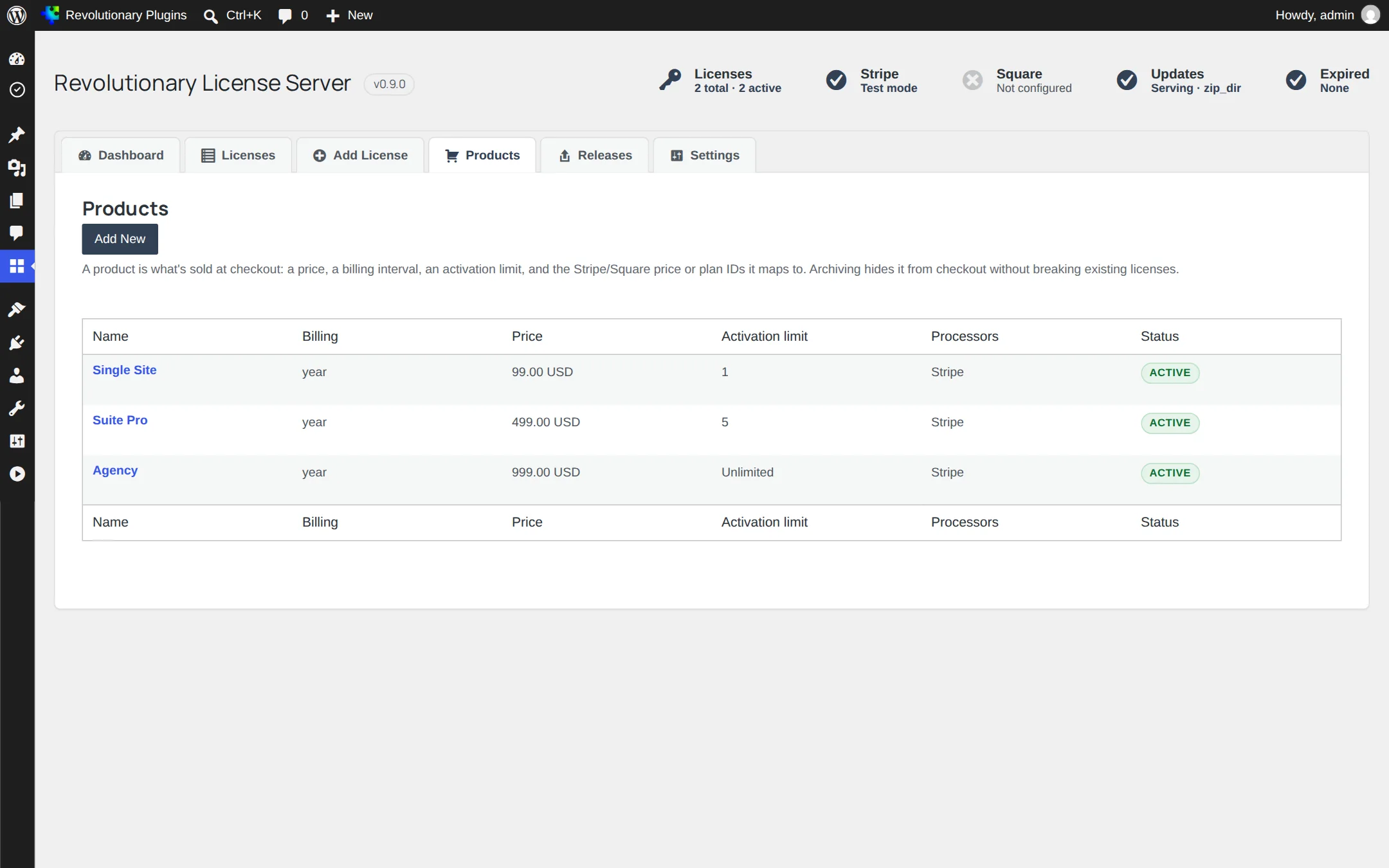
Adding one
License Server, Products, Add New. Choose a billing interval (one time, monthly, yearly, or every N periods), an activation limit (how many sites one license may activate), and paste the matching Stripe test and live price IDs. Square needs a sandbox and a production plan variation ID if you take it.
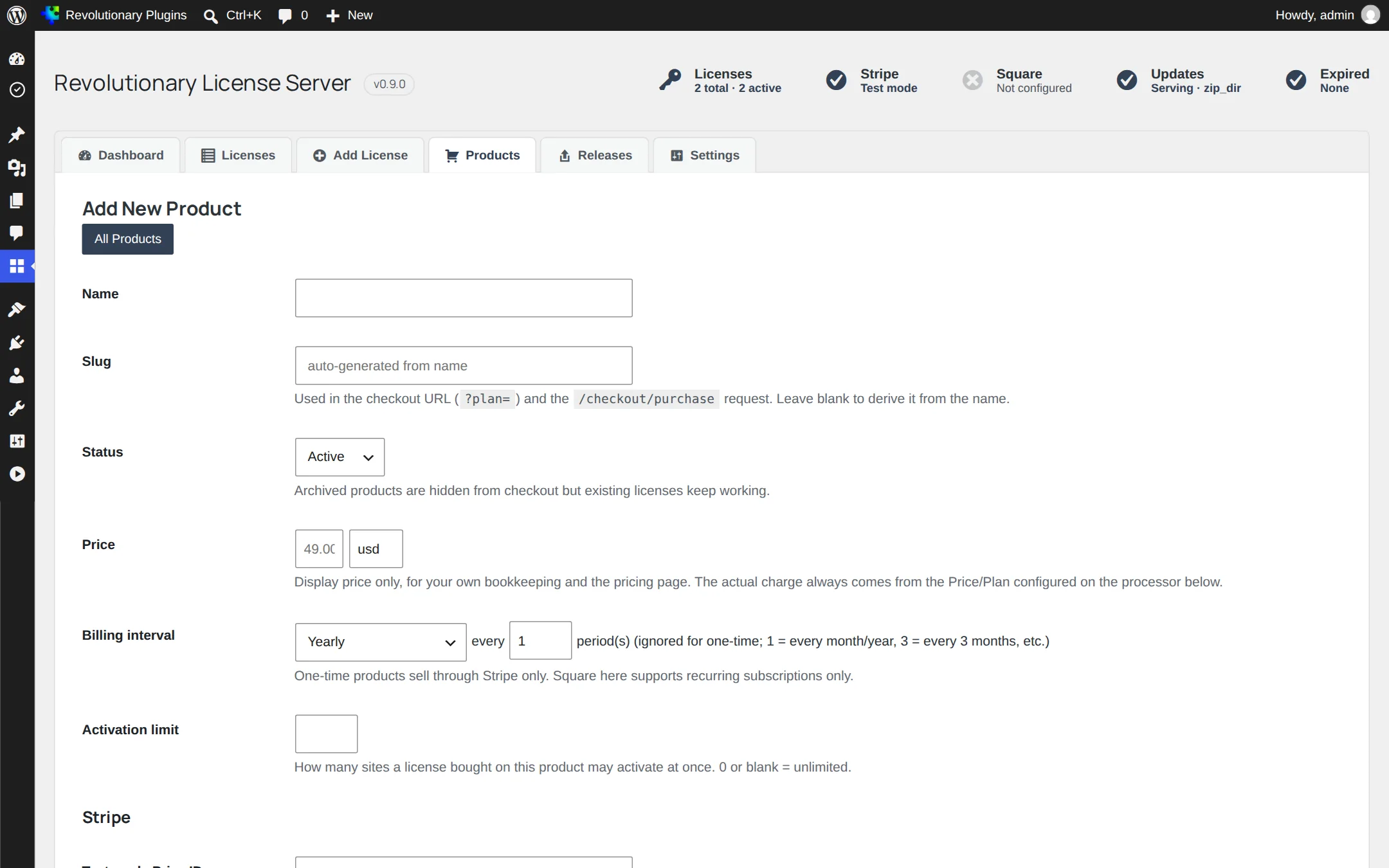
Issue and manage
Licenses
Every license, whether it came from a sale or was created by hand, lives in one searchable list.
Adding one by hand
License Server, Add License. Pick a product to inherit its activation limit, or set your own. Useful for reviewers, partners and support cases.
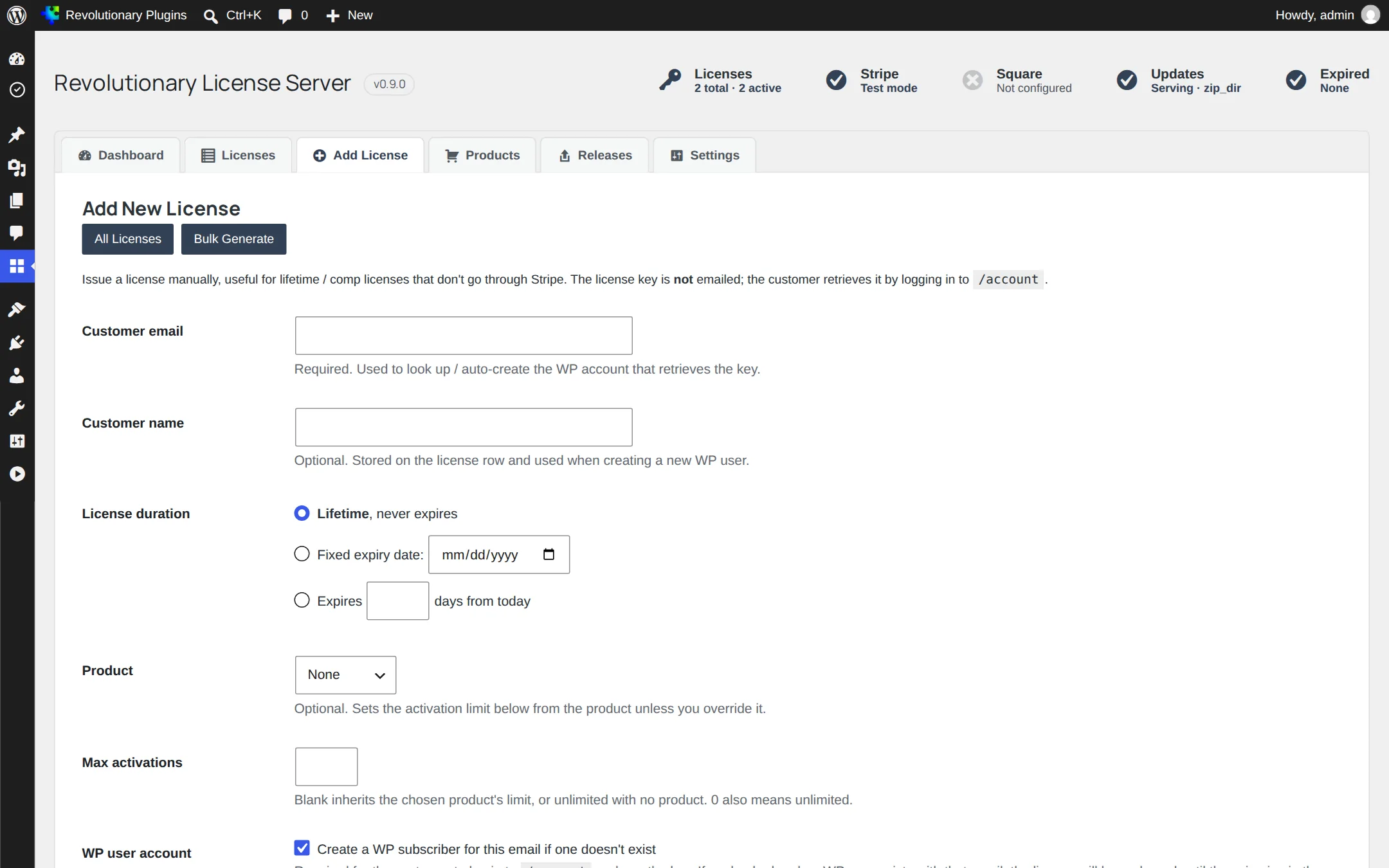
Bulk Generate
Create up to 500 licenses in one run, as unclaimed pool keys (the first client to activate one claims it) or all issued to a single customer. The new keys are shown once, in a copyable list, so save them before leaving the screen.
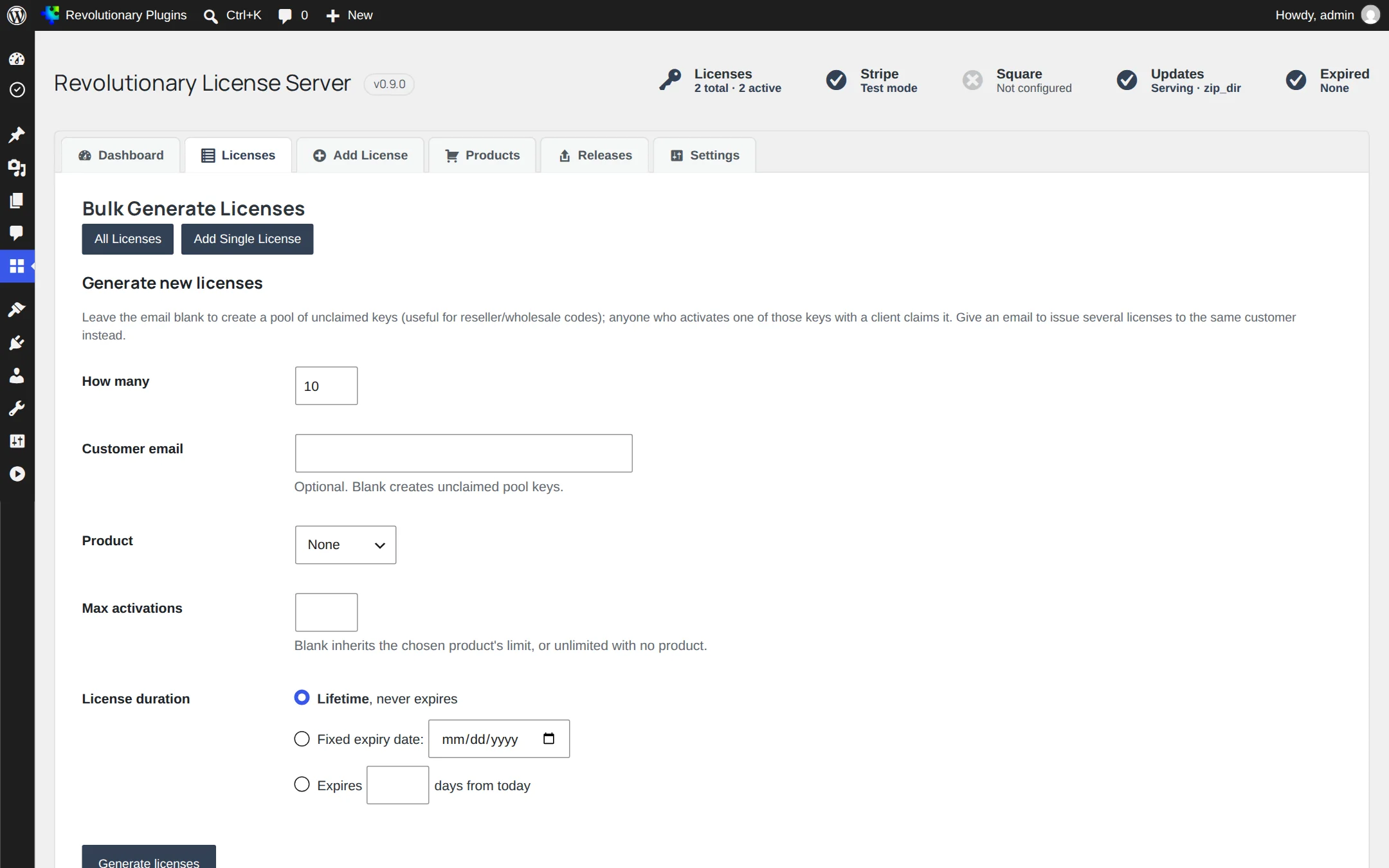
Import, export and bulk actions
Import licenses from a CSV (license_key, customer_email, expires_at, max_activations and product_slug, all optional), export the current filtered list to CSV, or select rows and mark them active, canceled, or delete them.
Ship updates
Releases
Two ways to publish a new version: upload a zip, or let a repository stay in sync on its own.
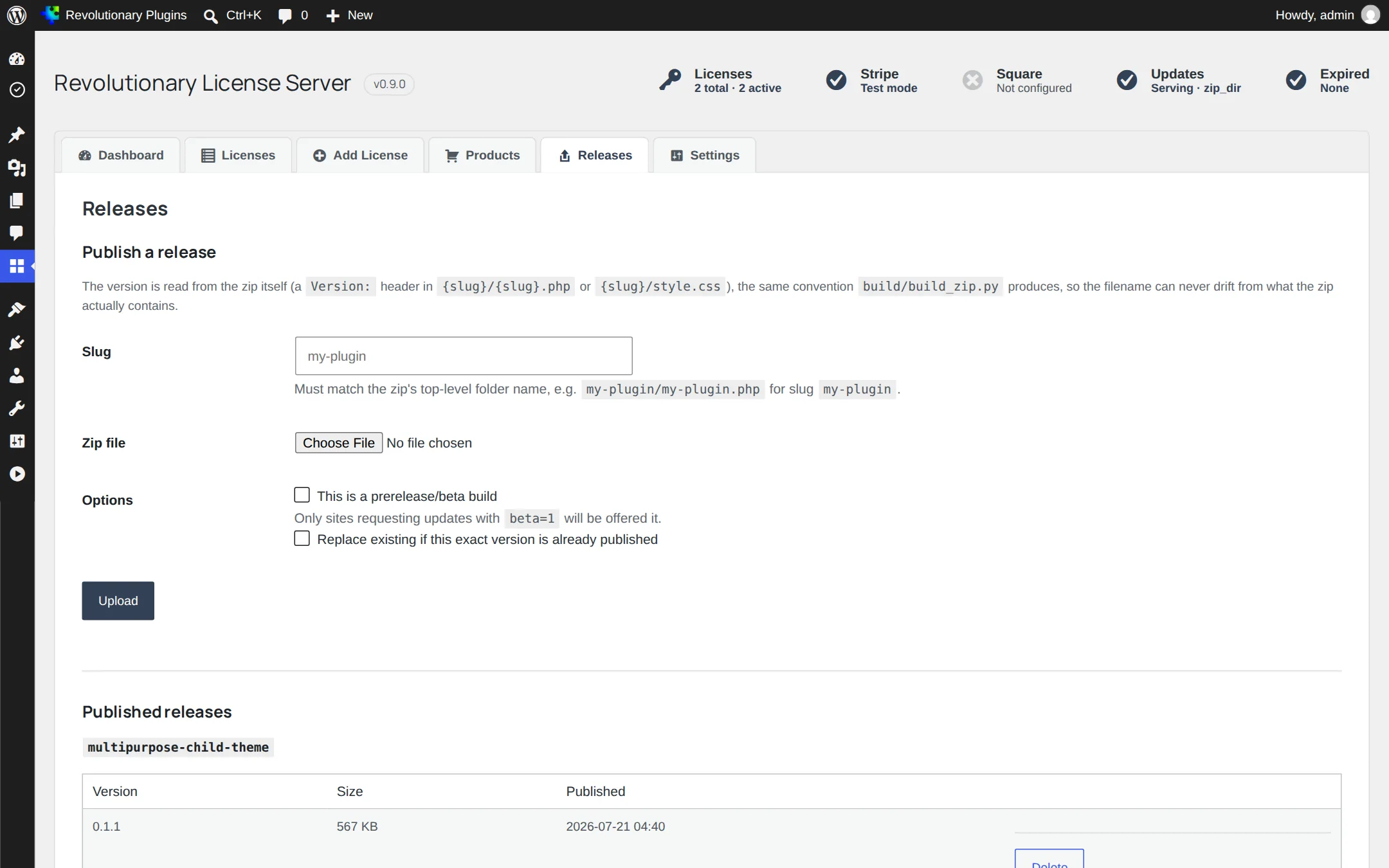
Uploading a zip
Choose the product slug and the zip. The version is read from the zip's own Plugin Name or Theme Name header, so a mistyped filename can never claim a version the zip does not contain. Uploads over 200 MB, zips missing the expected header, or an exact version already published are refused; check Replace existing to overwrite on purpose.
Repository sources
Point a product slug at a Gitea or GitHub repository (a personal access token for a private repo, nothing needed for a public one). The server keeps that slug's working tree cloned and current on every push, verified against a signature Gitea or GitHub sign themselves, with a manual Sync Now button for whenever you do not want to wait for a push.
Beta channel
Check the prerelease box on an upload and it is only offered to sites that send beta=1 on their update check. Stable installs never see it.
Stripe, Square, email and security
Settings
One screen, four sections: Stripe, Email, Updates and Security.
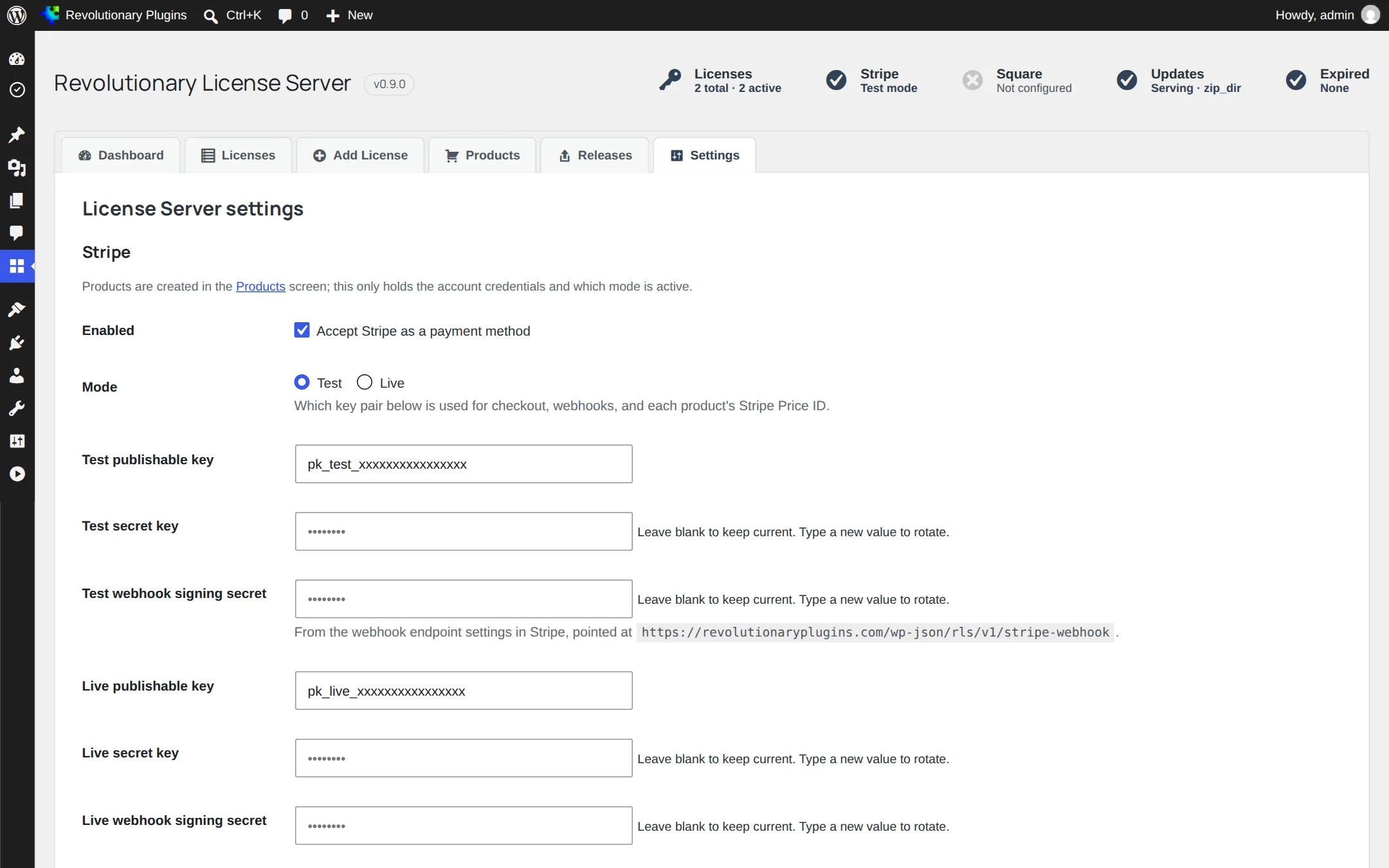
Stripe
Publishable and secret keys, a subscription price ID and an optional lifetime (one-time) price ID, plus the webhook signing secret from Stripe's own webhook settings. A sandbox/live mode switch replaces guessing from the key prefix.
Updates
Where release zips live, the setting the Releases screen's uploads write to. A directory of zips or a per-product repository source, chosen per product.
Security
How visitor addresses are resolved for the invalid-key lockout and the audit log. When Revolutionary Security is active, its resolver decides, so the two plugins always agree; otherwise set your own trusted proxies here.
Customer access
Customer account and sign-in
Place the Customer Account widget on the published account page. It offers regular sign-in, password reset and emailed sign-in links.
Create account appears only when WordPress Settings, General allows registration. New accounts receive the Subscriber role. Customer accounts go to the account page instead of wp-admin; staff retain their normal dashboard access.
Use the Content tab to choose section order. License details include subscriptions and active sites. The optional Orders section reads Revolutionary Ecommerce orders. Empty Style fields inherit the theme colors.
Check the actual account page
The plugin finds the published page containing its account widget or shortcode. Test an emailed link with an account you control; do not assume that the address is /account/.
Products
Syncing a Stripe catalog
Sync from Stripe imports active products and default prices for the selected test or live mode.
- 1. Configure the correct Stripe mode on your own test installation.
- 2. On Products, choose Sync from Stripe. Review the matched products and prices.
- 3. Set each product activation limit and enable it only when it is ready to sell. New imports are archived by default.
- 4. Configure product and price webhooks so later changes can synchronize.
The sites metadata on a Stripe product can set its activation limit, including unlimited. A manual archive is not re-enabled by sync. Daily and weekly billing intervals are skipped by this product model.
Payment configuration
Optional Stripe Tax
Sales tax is an opt-in Stripe setting for an operator's own store. This guide changes no settings on Revolutionary Plugins.
Enable Stripe Tax in the Stripe account and set the tax behavior on each price before enabling Sales tax in the plugin. Checkout then collects the billing location and subscriptions use automatic tax.
Available payment paths change
While sales tax is on, Square checkout and one-time purchases are disabled because those paths do not handle this tax flow. Test the intended subscription and refund path in sandbox before enabling it for customers.
Optional program
Affiliate settings and payouts
Customers can join from their account page, receive a referral link and connect payout details through Stripe Connect Express.
Review the commission rate, cookie duration, hold period and minimum payout in Settings. Commissions wait through the configured hold, and refunds can reverse or claw them back. When Stripe supplies the amount before tax, that amount is used as the commission base.
- 1. Configure the program on your own test installation.
- 2. Test referral attribution, a refund and the held balance with fictional records.
- 3. Review the payable balances before using Run payouts. A successful button response alone does not establish receipt by the affiliate.
Troubleshooting
Common questions
Check Licenses for their key: expired, canceled, or over its activation limit all refuse the update endpoint. The audit log shows the exact reason for the most recent check.
The screen shows exactly why: a missing Plugin Name or Theme Name header, a slug that does not match the zip's top-level folder, or that exact version already published. Fix the cause and upload again.
Yes, set both sets of identifiers on the same product. Checkout offers whichever processors have a price configured.
You do not set one by hand. Adding a repository source generates the webhook URL and secret for you; paste the URL into the repository's own webhook settings.
Stuck on something?
Search the forums, open a ticket, or write to us. A real person reads every message.