

Documentation · Revolutionary Security 1.32.4
Every setting, explained.
All twelve modules.
A complete guide to all twelve modules: what each setting does, what it is set to out of the box, and how to set it up for your site.
Released version 1.32.2
Current release setup and checks
Protect WordPress with login controls, a firewall, activity records, file checks and spam protection.
- Security Headers includes optional cross-origin isolation. Test embedded services before enabling it.
- The reCAPTCHA v3 notice can be shown beside protected forms. The setting controls the notice, not whether protection runs.
Check your setup
- Review Health Check for security headers on static files as well as WordPress responses.
- Submit a harmless test through each protected form after changing CAPTCHA settings. Do not use real customer data.
Quick start
Up and running in minutes
Step 1
Install and activate
Upload the plugin or install it from the Revolutionary Plugins menu. Fourteen protections switch on immediately.
Step 2
Turn on the firewall
Security, Firewall. Flip the master switch. All 11 rules come on together. Behind Cloudflare? Set the trusted IP source first.
Step 3
Lock down logins
Security, Login Protection. Enable lockouts, and consider a custom login address and required two-factor for admins.
Step 4
Set your alert address
Point file change, vulnerability and new-admin alerts at an inbox that does not live on this site.
On this page
Start here
Where everything lives
Everything is under Revolutionary Plugins, Security in wp-admin. Twelve tabs run across the top, in this order: Captcha, Activity, Login Protection, Firewall, Spam, SVG Uploads, Version Privacy, Health Check, Hardening, Security Headers, File Integrity and Country Blocking. The status bar above them shows whether Captcha, Login Protection, Two-Factor and the Firewall are on.
On from the moment you activate
- Version privacy (generator tags removed, version stamps masked)
- File integrity monitoring and WordPress core verification
- Known vulnerability checks (with a license)
- Admin activity log and new administrator alerts
- Password policy and leaked password blocking
- XML-RPC restricted to application passwords
- Security headers (HSTS, nosniff, referrer, permissions, frame protection)
- Theme and plugin file editor turned off, discovery links removed
- PHP blocked in uploads (Apache and LiteSpeed)
- Math captcha on login, registration, lost password and comments, with rate limiting
Secure Everything, and the at-a-glance grid
On the main dashboard, one click turns on every protection that needs no further input: Login Protection, Two-Factor, Firewall, Spam Protection, User Enumeration Protection, Auto-Ban, File Integrity, Version Privacy, Vulnerability Monitoring, Password Policy, Admin Activity Log, Hardening's file-editor, discovery-link, uploads and readme rules, and Security Headers. It only ever switches something on, so running it again after fine-tuning changes nothing you already set. Deliberately left for you to decide: SVG Uploads, Country Blocking, a custom login address, signed-in-only REST API and the Content Security Policy mode. Below the button, a grid of chips shows every feature's current state and links straight to its settings.
Module 1 of 12
Captcha
Choose one challenge for every protected form, pick which forms get it, and optionally load it site-wide for third-party forms.
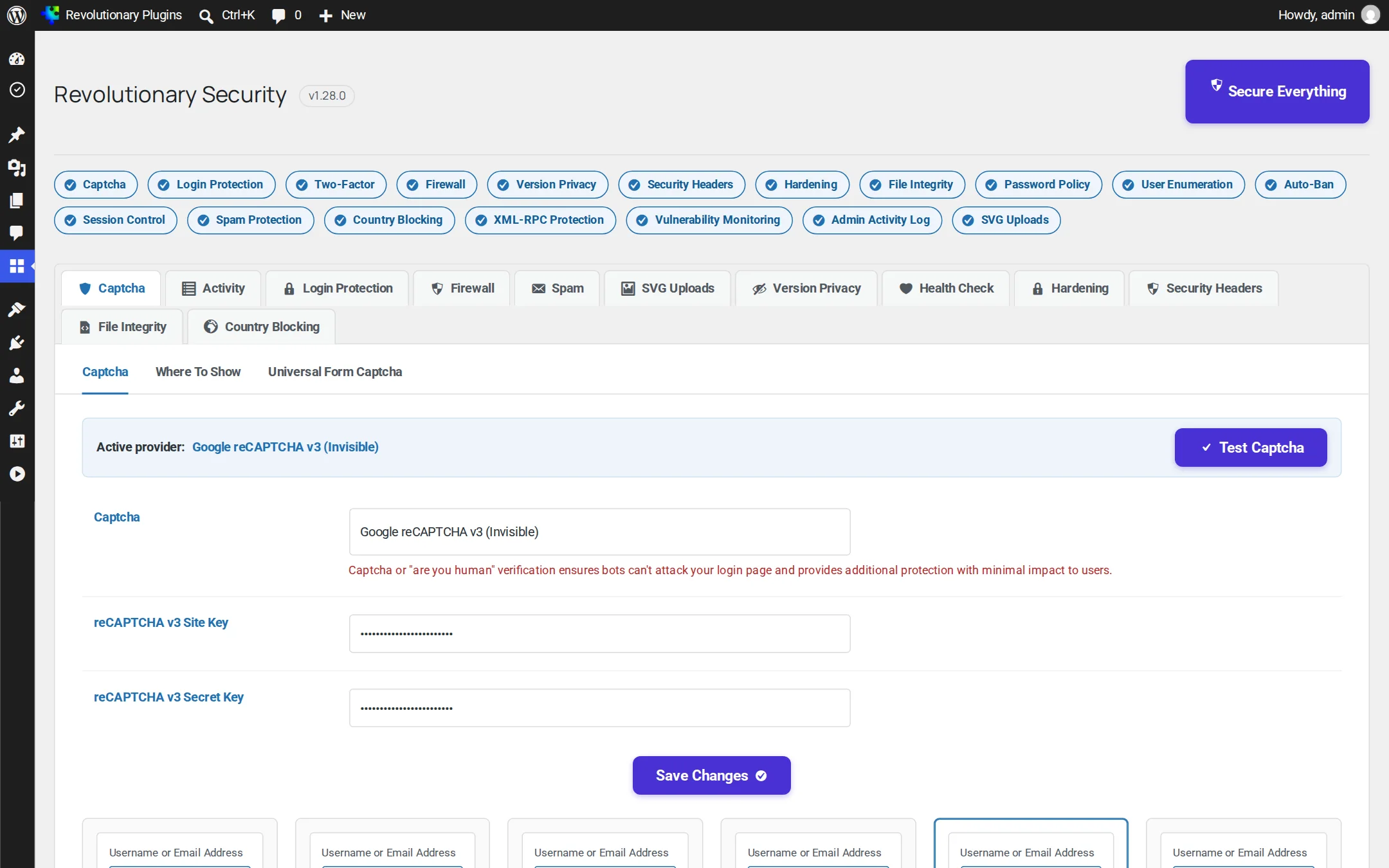
Choose a provider
Pick from nine providers: Math (built in), Image, Question, Slider, Honeypot, reCAPTCHA v2, reCAPTCHA v3, hCaptcha or Cloudflare Turnstile. Keyed providers show Site Key and Secret Key fields for the one you select.
- 1. Open Security, Captcha.
- 2. Click a provider card or choose one from the dropdown.
- 3. For reCAPTCHA, hCaptcha or Turnstile, paste your site and secret keys.
- 4. Click Test Captcha. The tester renders the challenge and verifies it for real, and explains any key error with fix steps.
- 5. Save.
Where to show it
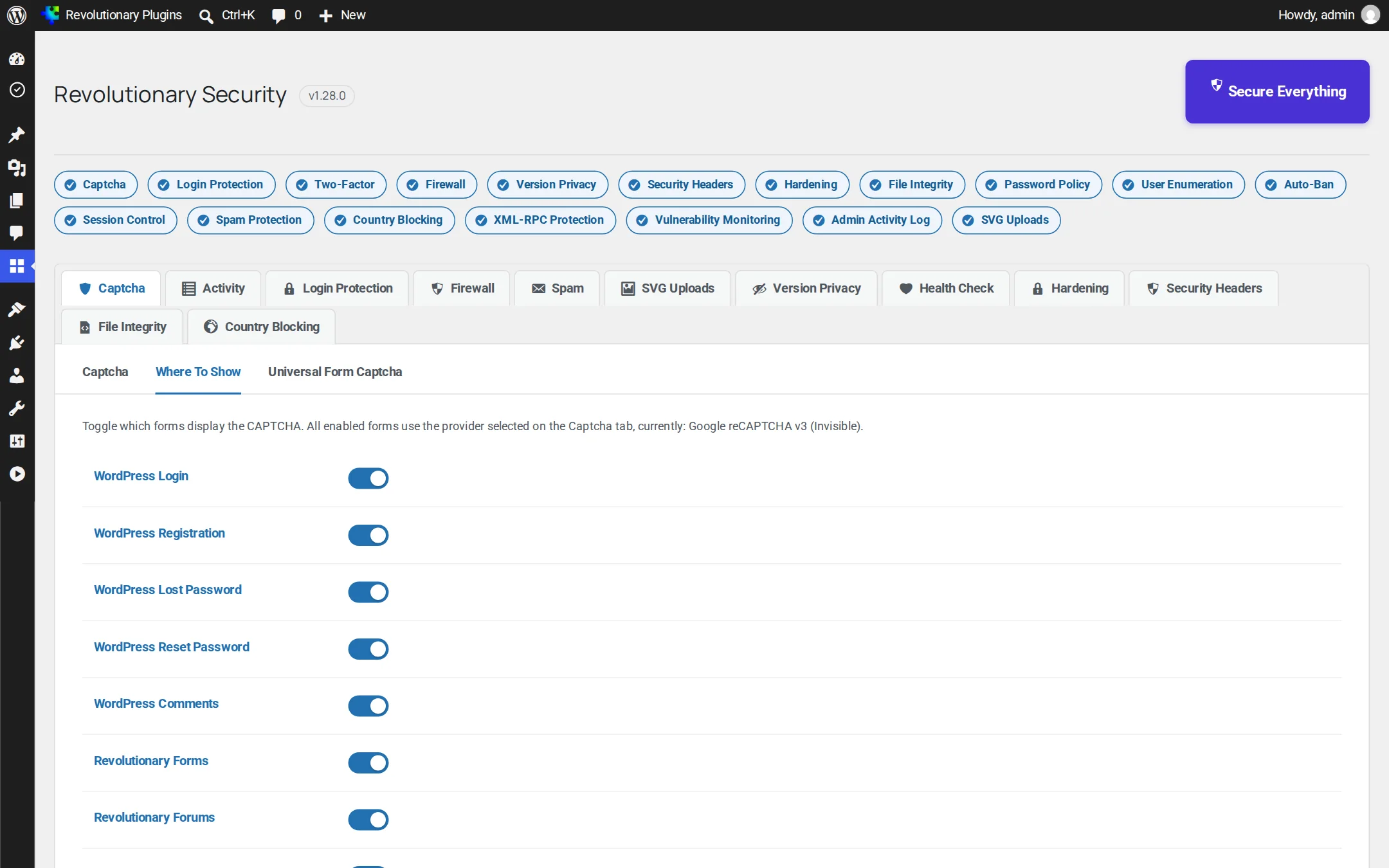
Each form has its own switch. On by default: WordPress login, registration, lost password and comments. Off by default: reset password, Revolutionary Forms, Forums, Ticketing and eCommerce.
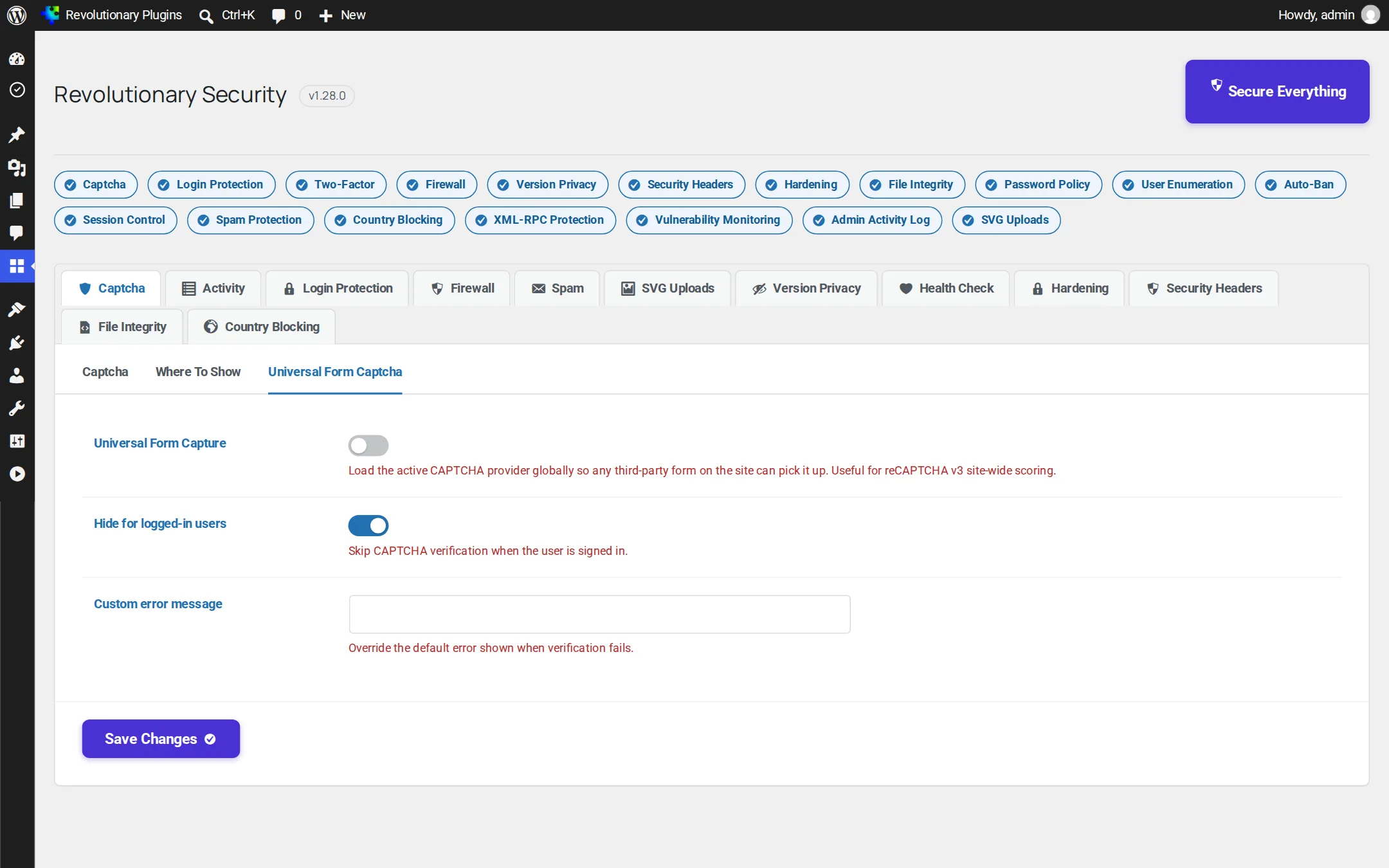
Universal form captcha
Loads the active provider on every page so other forms (and reCAPTCHA v3 scoring) can use it. You can hide it for signed-in users and set your own error message.
Rate limiting
Five failed captchas from one address on a form within 15 minutes locks that form for that address for 30 minutes. This is always on.
Module 2 of 12
Activity
Four views of what is happening on your site: access locks, successful logins, failed logins, and the admin activity log.
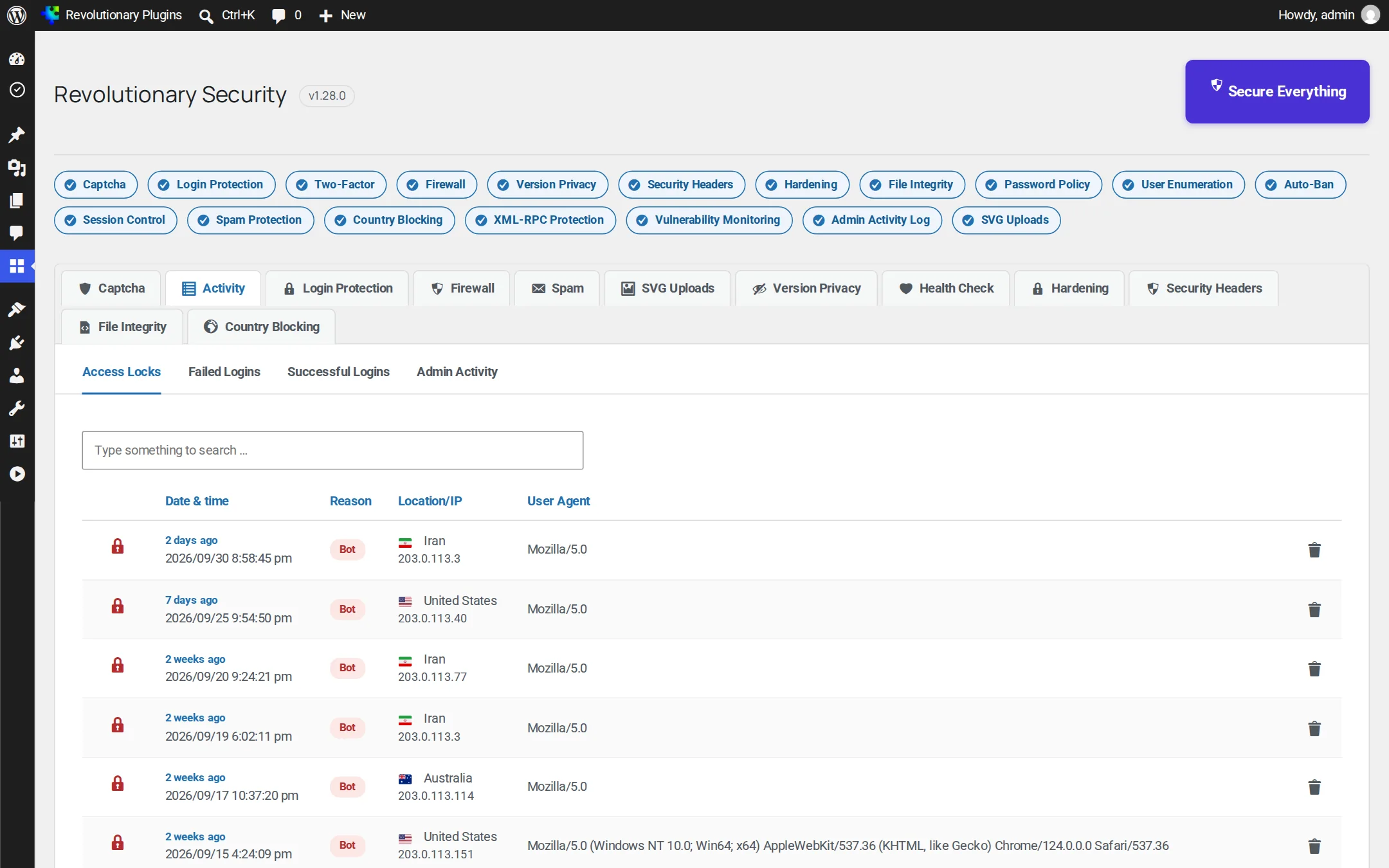
Access locks and failed logins
Every lockout with its date, reason, IP and country, user agent and time. Failed Logins also lists wrong passwords and unknown usernames with the account that was tried, alongside failed captchas, and is recorded whether or not Login Protection's lockouts are on. Search the list, keep entries from 1 to 12 months (30 days by default), export to CSV or clear it.
Successful logins
Every completed sign-in, in the same layout as Failed Logins: the account, how it signed in (Password, or Password plus a passkey, authenticator app or emailed code), location, IP address and browser. A sign-in that stops at the two-factor step is not listed until the second factor is passed.
Admin activity
Records who created or deleted users, changed roles, passwords, emails or application passwords, installed, updated or removed plugins and themes, updated WordPress, or changed the site address, admin email, registration or security settings. Each entry notes whether it came from the dashboard, REST API, XML-RPC, WP-CLI or a scheduled task.
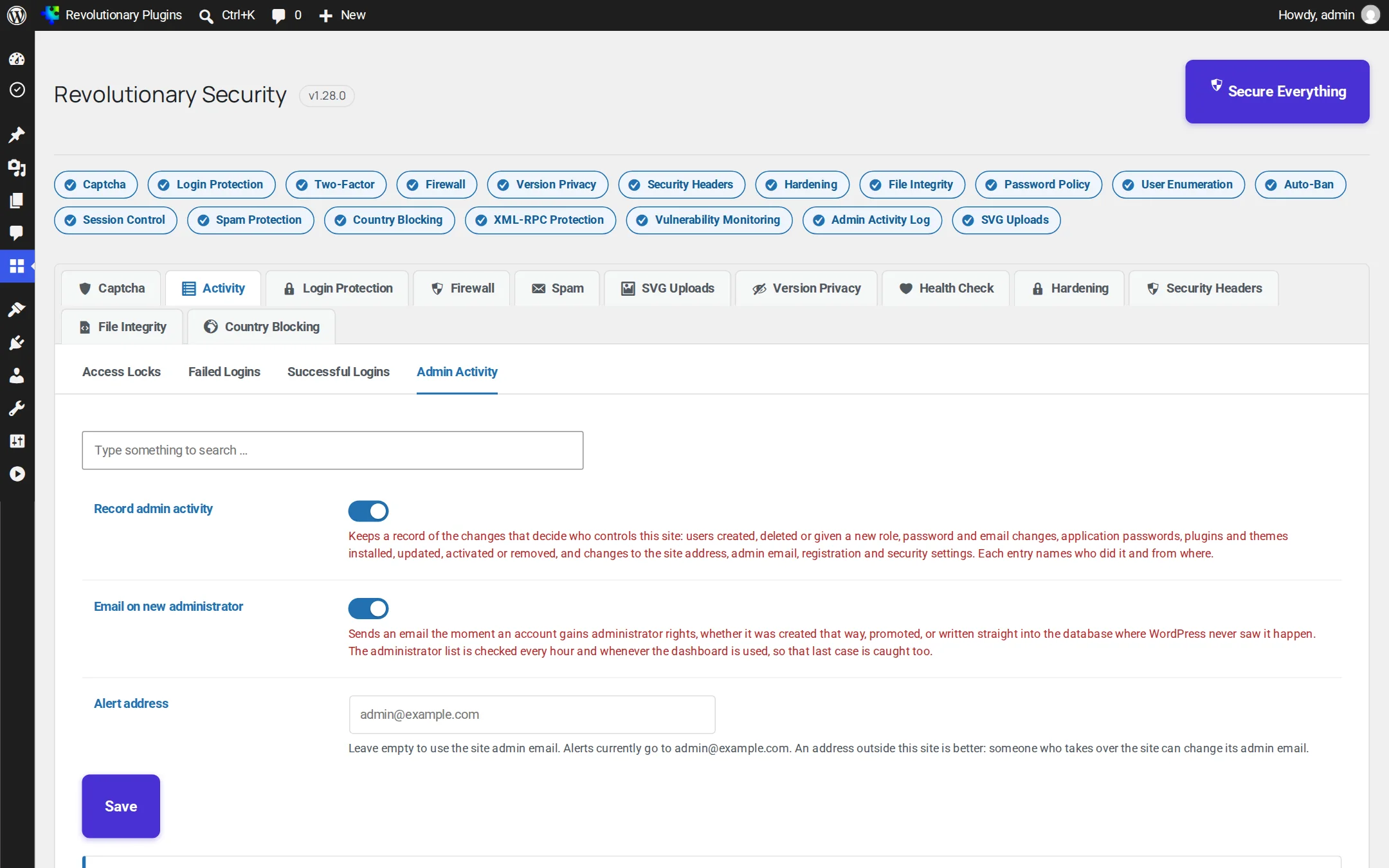
New administrator alerts
On by default. You get an email whenever any account gains administrator rights, even one inserted directly into the database, because the administrator list is re-checked every hour. The Administrators now panel shows the current list.
Module 3 of 12
Login Protection
Eight sub-tabs: Basic, Advanced, 2FA, Passwords, Sessions, User Enumeration, IP Bans and Tools.
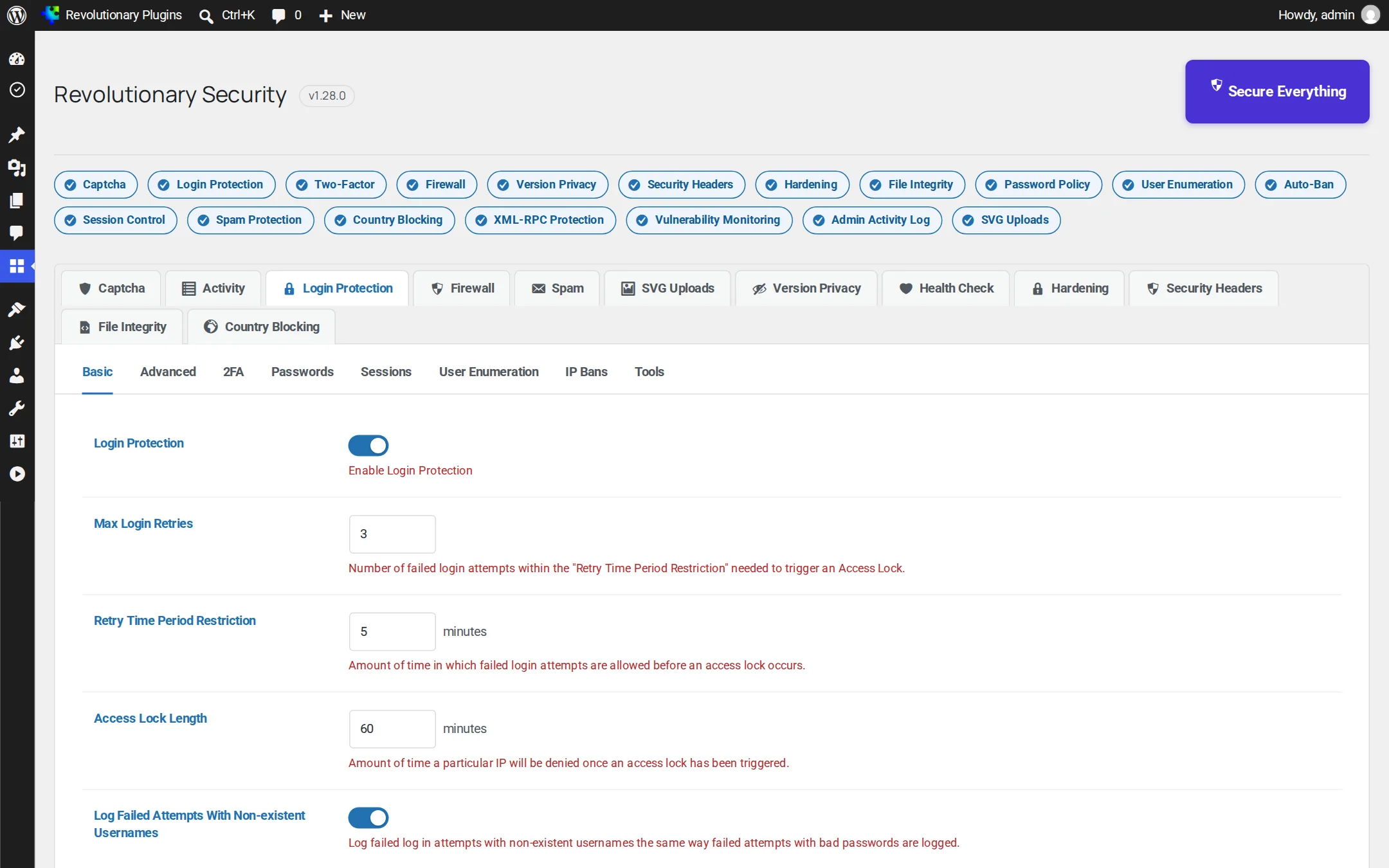
Basic: brute-force lockouts
| Setting | Default | What it does |
|---|---|---|
| Enable Login Protection | Off | Master switch for lockouts |
| Max Login Retries | 3 | Failures allowed before a lock |
| Retry Time Period | 5 minutes | Window the failures are counted in |
| Access Lock Length | 60 minutes | How long the IP stays locked |
| Log non-existent usernames | Off | Counts guesses at usernames that do not exist |
| Mask Login Errors | Off | Hides which part of the login was wrong |
| Block Type | Login page | Lock the login page only, or the whole site |
| Whitelisted IPs | Empty | Never locked; also honored by bans and country blocking |
Advanced: custom login address
Move the login page to a secret slug. Afterward wp-login.php, signed-out /wp-admin, /login and /admin return 404, and every WordPress link (reset emails, logout, the 2FA form) uses the new address. The new address is emailed to the admin whenever it changes. Slugs must be 3 to 64 characters, and names like login, admin and dashboard are refused. Not available on multisite.
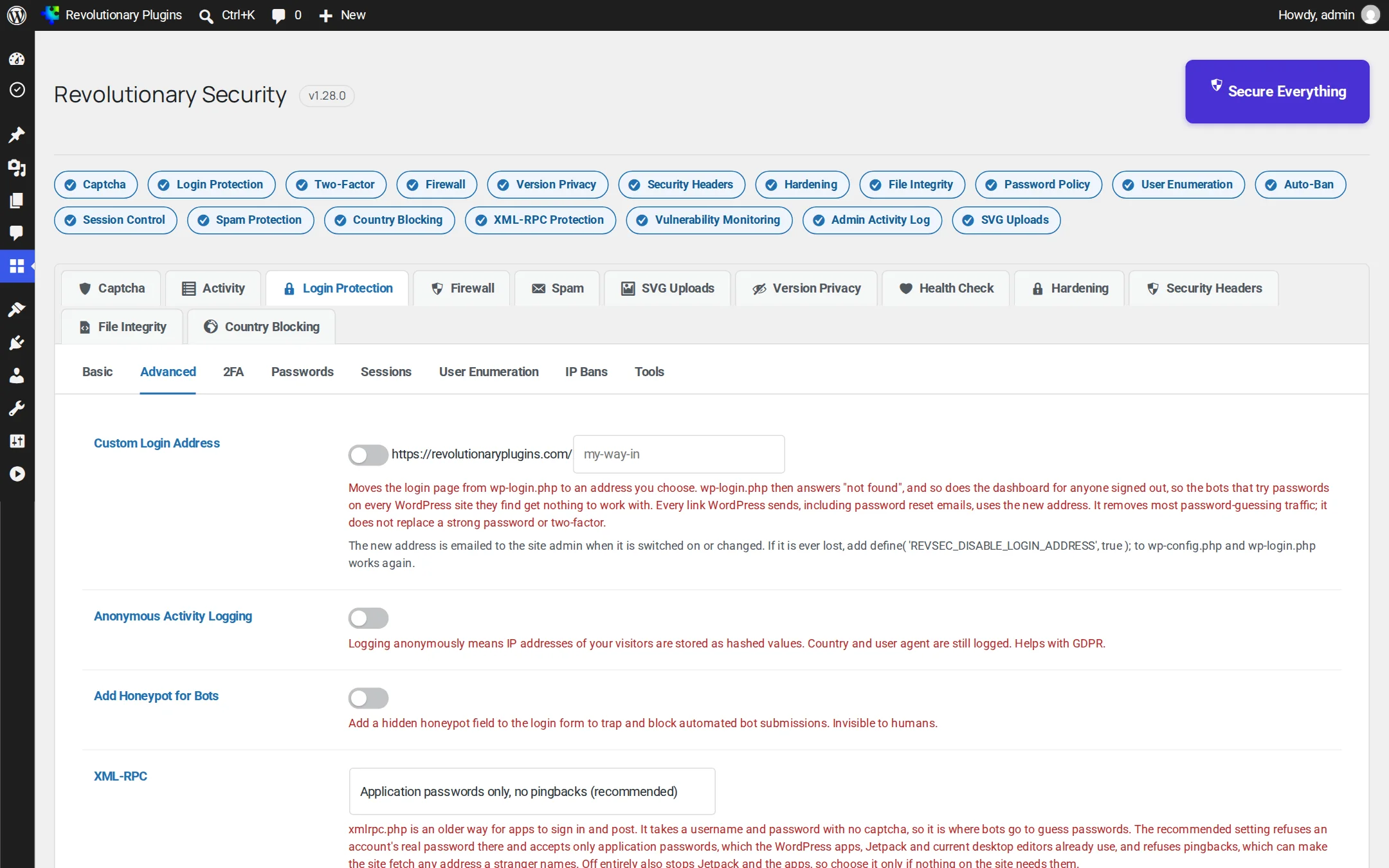
Advanced: XML-RPC
Restrict (default) accepts application passwords only and refuses pingbacks. Off entirely refuses every request and stops advertising the endpoint. WordPress default allows everything. The same sub-tab also has anonymous (hashed) IP logging, a login honeypot, and a switch to wipe plugin data on delete.
2FA: email, apps and passkeys
Turn on email two-factor and choose which roles must use it (administrators by default). Authenticator apps and passkeys are enabled by default; each user sets them up on their own profile page with a QR code or their device's passkey prompt.
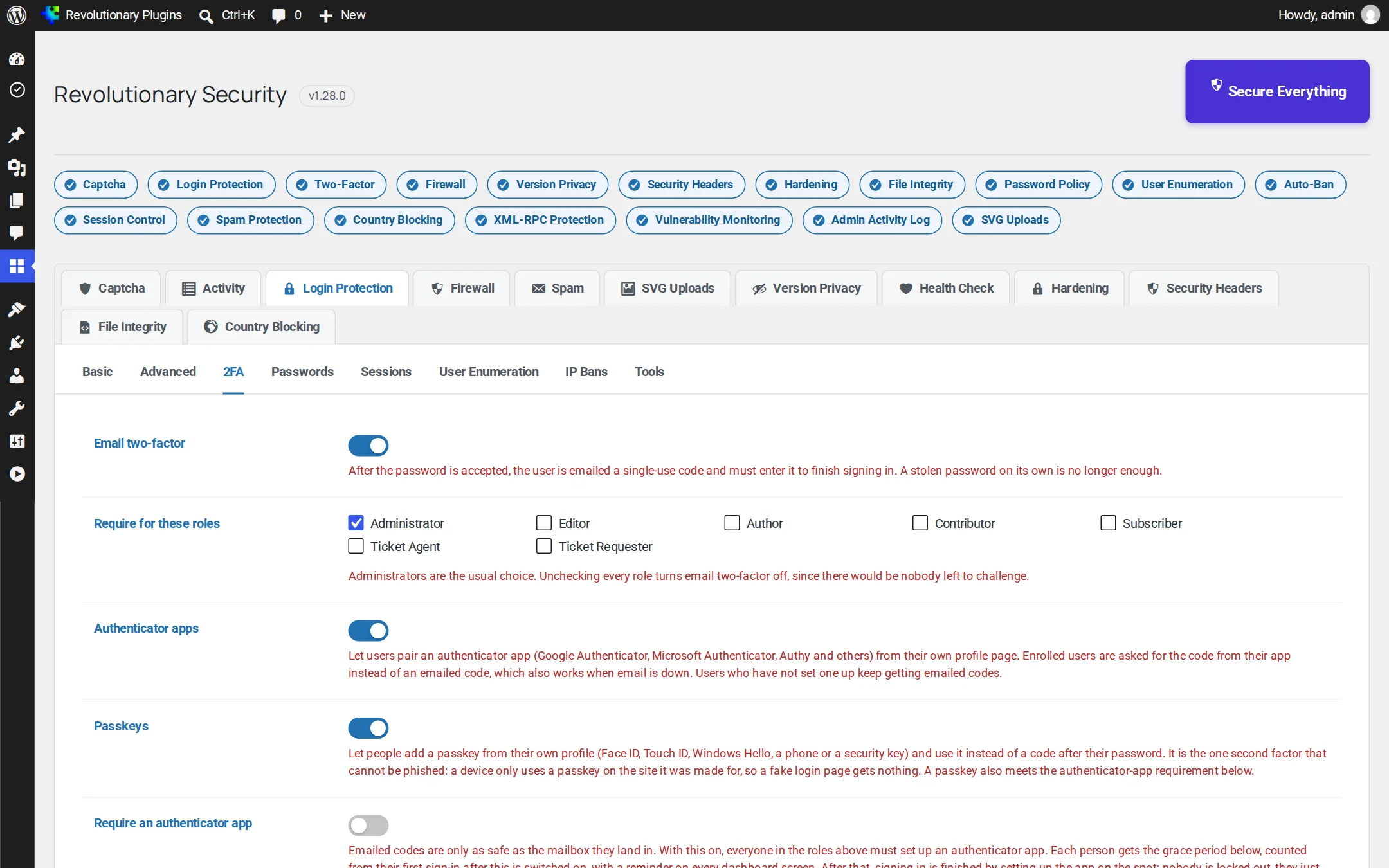
- Require an authenticator app or passkey for chosen roles, with 0 to 90 days to set it up (14 by default) and a dashboard reminder.
- Email backup for app users shows an Email me a code instead link.
- Code lifetime 1 to 60 minutes (10 by default), 1 to 10 attempts per code (3 by default).
- If a code cannot be emailed, choose Allow (at most once per hour per account, logged) or Refuse.
- Accounts that need 2FA can only sign in through the main login page. XML-RPC and front-end password logins are refused for them; application passwords still work.
Passwords
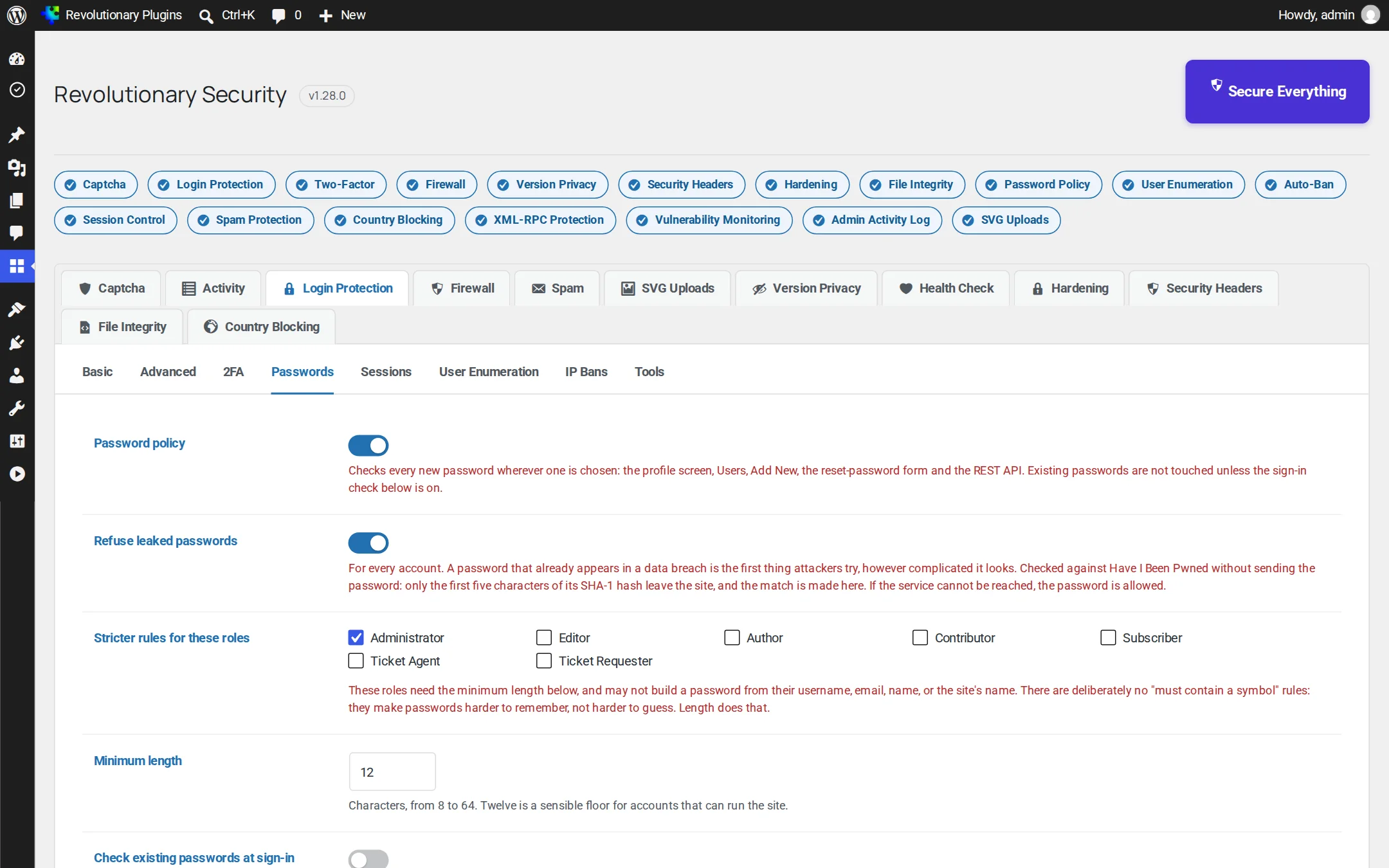
The password policy checks every new password (profile, Add New user, reset form and REST API). Leaked password blocking checks Have I Been Pwned using k-anonymity, so only five characters of a hash leave your site. Stricter rules apply to chosen roles: a minimum length (12 by default, 8 to 64) and no passwords built from the username, email, name or site name. Optionally recheck existing passwords monthly at sign-in.
Sessions
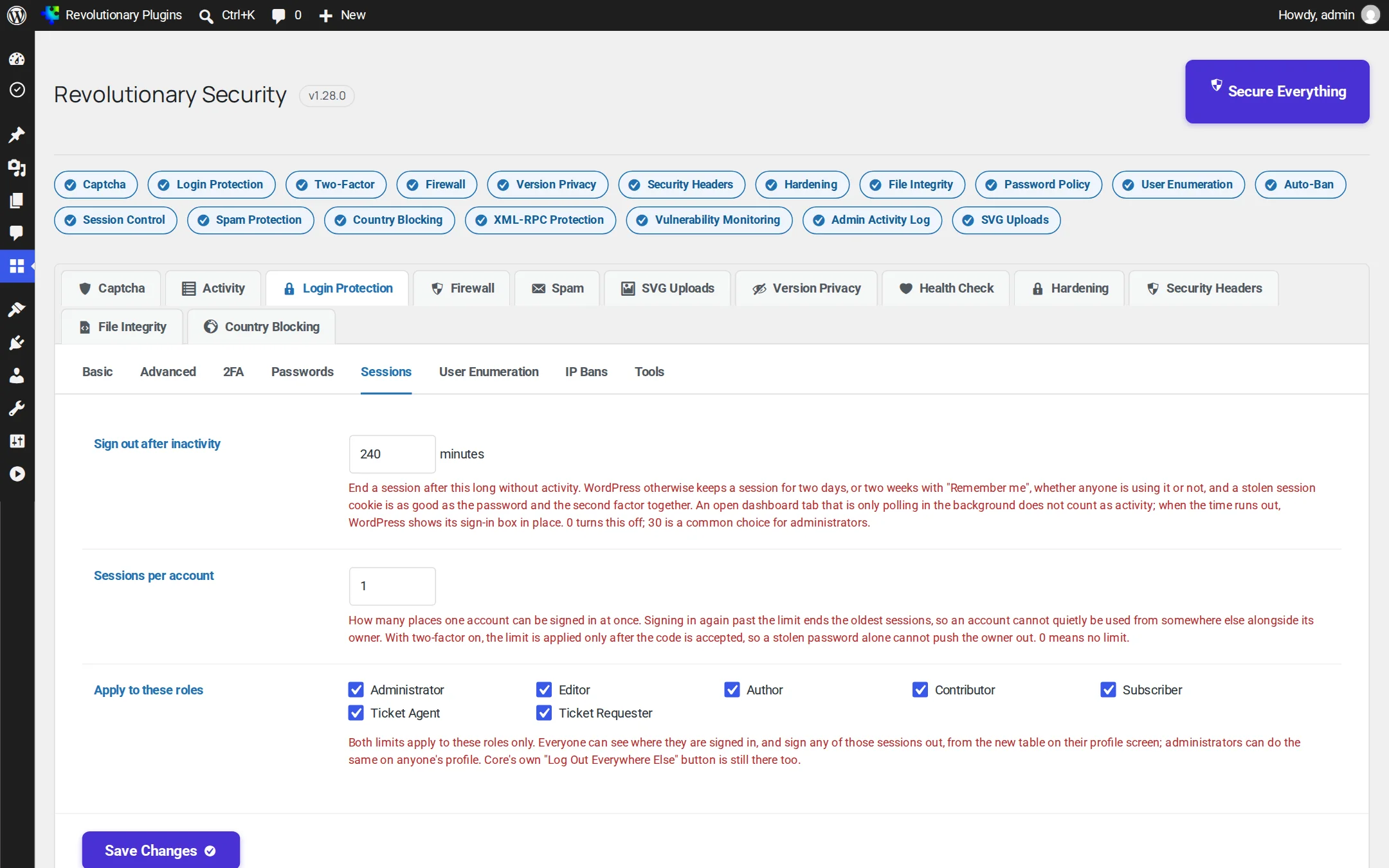
Sign out after inactivity (0 to 1440 minutes, off by default) and limit sessions per account (0 to 20). Apply both to chosen roles. Every user also sees their own sessions, with IP and last activity, on their profile, and can end any of them.
User enumeration
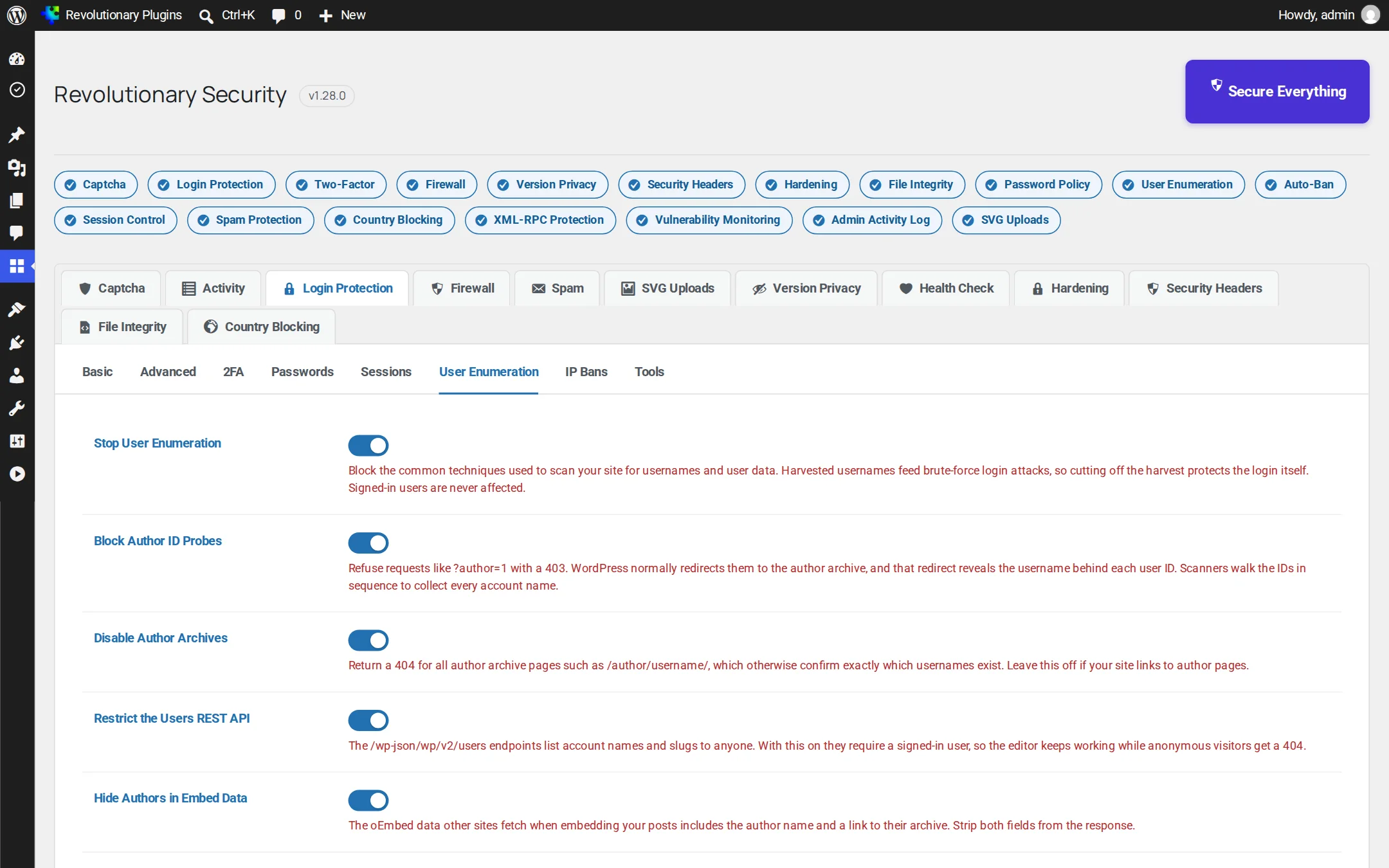
One switch enables six rules: block ?author=N probes, disable author archives (off by default), restrict the users REST API to signed-in users, hide authors in oEmbed data, remove the users sitemap, and hide usernames in comment markup.
IP bans
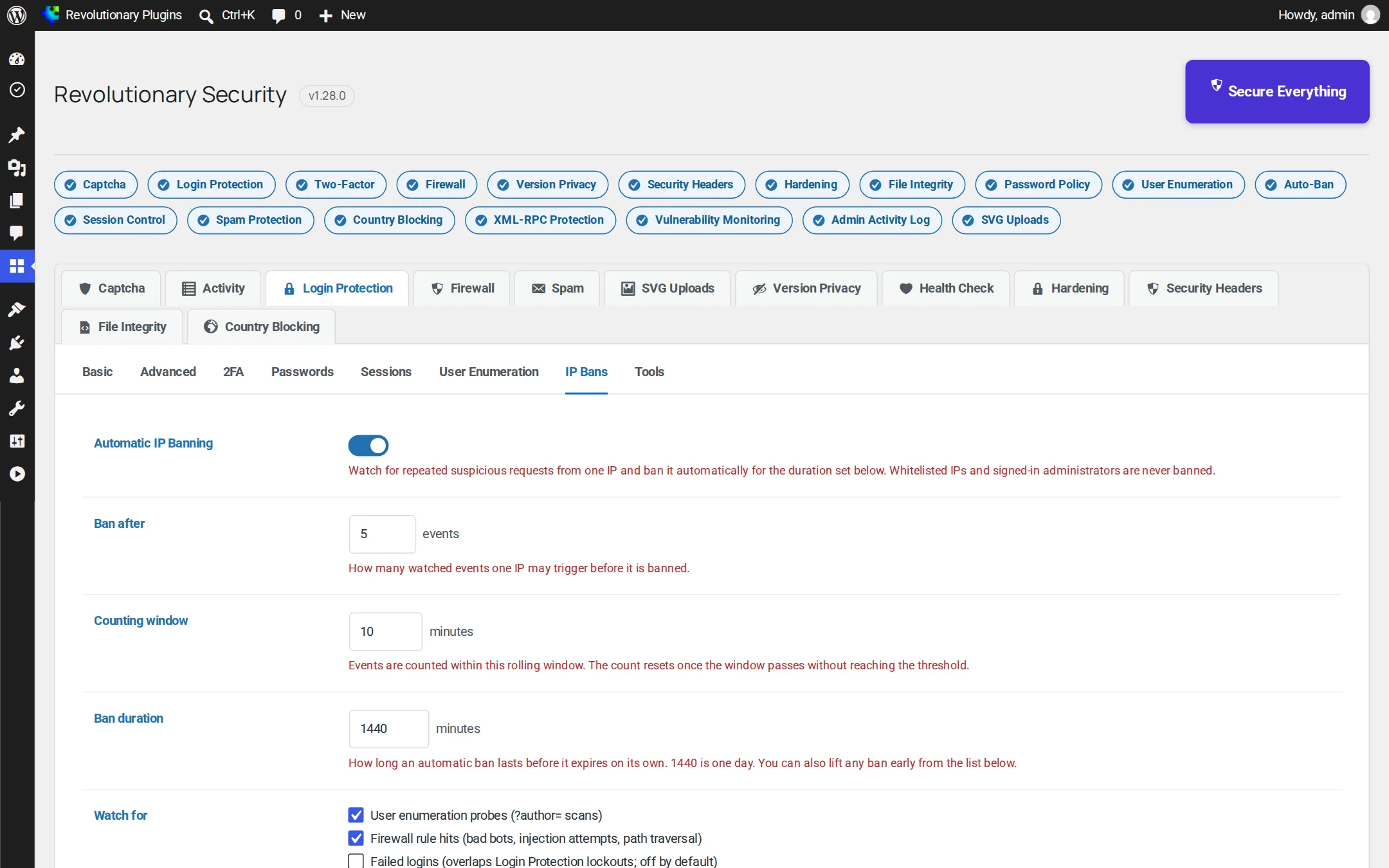
Automatic banning bans an IP site-wide after repeated suspicious events (5 events in 10 minutes bans for a day, by default). Choose what counts: enumeration probes, firewall hits and failed logins. The manual deny list takes single IPs, CIDR ranges and wildcards and works even when automatic banning is off. The Currently banned table lets you unban anyone.
Tools
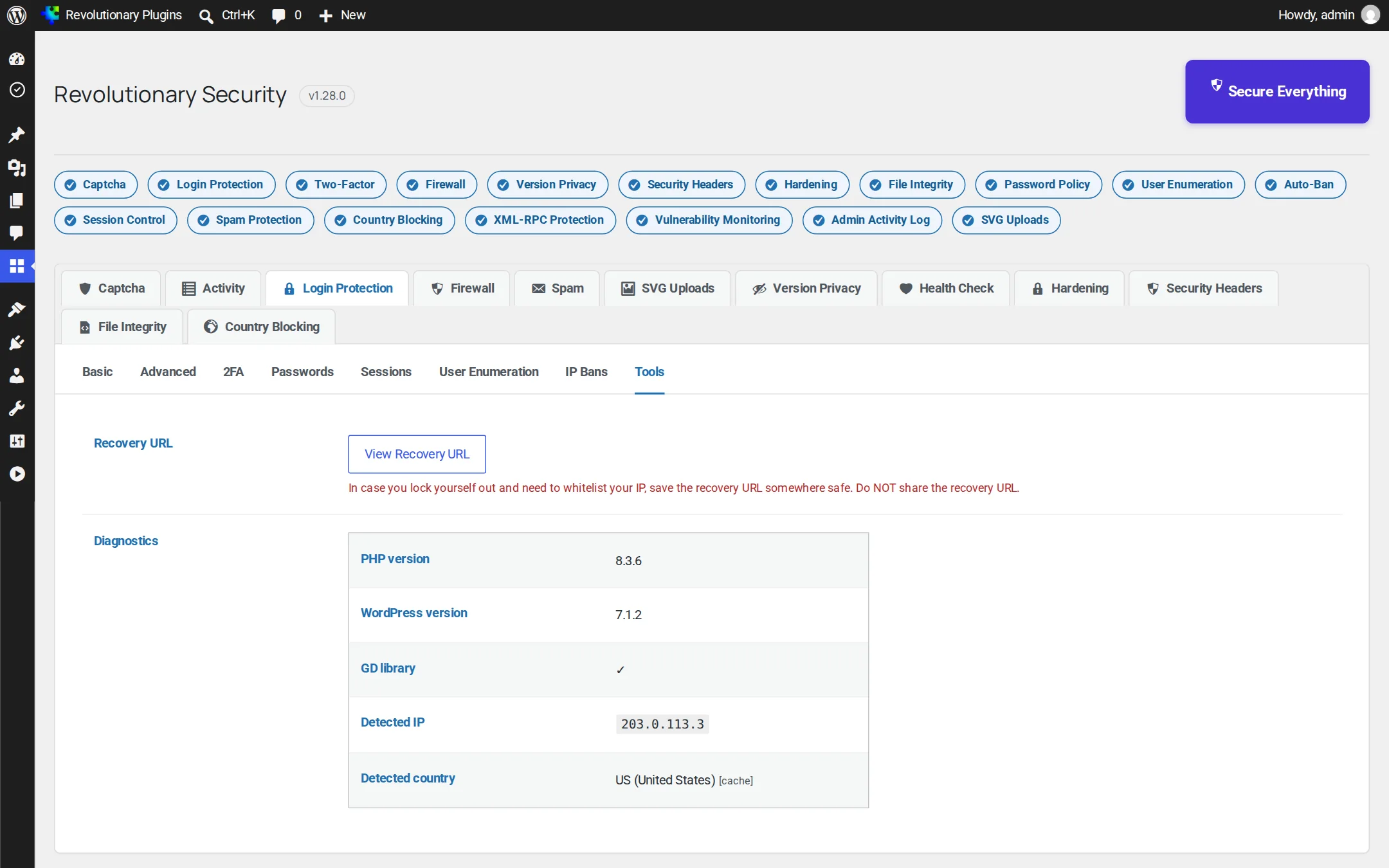
Copy your recovery URL, a secret link that adds the visiting IP to the whitelist. Diagnostics show PHP and WordPress versions, the GD library, your detected IP and country, and which lookup source was used.
Module 4 of 12
Firewall
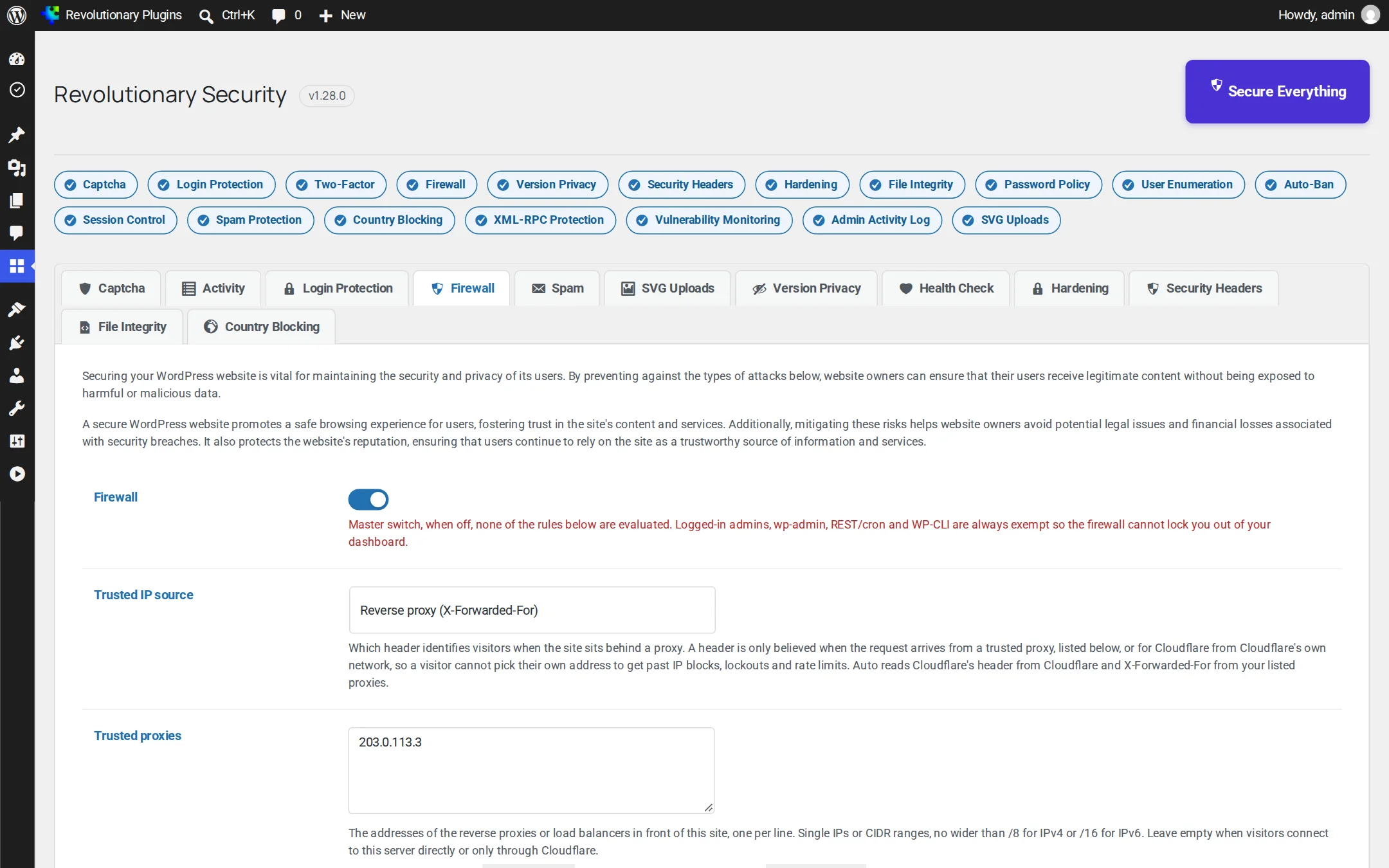
A request that matches a rule is logged and refused with HTTP 403. Logged-in admins, wp-admin, REST, cron and WP-CLI are exempt.
The 11 rules
- Block bad bots (sqlmap, nikto, masscan, wpscan, dirbuster and more)
- Directory traversal
- HTTP response splitting
- Cross-site scripting (XSS)
- Cache poisoning via forwarded host headers
- Dual-header exploits (header injection)
- SQL, PHP and code injection, including URL-encoded payloads
- File injection and inclusion (LFI and RFI)
- Null byte injection
- Web shell exploits (c99, r57, wso and others)
- PHP information leakage (phpinfo, .env, .git, wp-config backups)
Trusted IP source and proxies
Choose Auto (recommended), Direct, Cloudflare, X-Forwarded-For or X-Real-IP. A forwarded header is believed only from a trusted proxy you list (up to /8 for IPv4 or /16 for IPv6) or from Cloudflare's published ranges. The screen shows what address the request came from and which visitor address it resolved, and warns if the setup looks wrong.
Module 5 of 12
Spam
Stops comment and Revolutionary Forms spam with no API keys and no puzzle for real people.
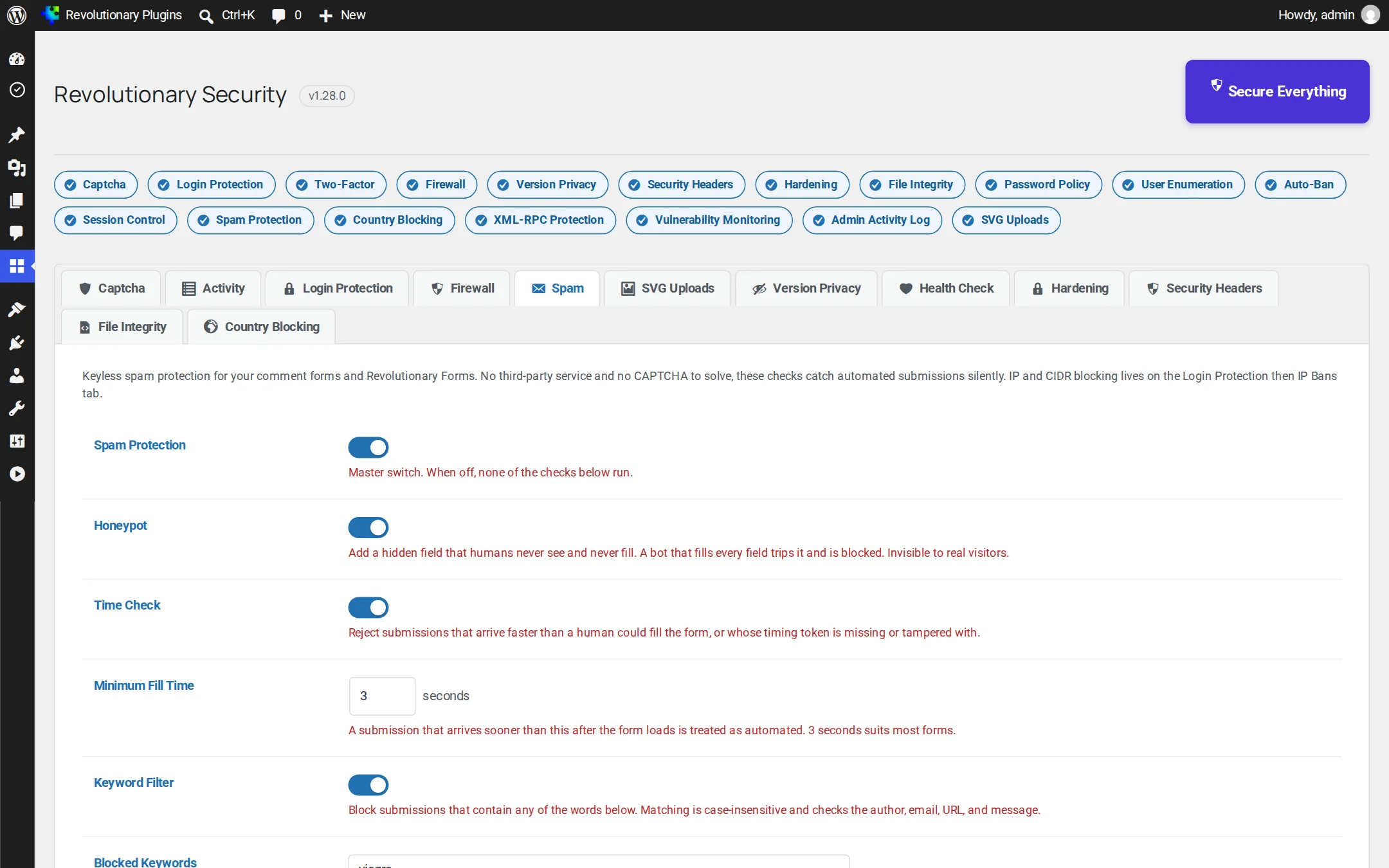
- Honeypot: a hidden field only bots fill in (on).
- Time check: a signed timestamp rejects forms submitted faster than a human could, or with a tampered token (on, 3 seconds minimum).
- Keyword filter: case-insensitive check of author, email, URL and message against your blocked words (on).
- Choose comment forms, Revolutionary Forms, or both.
Every blocked submission is recorded in Activity as a spam event.
Module 6 of 12
SVG Uploads
Off by default. When on, every uploaded SVG is rebuilt from an allowlist before it is stored.
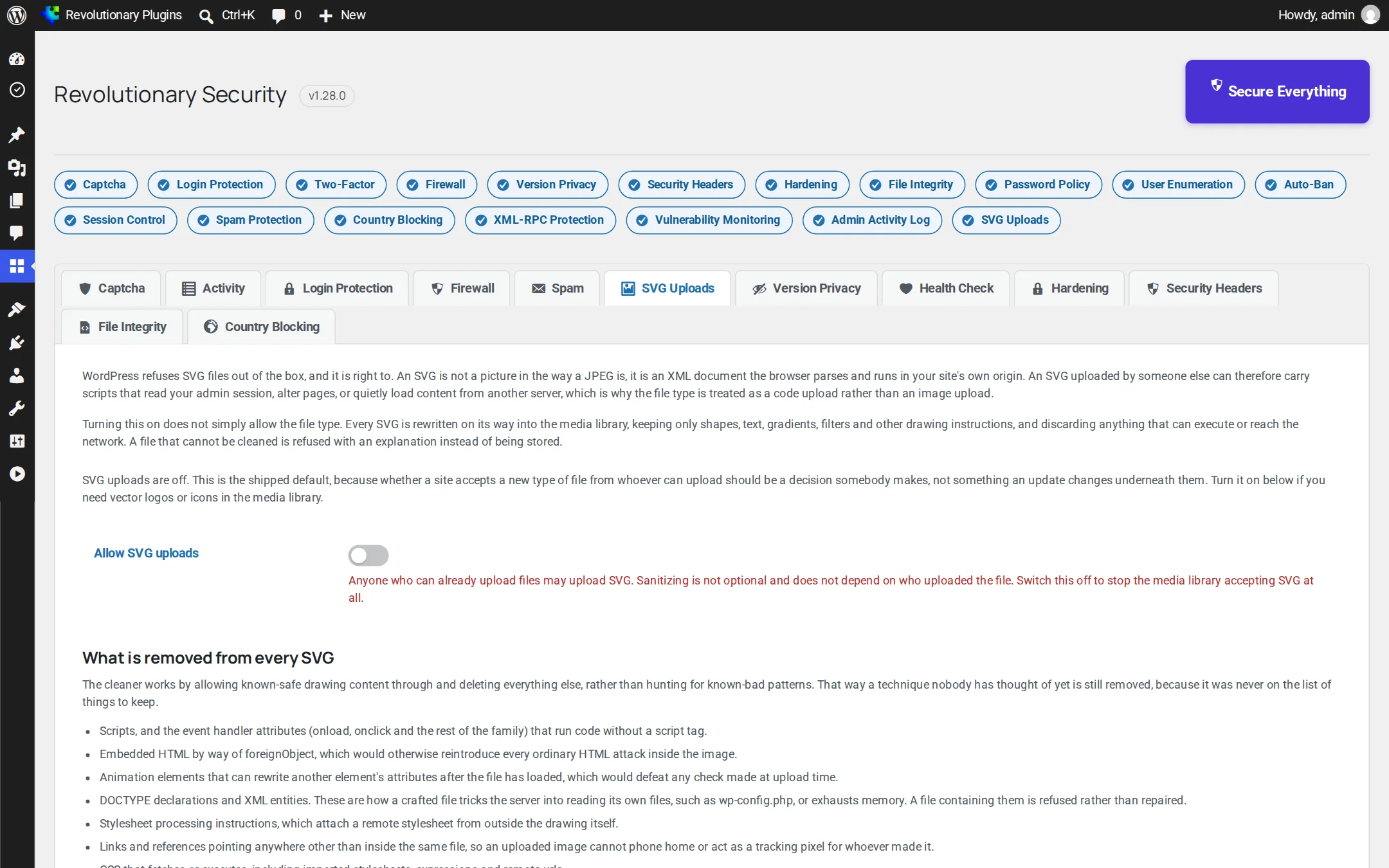
- Scripts, on* event handlers, foreignObject and animation elements are removed.
- Files with a DOCTYPE or XML entities are refused.
- External links, references and CSS that fetches or runs code are removed.
- .svgz is refused and files are capped at 2 MB.
- Only the cleaned copy is kept, anything removed is logged, and SVGs get proper dimensions so thumbnails work.
Module 7 of 12
Version Privacy
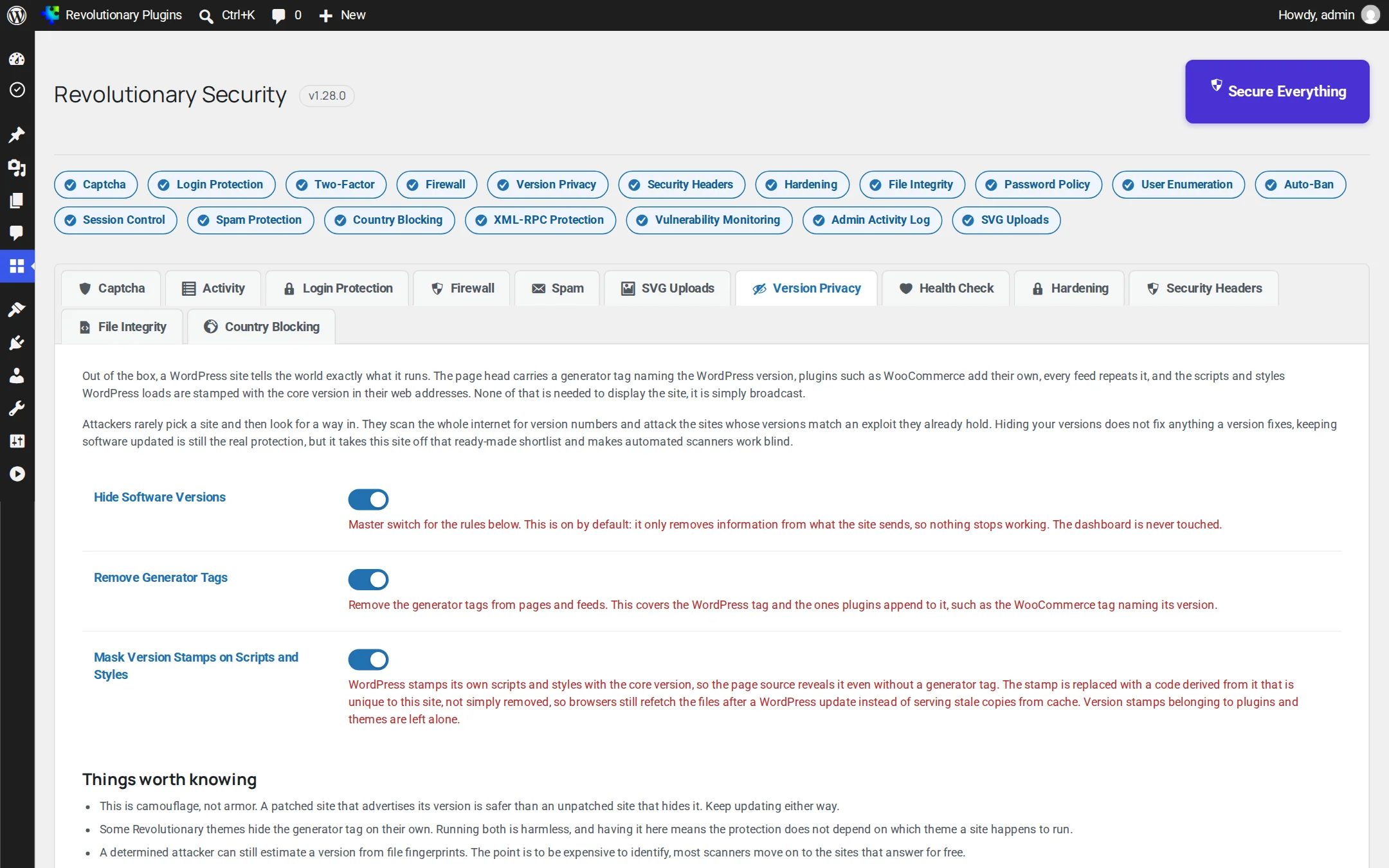
On by default. Removes generator tags from the page head, feeds and plugins, and replaces version stamps on scripts and styles with a site-specific hash so browser caching still works.
Module 8 of 12
Health Check
Nine configuration checks, graded Fix now, Worth fixing or Good, each with How to fix steps and a Check again button. They also appear in Tools, Site Health.
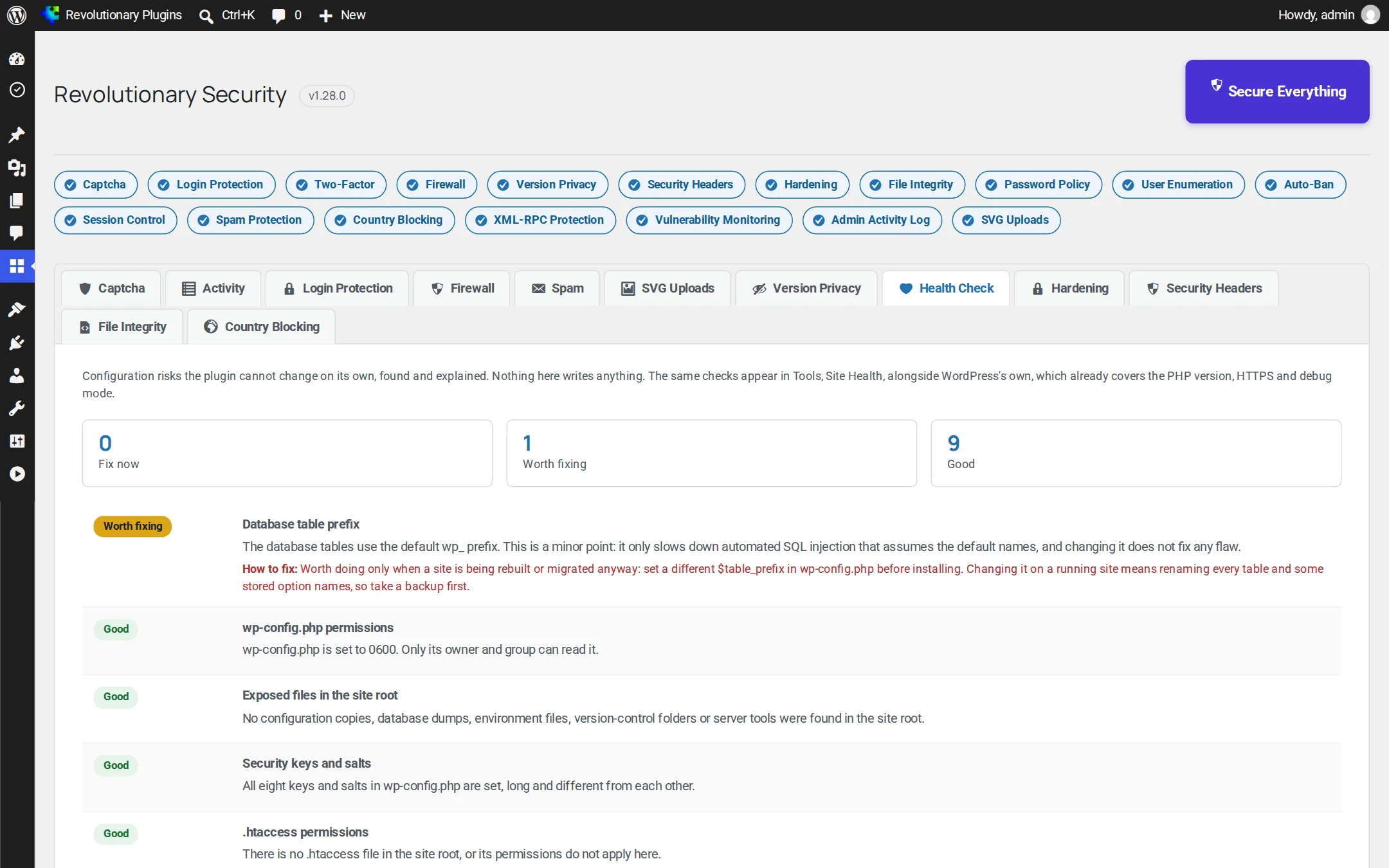
- wp-config.php permissions
- Exposed files in the site root (config copies, database dumps, .env, .git, phpinfo, Adminer)
- Security keys and salts
- .htaccess permissions
- An account named admin
- Theme and plugin file editor
- Automatic security updates
- Database table prefix
- Directory listing (a live HTTP test of wp-content, plugins, themes and wp-includes)
- WordPress version hidden (fetches the homepage for the generator tag and sends a HEAD request for readme.html, rather than trusting a setting)
Known vulnerabilities
Once a day, and again a few minutes after any update, the site sends the names and versions of WordPress core and every plugin and theme (inactive ones included) to the Revolutionary update server, which matches them against its daily copy of the Wordfence Intelligence feed. Findings show CVSS, CVE, the fixed version (or no fix released) and a link to the advisory. Each finding is emailed once. Requires a Revolutionary license.
Module 9 of 12
Hardening
Switches that close common doors, including the version disclosure and directory listing checks Health Check flags, with a live test for the one that matters most.
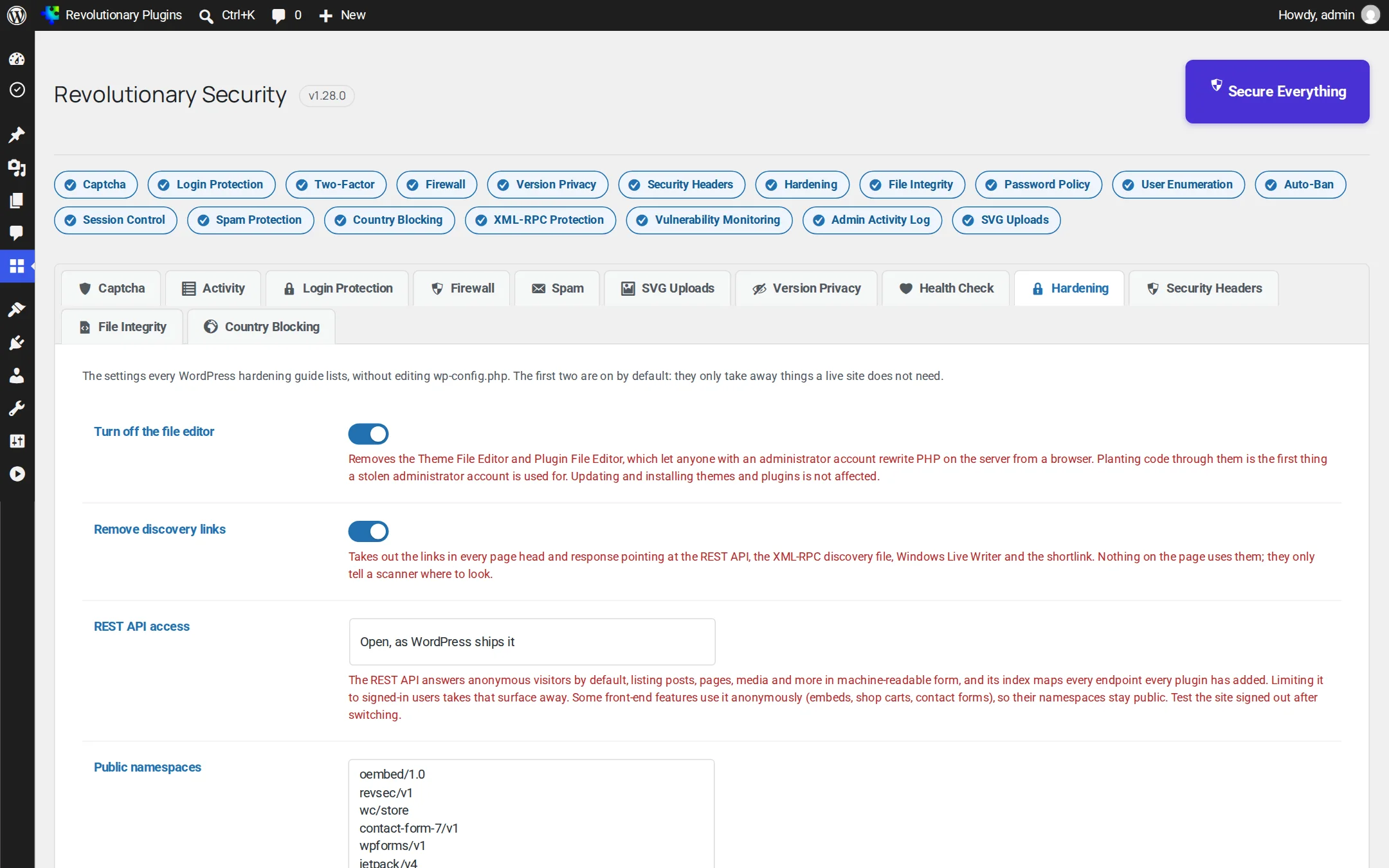
| Setting | Default | What it does |
|---|---|---|
| Turn off the file editor | On | Removes the theme and plugin file editors |
| Remove discovery links | On | Strips REST, RSD, Windows Live Writer and shortlink tags |
| REST API access | Open | Or signed-in users only, with public namespaces as exceptions |
| Deny PHP in uploads | On | Writes an uploads/.htaccess rule, or shows the nginx block to add |
| Block readme.html and license.txt | On | Keeps a deny rule in the root .htaccess (Apache, LiteSpeed) so neither file's literal version line or license text can be fetched directly; nginx gets the equivalent rule to add |
| Block directory listing | On | Keeps Options -Indexes in the root .htaccess, inherited by wp-content, plugins, themes and wp-includes; nginx's own autoindex off default is noted for servers that never read .htaccess |
- 1. Open Security, Hardening.
- 2. Click Test now. The plugin writes a harmless PHP file to uploads, requests it over HTTP and deletes it.
- 3. If the result says PHP ran, add the rule shown for your server and test again.
Module 10 of 12
Security Headers
Browser protections sent with every page. All five standard headers are on by default.
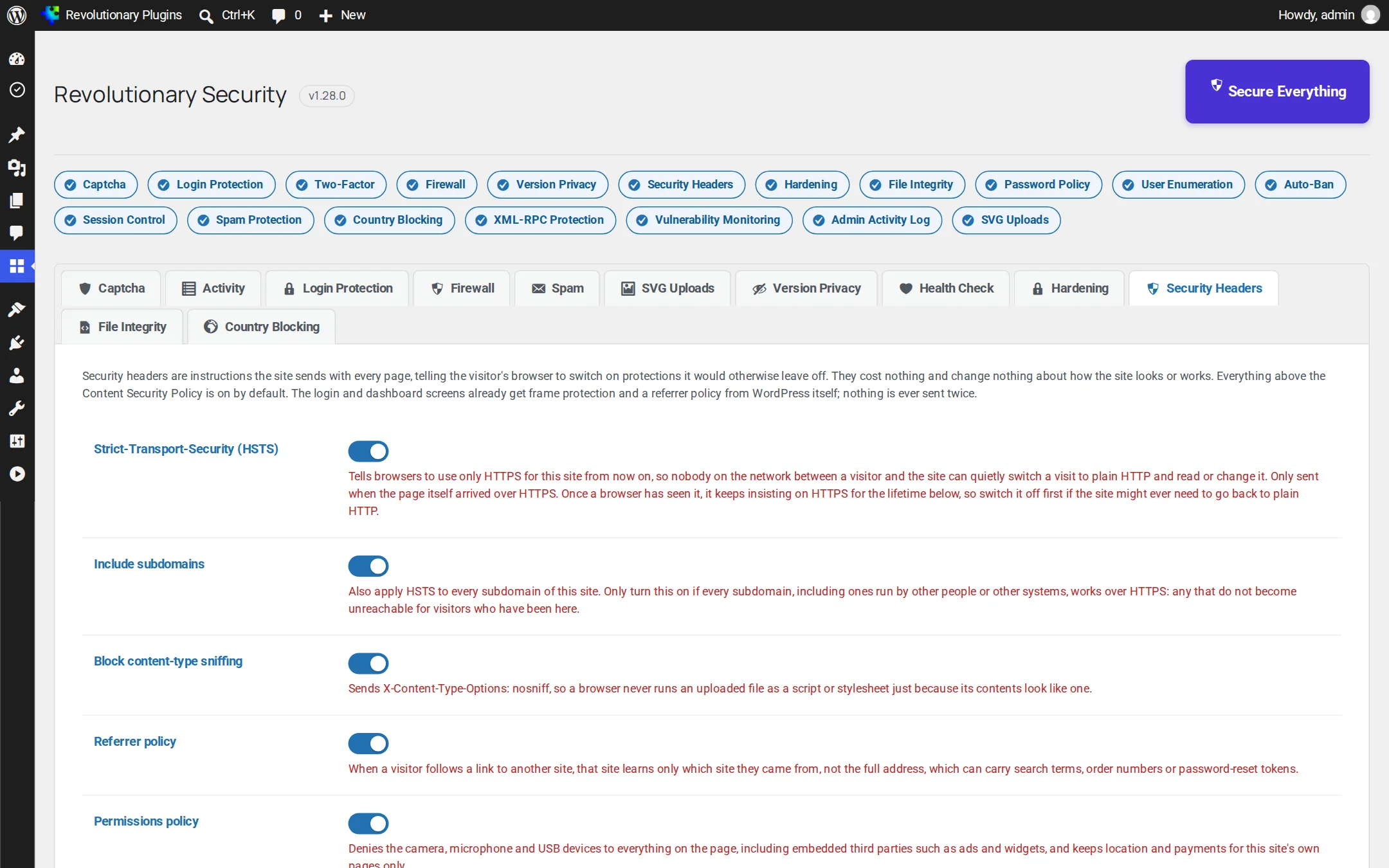
- Strict-Transport-Security (HSTS), HTTPS only, 1 year by default, optional subdomains.
- X-Content-Type-Options: nosniff.
- Referrer policy.
- Permissions policy: camera, microphone and USB blocked for third parties; location and payment limited to your site.
- Frame protection against clickjacking, with WordPress embeds still allowed.
Content Security Policy
Off, Report only, or Enforce, on public pages only. The captcha provider's sources are added for you, and you can list extra allowed sources. In report-only mode, visitors' browsers report violations and the tab summarizes them under What the policy would block, with the source, what it was used for, the count and the last page seen.
Cross-origin isolation and static files
Cross-origin isolation is optional. Test the site's embeds and external services before enabling it. Health Check also checks security headers on static files; headers added by WordPress alone do not prove that the web server serves them on an image, script or stylesheet.
Module 11 of 12
File Integrity
On by default. A SHA-256 baseline of your code files, then a report of everything added, changed or removed.
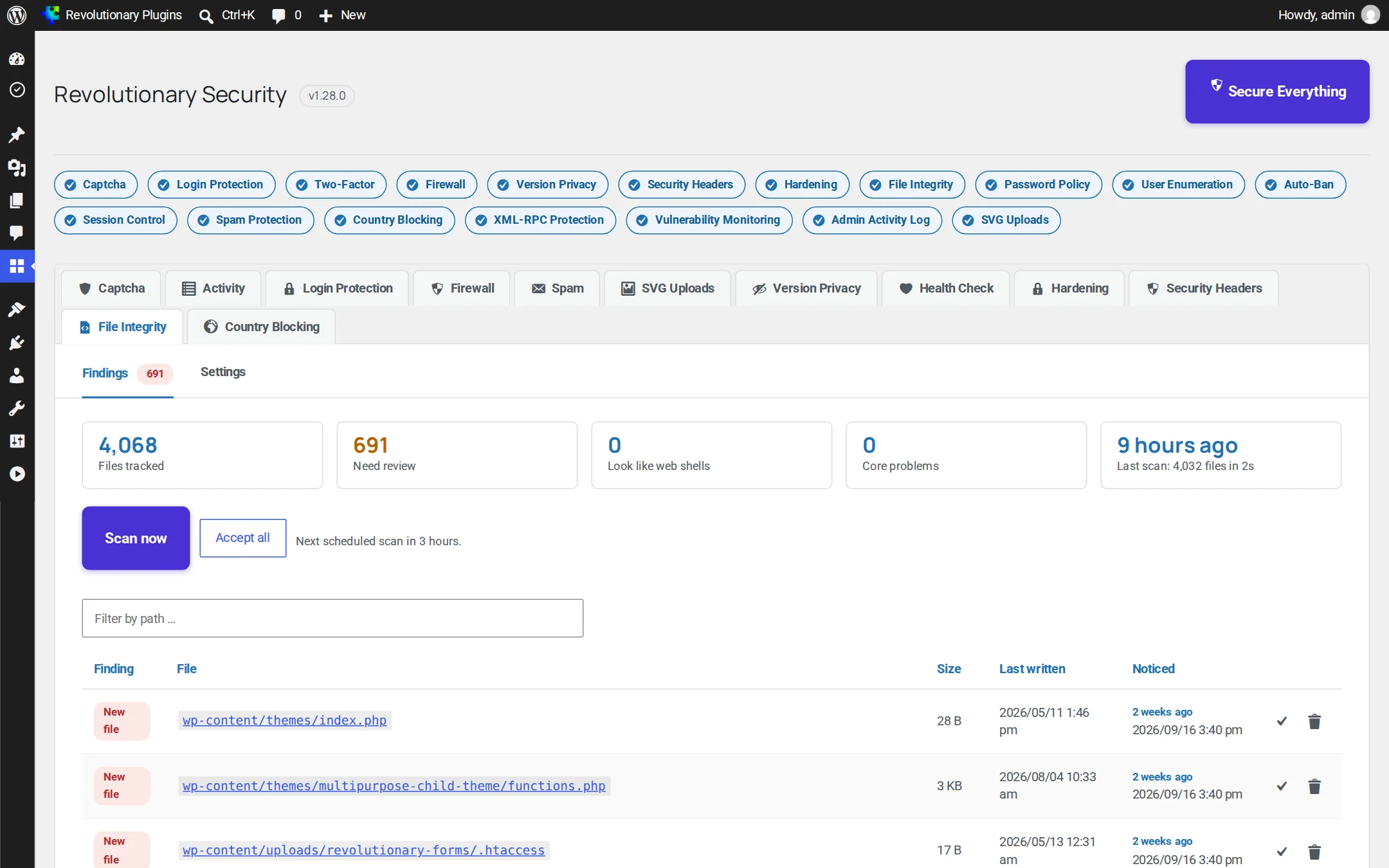
Findings
Summary counts for files tracked, files to review, likely web shells and core problems, plus the last and next scan. Filter by path. Each finding is New file, Changed, Core file altered, or Not part of WordPress. Open any file to see its first 8 KB with suspicious lines highlighted, then Accept as legitimate or Delete it (delete is offered only for new or unexpected files).
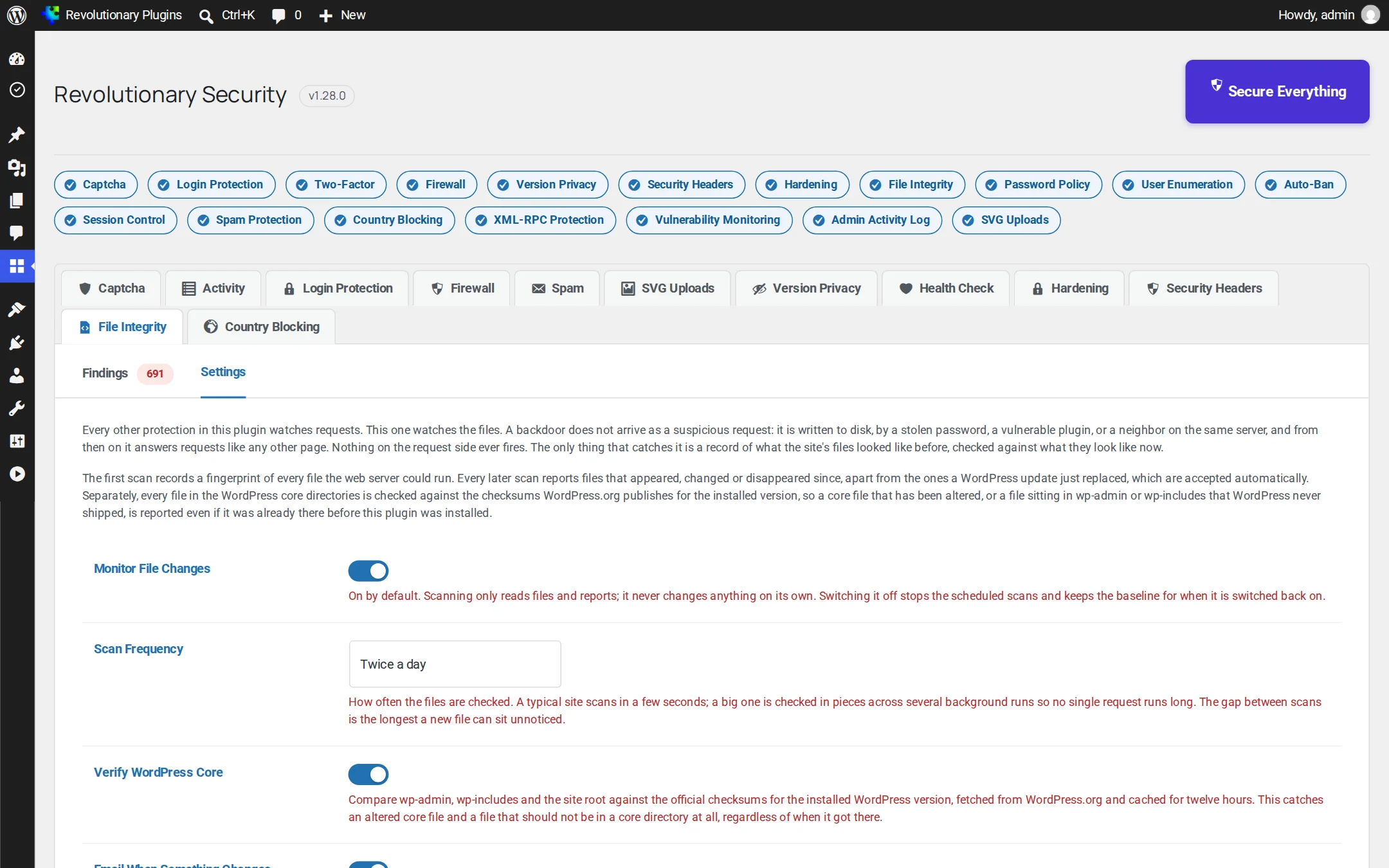
Settings
| Setting | Default |
|---|---|
| Monitor file changes | On |
| Scan frequency | Twice a day (or hourly, or daily) |
| Verify WordPress core against WordPress.org checksums | On |
| Email when something changes | On, once per finding |
| Alert address | Admin email if empty |
| Skip these folders | None |
| File types watched | PHP variants, .htaccess, .ini, JS and HTML |
Web shell detection
Changed files are checked against 13 behavior rules, such as running PHP or system commands from a request, decoding hidden code and running it, writing request data to a file, long encoded blobs, auto_prepend in config, and making the server run non-PHP files as PHP.
Module 12 of 12
Country Blocking
Deny chosen countries, or allow only the ones you serve. The filter applies to the whole public site; admin screens, REST, cron, WP-CLI, signed-in admins and whitelisted IPs are exempt.
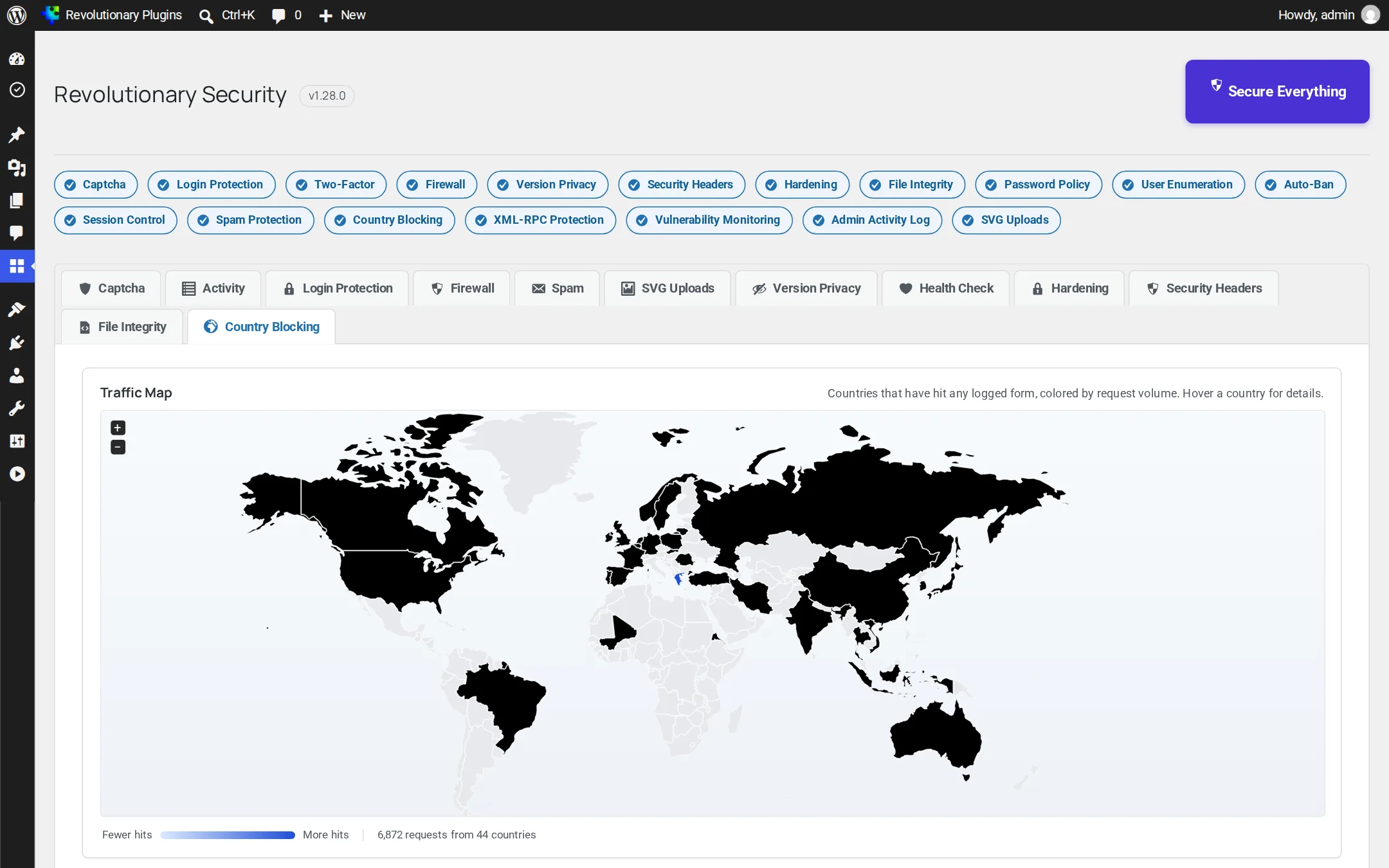
- Traffic map: a world map shaded by hits per country, with a Top Countries list.
- A live preview shows your detected country and whether your IP would be allowed.
- Lookup source: Auto (Cloudflare, then the server's GeoIP header, then ip-api.com), Cloudflare only, or API only. Results are cached per IP for 24 hours.
- Custom block message for blocked visitors.
Profile screen
What your users see
Each user manages their own second factors and sessions from Users, Profile.
- Authenticator app: scan the QR code, then enter a code to confirm before it activates.
- Passkeys: add or remove Face ID, Touch ID, Windows Hello, phone or security key passkeys.
- Sessions: see every active session with its IP and last activity, and end any of them.
- Admins can remove another user's app or end their sessions, but can never enroll an app on someone else's behalf.
Troubleshooting
Common questions
Use your recovery URL from Login Protection, Tools. If you do not have it, wait for the lock to expire, or rename the plugin folder over FTP to disable it temporarily. For a lost custom login address, add the REVSEC_DISABLE_LOGIN_ADDRESS constant to wp-config.php.
Your site is behind a proxy or CDN. Set Firewall, Trusted IP source to Cloudflare, X-Forwarded-For or X-Real-IP, and list your proxy addresses.
Check that the site key and secret key belong to the same provider and version, and that your domain is registered with the provider. The tester shows the provider's exact error and fix steps.
Updates made through WordPress are accepted automatically. Files changed another way (FTP, a deploy script) are reported. Review them and click Accept all if they are yours.
There are none yet. WP-CLI is always exempt from the firewall, bans and country blocking, so it is a reliable way back in.
Stuck on something?
Search the forums, open a ticket, or write to us. A real person reads every message.