

Documentation · Revolutionary Slider 1.1.9
Revolutionary Slider, step by step.
How to build a slider from a template, lay out slides and layers, animate them on the timeline, fill slides from posts or products, place a slider on a page, and control who sees it and when.
Released version 1.1.7
Current release setup and checks
Create layered sliders, carousels and hero scenes in WordPress.
- The current release includes translation strings and retains the existing slider editor workflow.
- Create the slider in its editor and place it with the Slider widget or the documented shortcode.
Check your setup
- Preview the slider on a phone and with reduced motion enabled.
- Check each slide link and give visitors control over automatic playback.
Quick start
Up and running in minutes
Step 1
Install and activate
Upload the plugin zip under Plugins, Add New, then activate. Find it under Revolutionary Plugins, Slider.
Step 2
Pick a template
Open the Sliders tab and click a template card, or choose Blank from the Add New dropdown.
Step 3
Edit and save
Change the text and images on the canvas, adjust the animations, and click Save.
Step 4
Place it
Add the Revolutionary Slider block, paste the shortcode from the list, or pick the slider in a page's Hero Section box.
On this page
Start here
Getting started
Revolutionary Slider needs WordPress 5.8 or later and PHP 7.4 or later. After activation it appears under Revolutionary Plugins, Slider with two tabs: Dashboard and Sliders.
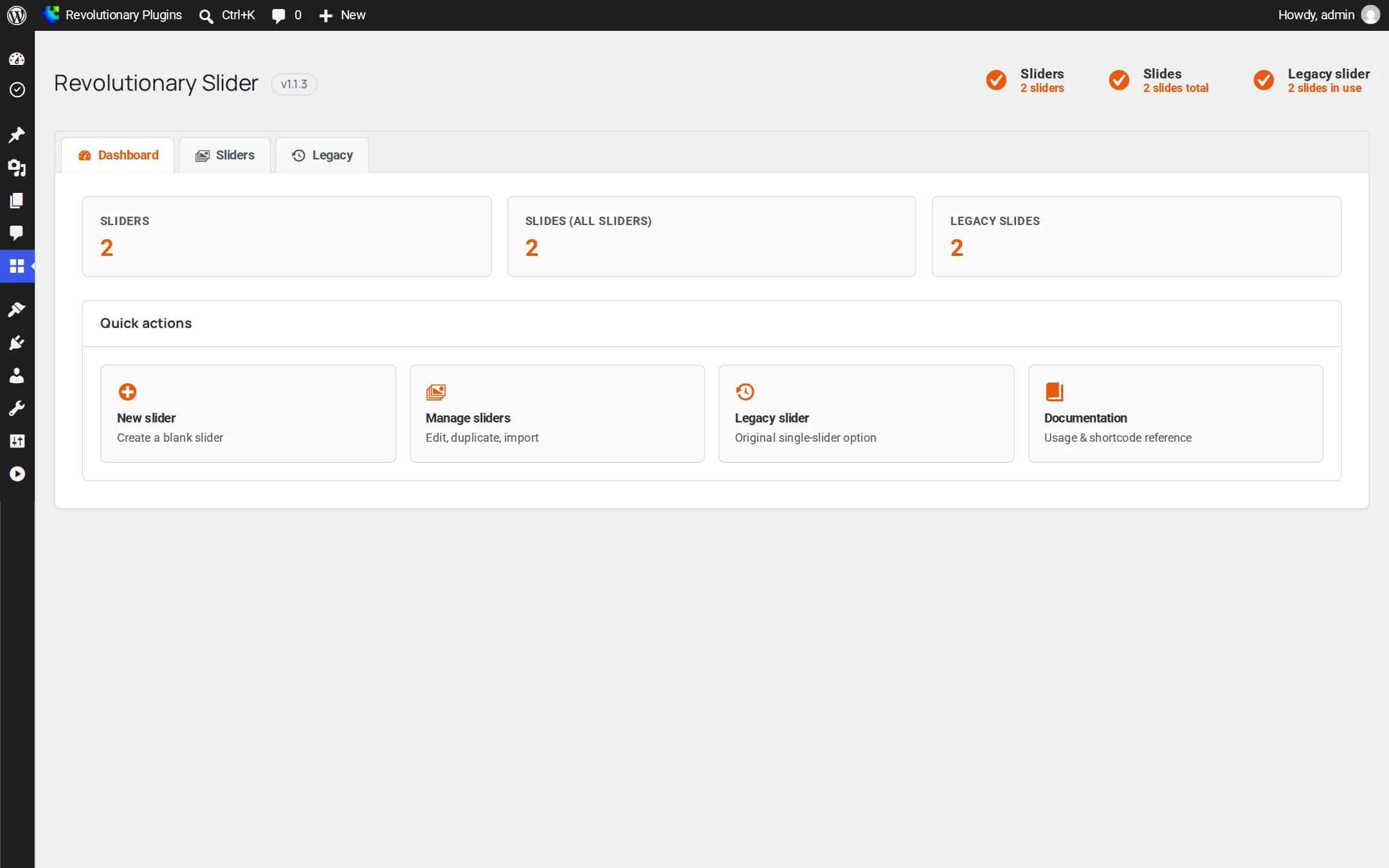
License and updates
Updates come from the Revolutionary update server using your site's Revolutionary bundle license. Enter the key once in Multipurpose Dashboard, Welcome and every Revolutionary plugin on the site is covered. Without a license nothing is locked: you see an admin notice and do not receive updates.
Walkthrough
Create your first slider
The Sliders tab lists your sliders with their alias and a shortcode you can copy, and opens with a gallery of starter templates.
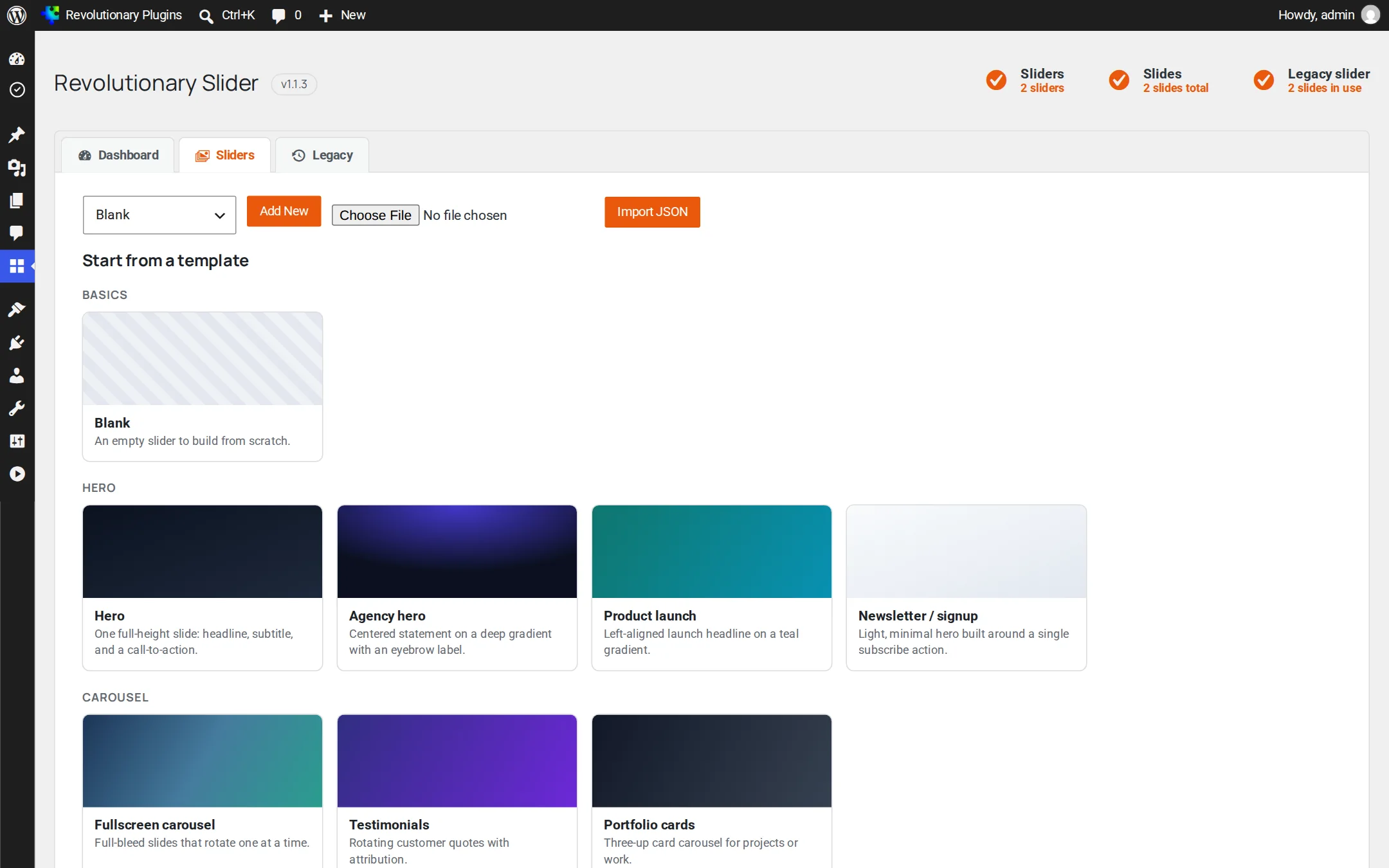
- 1. Open Revolutionary Plugins, Slider, Sliders.
- 2. Click a card under Start from a template, or choose a template (including Blank) from the Add New dropdown.
- 3. The new slider opens in the editor. Change it and click Save.
| Group | Templates |
|---|---|
| Blank | Blank |
| Hero | Hero, Agency hero |
| Carousel | Fullscreen carousel, Portfolio cards, Testimonials |
| Multi-slide story | Product launch, Newsletter/signup, App promo, How it works, Pricing tiers |
| Scene | Scene, Pull quote |
| Shop | Product showcase (with WooCommerce) |
From the list you can also duplicate or delete a slider, and use Import JSON to bring in a slider exported from another site.
Layout
The editor
The editor has three parts: global settings at the top, the canvas with a Desktop, Tablet and Mobile switcher, and a properties panel for the selected layer.
Global settings
| Setting | What it does |
|---|---|
| Mode | Hero, Carousel (slides per view and gap) or Scene |
| Height | Any CSS length, with separate tablet and mobile values |
| Autoplay | The interval between slides |
| Transition | Fade, slide horizontal or vertical, slide left, right, up or down, zoom in, zoom out, or flip |
| Navigation | Arrows, dots and loop |
| Custom CSS | CSS for this slider only, using {root} |
Slides
Use the slide tabs to add, duplicate, delete and reorder slides. Each slide has a background color, an optional image or video (MP4, WebM, YouTube or Vimeo), an optional Ken Burns (zoom in, zoom out, pan left, pan right) or parallax effect, and a shade overlay to keep text readable.
Layers
Add heading, text, button or image layers. Choose one of nine anchor points, drag to move, and drag the right edge to resize. The properties panel sets content, width, color, font family, size and weight, alignment and, for buttons, the link.
Modes explained
- Hero: full width, one slide at a time, with arrows and dots.
- Carousel: several slides side by side, optionally looping.
- Scene: only the first slide, whose layers animate in once when it scrolls into view.
Motion
Animations and the timeline
Each layer has an ordered list of animation steps. In steps bring it on screen, and Out steps take it away.
- Effects: fade, slide, zoom, flip on the X or Y axis, and rotate.
- Drag a step on the timeline to set its delay, and stretch it to set its duration. Each step also has an easing.
- Scrub the playhead to check any moment, or press space to play and pause.
- The Preset bar applies a whole sequence in one click, such as Fade in, Rise up, Zoom in, Cinematic rise or In-hold-out.
- Save current turns the selected layer's animation into your own preset.
Devices
Responsive design
Design on desktop first, then switch the canvas to Tablet or Mobile to change anything that needs to differ.
- Change a field while on Tablet or Mobile to override it for that size only.
- Use the reset button next to a field to return it to the desktop value.
- Font sizes shrink automatically on smaller screens, down to 13 pixels, unless you set an explicit size.
- Set a different slider height for tablet and mobile in the global settings.
Dynamic content
Sliders from posts and products
Turn on Pull slides from posts and your first slide becomes a template that is repeated for each matching post.
- 1. Open the Dynamic content panel in the editor and turn it on.
- 2. Choose the post type, how many posts (1 to 20), the order (date, title, menu order or random) and an optional taxonomy term.
- 3. Put tokens in the first slide's layers. The live page generates one slide per post.
| Token | Value |
|---|---|
{{post.title}} | Post title |
{{post.excerpt}} | Excerpt, trimmed from the content if there is none |
{{post.url}} | Permalink |
{{post.date}} | Published date |
{{post.author}} | Author name |
{{post.image}} | Featured image address |
WooCommerce
| Token | Value |
|---|---|
{{product.price}} | Price as plain text |
{{product.add_to_cart_url}} | Add to cart link |
{{product.add_to_cart_text}} | The button label WooCommerce uses |
{{product.sku}} | SKU |
Targeting
Display rules
Every slider has a Display rules panel below Dynamic content.
| Rule | Options |
|---|---|
| Devices | All devices, desktop and tablet only (782 pixels and up), or mobile only (under 782 pixels) |
| Visitors | Everyone, signed-in users only, or signed-out visitors only |
| Schedule | Optional show from and until times, in the site's time zone |
Device rules use CSS, so they stay correct behind a full-page cache. Visitor and schedule rules are decided on the server, and a hidden slider outputs nothing and loads none of its files.
Publish
Placing a slider
There are three ways to show a slider, and they all render the same way.
Block
In the block editor, add the Revolutionary Slider block and choose your slider from the dropdown. It shows a live preview and supports wide and full alignment.
Shortcode
Copy the shortcode from the slider list: Manage everything from the Slider menu. or . It works in any page, post or template. A bare @media (max-width:1024px){#rs-7d12d00d-a82f-4347-8fd6-490dcf9bec61 .rs-layer-pos[data-rs-li="0-2"] .rs-layer{font-size:14px !important}}@media (max-width:600px){#rs-7d12d00d-a82f-4347-8fd6-490dcf9bec61 .rs-layer-pos[data-rs-li="0-2"] .rs-layer{font-size:13px !important}} shows the legacy single slider.Edit These Slides
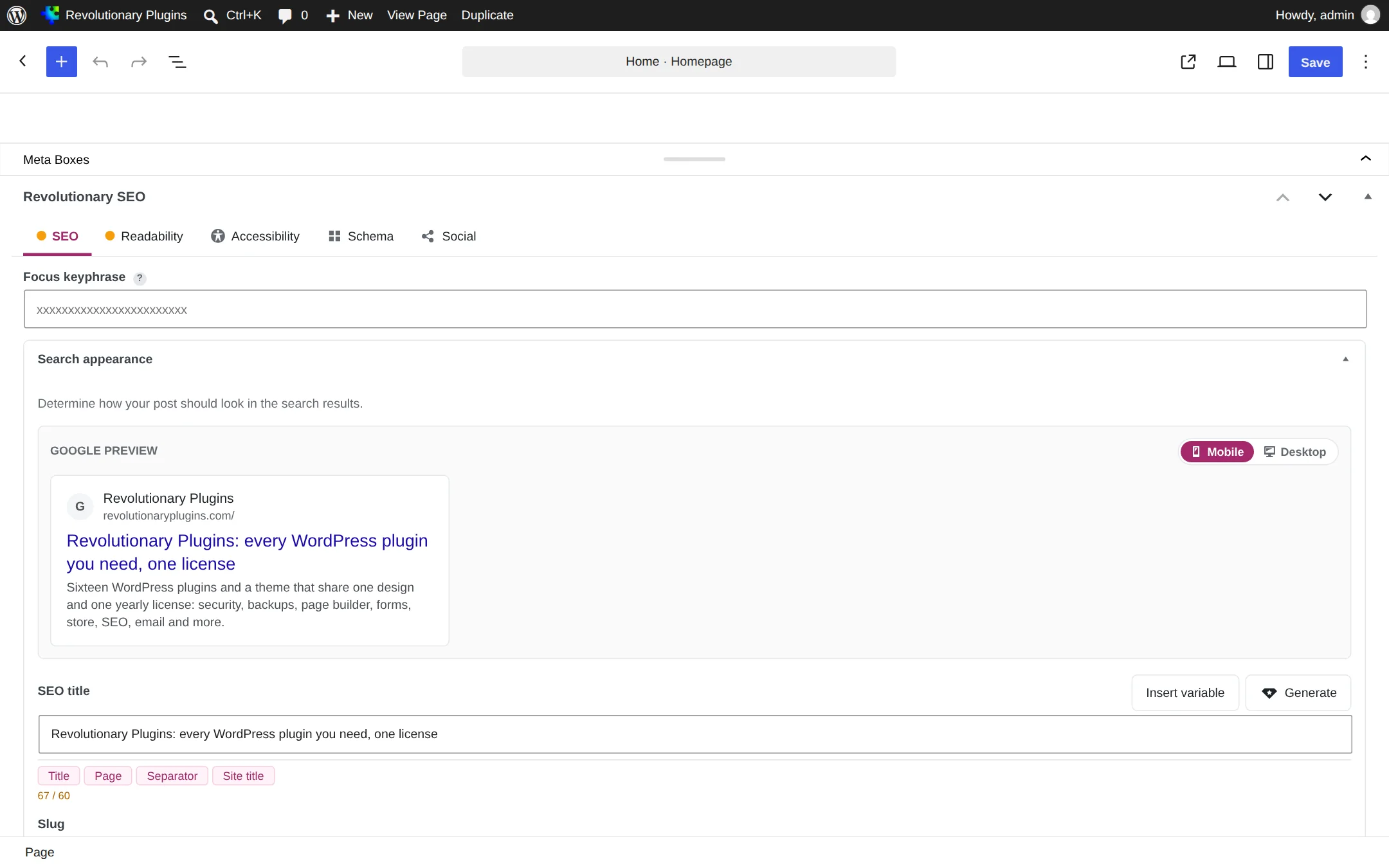
Hero Section box
On any post or page edit screen, the Hero Section box lets you pick a slider, a height (Auto, 50vh, 75vh or 100vh) and whether it loops. The slider renders above the content.
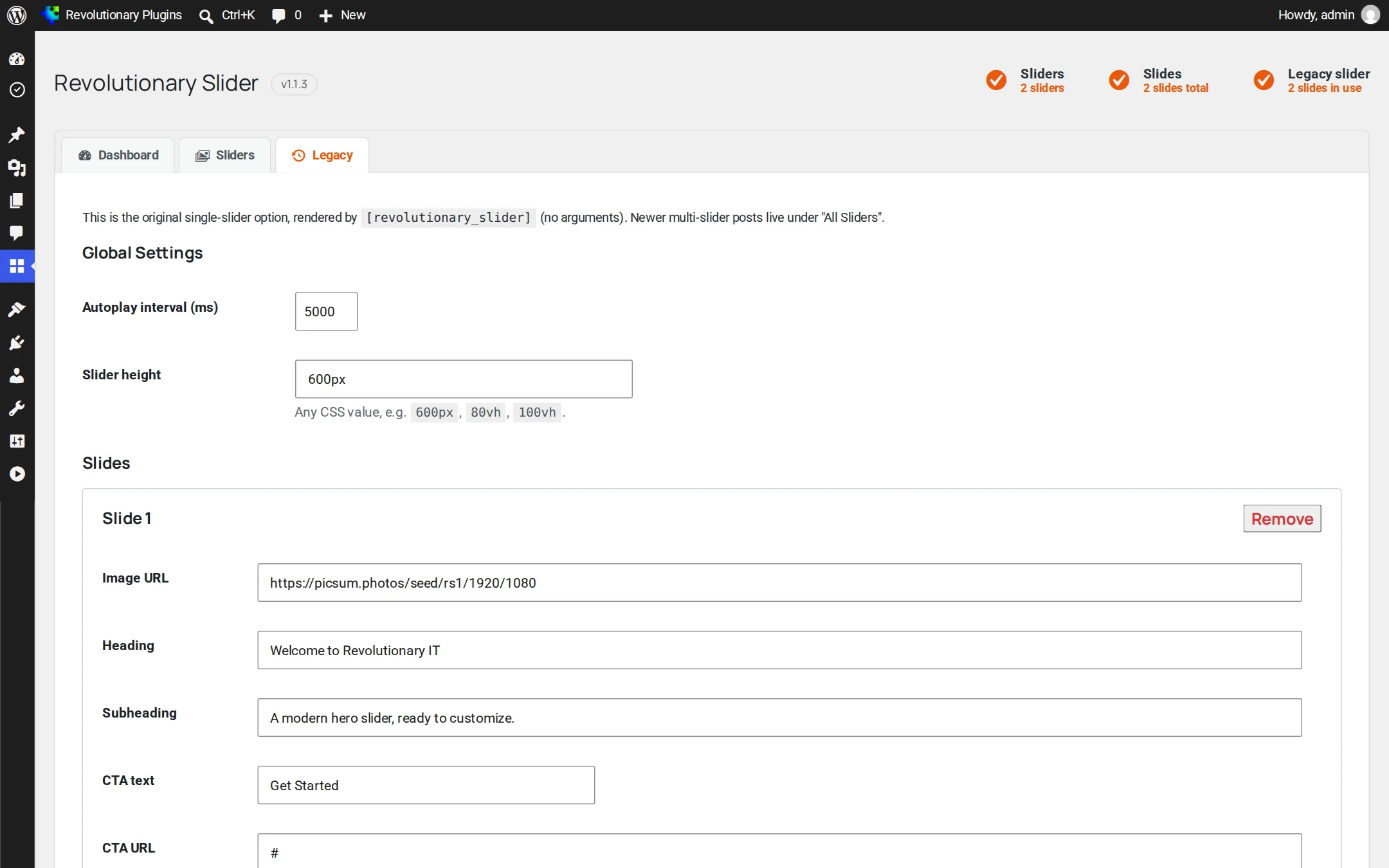
Legacy slider
The original single slider (one image, heading, subheading and button) is still available for older content.
Safety
Undo, history, import and export
Several layers of protection keep your work safe.
- Undo and redo: Ctrl+Z or Cmd+Z, and Ctrl+Shift+Z or Ctrl+Y, or the toolbar buttons. Related edits collapse into one step.
- Autosave draft: your work is backed up in the browser as you edit and offered back if you leave before saving.
- Revision history: the last 20 saved versions with the time, who saved it and the slide count. Restoring saves your current version first, so a restore can be undone.
- Export and import: download a slider as JSON and import it on any site. Older sliders are upgraded to the current format automatically.
- Duplicate: copy a slider from the list to try a variation.
Under the hood
Accessibility, performance and developers
What the front end does for visitors, and where the data lives.
Accessibility
- Carousel semantics with a unique label for each slider
- Arrow-key navigation, visible focus rings and pause on focus
- Dots with 24 pixel tap targets
- Ken Burns and parallax turned off for visitors who prefer reduced motion (layer animations and autoplay still run)
Performance
- Only the fonts a slider uses are loaded
- The first slide's background is preloaded with a responsive srcset
- Local images switch to a 1024 pixel version on smaller screens
For developers
| Item | Name |
|---|---|
| Shortcode | [revolutionary_slider id="" alias=""] |
| Block | revolutionary/slider (attribute sliderId) |
| Post type | revslider |
| Slider meta | _revslider_data, _revslider_alias, _revslider_revisions |
| Hero meta | _rev_hero_enabled, _rev_hero_slider_id, _rev_hero_height, _rev_hero_loop |
Troubleshooting
Common questions
Make sure the slider is published and that the block or shortcode points at the right ID or alias. Administrators see a "slider not found" note in the page source when it does not.
The query matched no published posts. Check the post type and the term filter.
Raise the slide's shade overlay opacity.
They have asked their device to reduce motion, so those effects are turned off on purpose. Layer animations and autoplay still run.
That is by design. Scene renders only the first slide and animates its layers when it scrolls into view.
Stuck on something?
Search the forums, open a ticket, or write to us. A real person reads every message.