

Documentation · Revolutionary SEO 0.4.6
Revolutionary SEO, every screen explained.
How to set up your site identity, optimize each post, publish schema and a sitemap, manage redirects and 404s, and use the optional AI tools.
Released version 0.4.4
Current release setup and checks
Manage search titles, descriptions, social cards, structured data, sitemaps and redirects.
- AI keys and models come from the Multipurpose Dashboard AI tab. Metadata and schema suggestions are previewed before you choose what to apply.
- AI image descriptions can suggest alt text, titles and captions. Review the suggestions before applying them.
- The First-time configuration tab exports and imports supported settings. Omitted settings are preserved during import.
Check your setup
- Check the generated title, canonical URL and sitemap after setting page metadata.
- Review business schema fields and the explicit AI crawler policy in robots.txt. Keep private information out of public metadata.
- Review suggested internal links in the post editor and verify imported schema flags and business fields before using them.
Quick start
Up and running in minutes
Step 1
Install and activate
Upload revolutionary-seo-0.4.6.zip in Plugins, Add New, Upload Plugin, then Activate. The redirect and 404 tables are created and the daily jobs are scheduled.
Step 2
Run First-time configuration
SEO, First-time configuration. Five steps: your company or person, logo, social profiles, homepage title and description, and which features to switch on.
Step 3
Clear the task list
SEO, Task list and Alert center show what is still missing. Work down them until both are clear.
Step 4
Submit your sitemap
Add https://yoursite.com/sitemap.xml in Google Search Console so Google finds every page.
On this page
Start here
Where everything lives
Site-wide settings are under Revolutionary Plugins, SEO, in eight tabs: Dashboard, Content scores, Task list, Alert center, Redirects, 404 monitor, AI and First-time configuration. Per-post settings are in the Revolutionary SEO panel under the editor.
License and updates
Enter your Revolutionary bundle key once in Multipurpose Dashboard, Welcome. It turns on automatic updates for the theme and every Revolutionary plugin. No SEO feature is locked without it.
Requirements
WordPress 5.6 or later and PHP 7.2 or later.
Setup
First-time configuration
A five-step wizard that sets the site-wide identity search engines and social networks use.
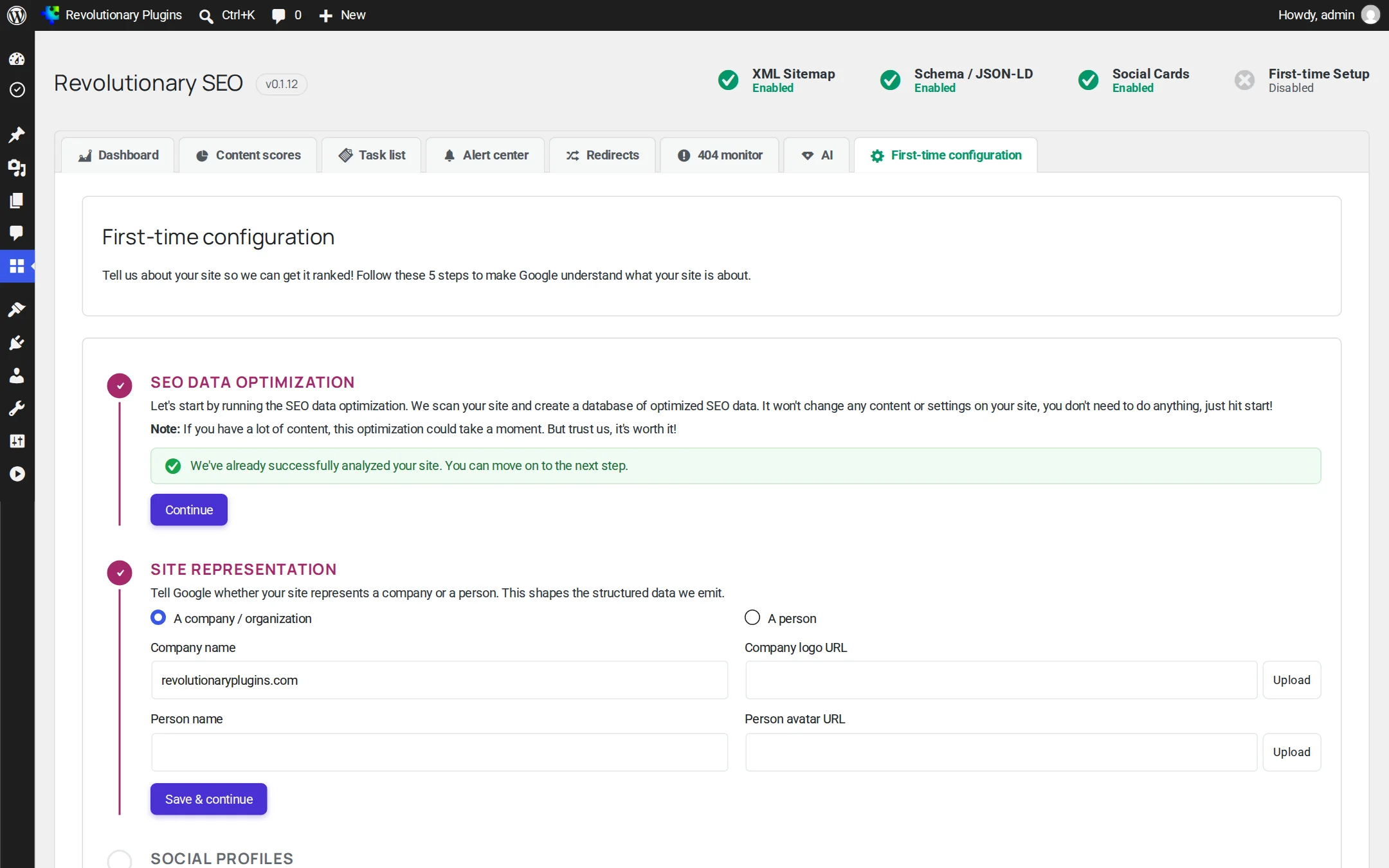
- 1. Choose whether the site represents a company or a person, and set the name and logo.
- 2. Add your social profile URLs and Twitter username.
- 3. Set the default share image used when a post has none of its own.
- 4. Set the site name, title separator, and homepage title and description.
- 5. Switch on the features you want: Open Graph, Twitter cards, Schema, XML sitemap and Breadcrumbs.
Guidance
Dashboard, Task list and Alert center
Three screens that tell you what is working and what to fix next.
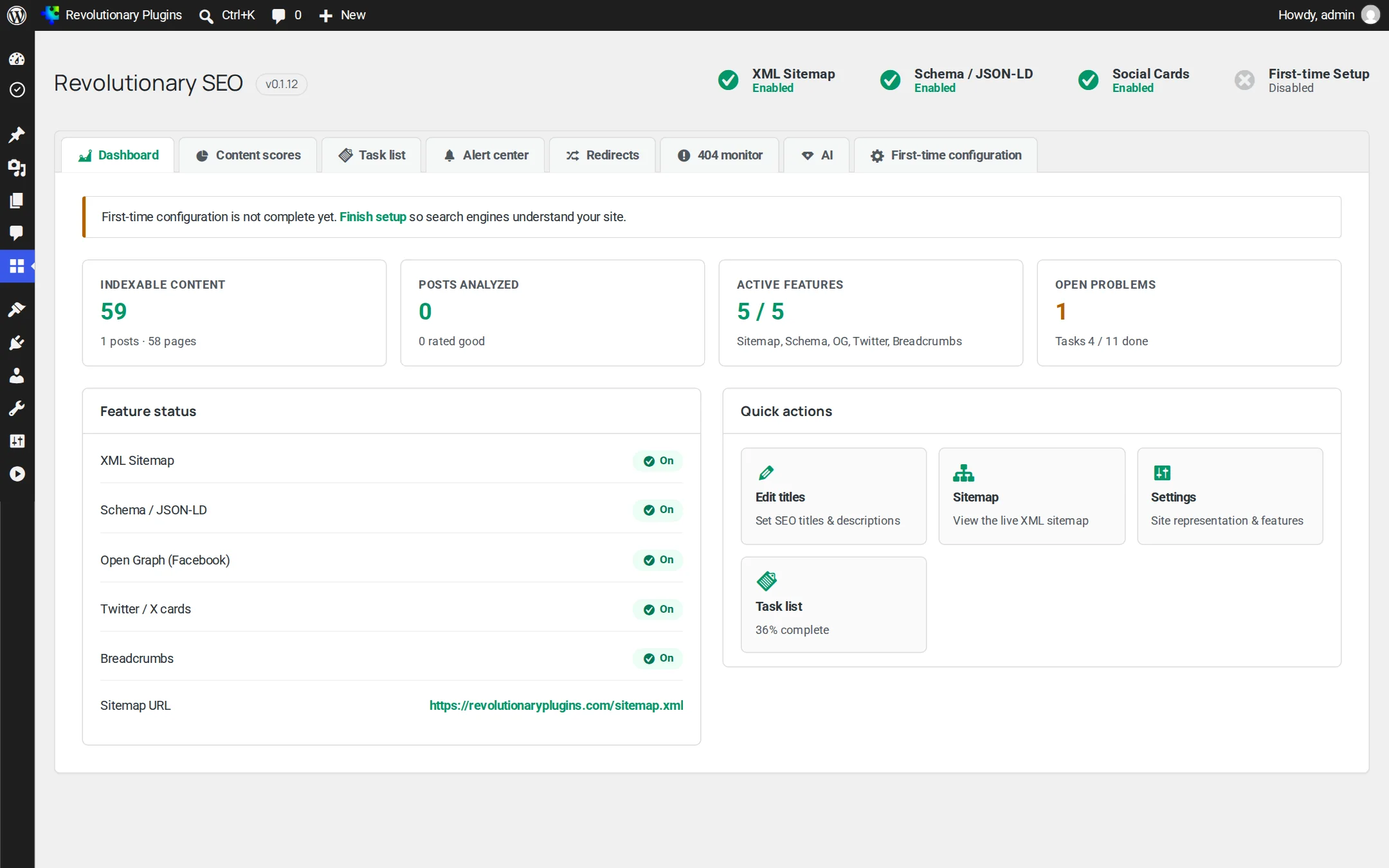
Dashboard
Shows indexable content, posts analyzed, active features and open problems, plus the status of each feature and a link to your sitemap.
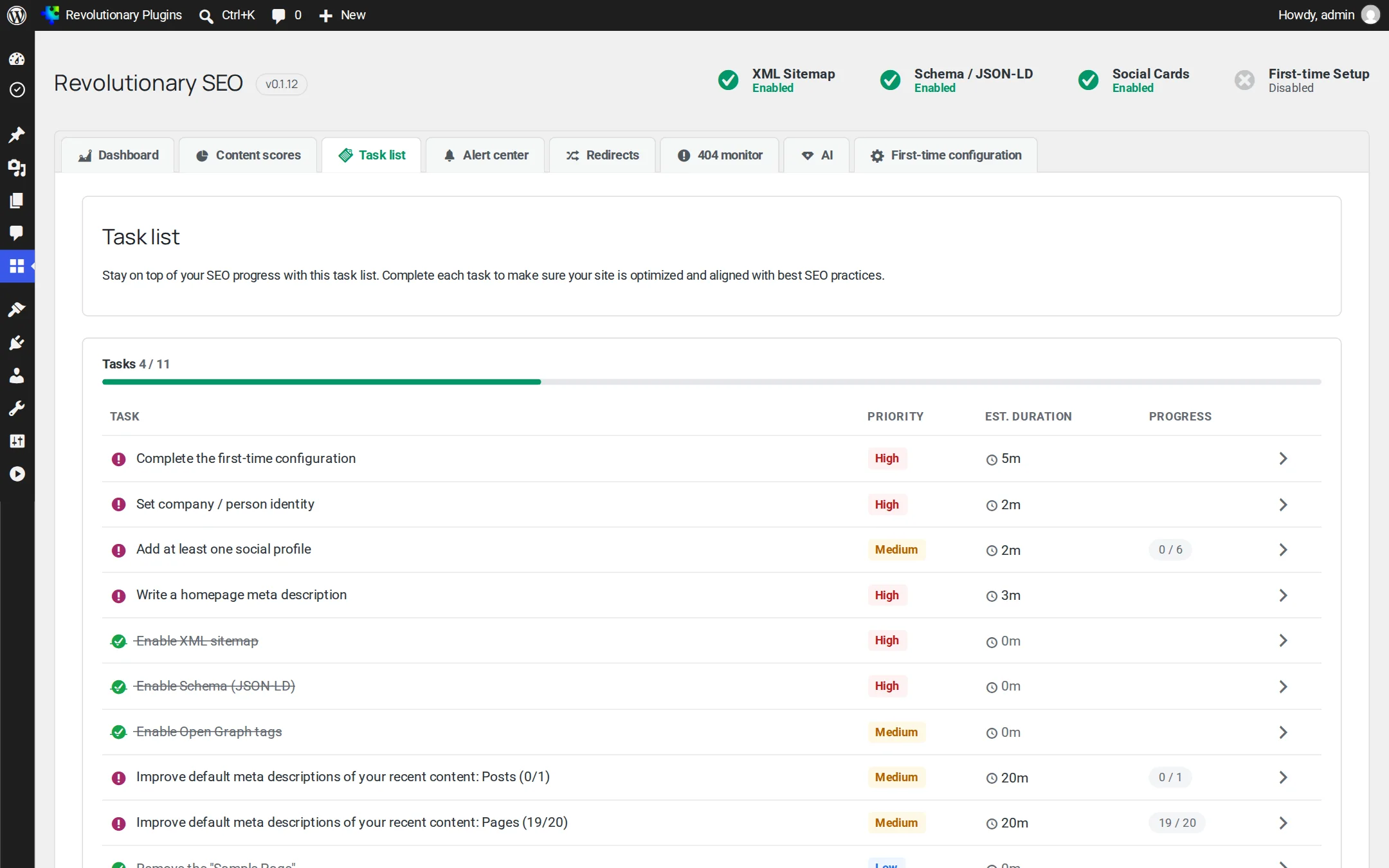
Task list
Setup jobs, each marked done automatically once the site passes it, with a done count at the top: first-time configuration, site identity, social profiles, a homepage description, the sitemap, schema, Open Graph, filling missing meta descriptions, and removing the default Sample Page and Hello World! post.
Alert center
Problems that hurt search right now. Each alert can be dismissed once you have dealt with it.
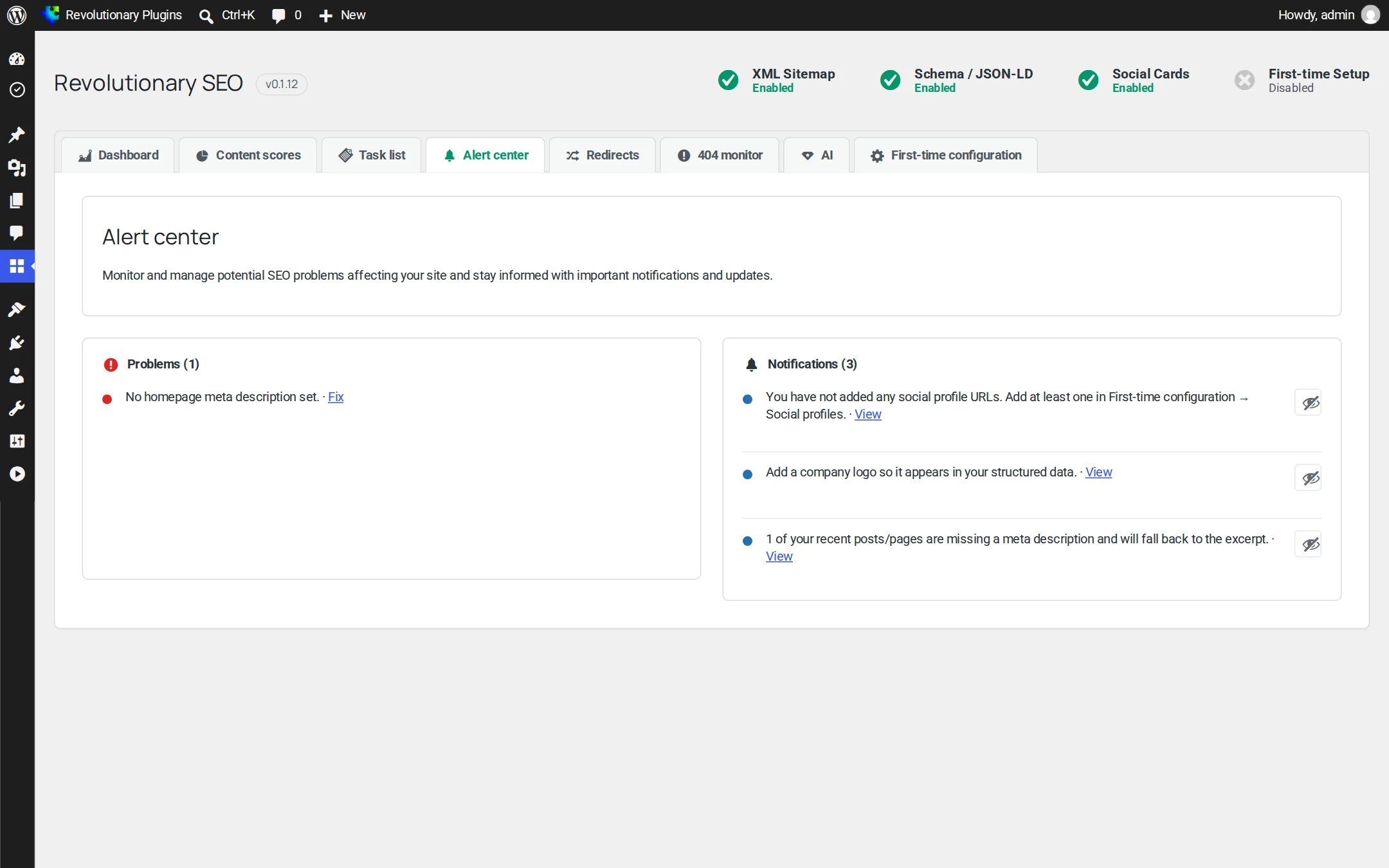
| Alert | What to do |
|---|---|
| Search engines discouraged | Uncheck Discourage search engines in Settings, Reading |
| Sitemap off | Switch on XML sitemap in First-time configuration |
| No homepage description | Add one in First-time configuration |
| No social profiles | Add at least one profile URL |
| No logo | Upload a logo in First-time configuration |
| Posts missing descriptions | Write them in each post's panel, or use Fix with AI |
| Plain permalinks | Choose Post name in Settings, Permalinks |
Content scores
The SEO and readability scores saved for each post, rolled up so you can see which content needs attention first.
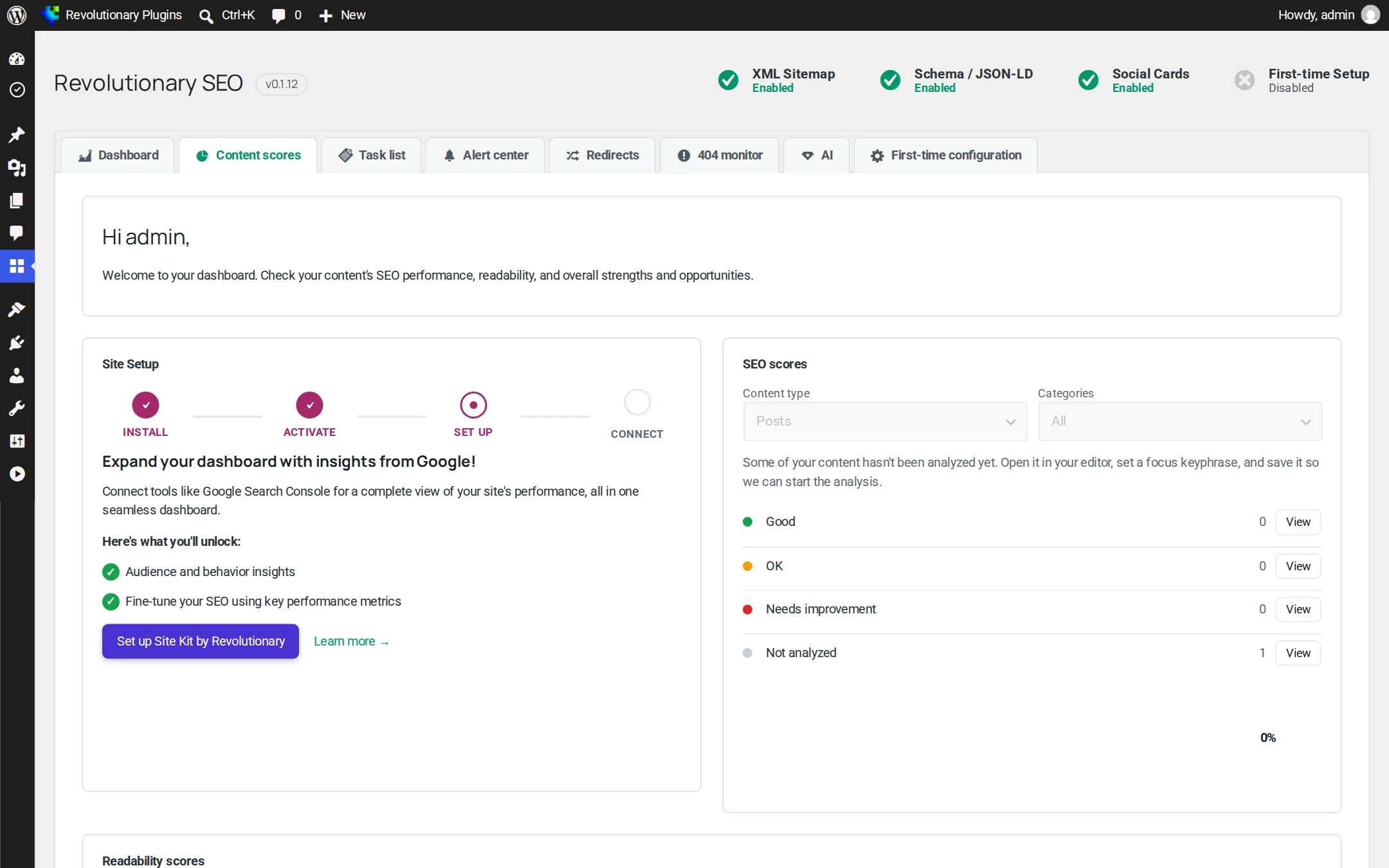
Editor panel
Optimizing a post or page
The Revolutionary SEO panel appears under the editor on every public post type, with four tabs: SEO, Readability, Schema and Social.
SEO tab
- Focus keyphrase, the search you want this page to rank for.
- Google preview in mobile and desktop views, updated as you type.
- SEO title and meta description, with variable chips for %title%, %page%, %sep% and %sitename%.
- Generate buttons that fill the title or description from a fixed template as a starting point (these are not AI).
- SEO analysis score with each check listed.
- Canonical URL, noindex and nofollow.
What the SEO analysis checks
- SEO title length (aim for 50 to 60 characters) and meta description length (aim for 120 to 160).
- Content length (aim for 300 words or more).
- Focus keyphrase in the title, description, URL slug, first paragraph and body, and keyword density.
- A featured image, H2 subheadings and links in the content.
Readability tab
Checks sentence length (over 20 words), paragraph length (over 150 words), transition words (aim for 30 percent), passive voice (aim for under 10 percent), repeated sentence starts, subheadings and the Flesch reading ease score.
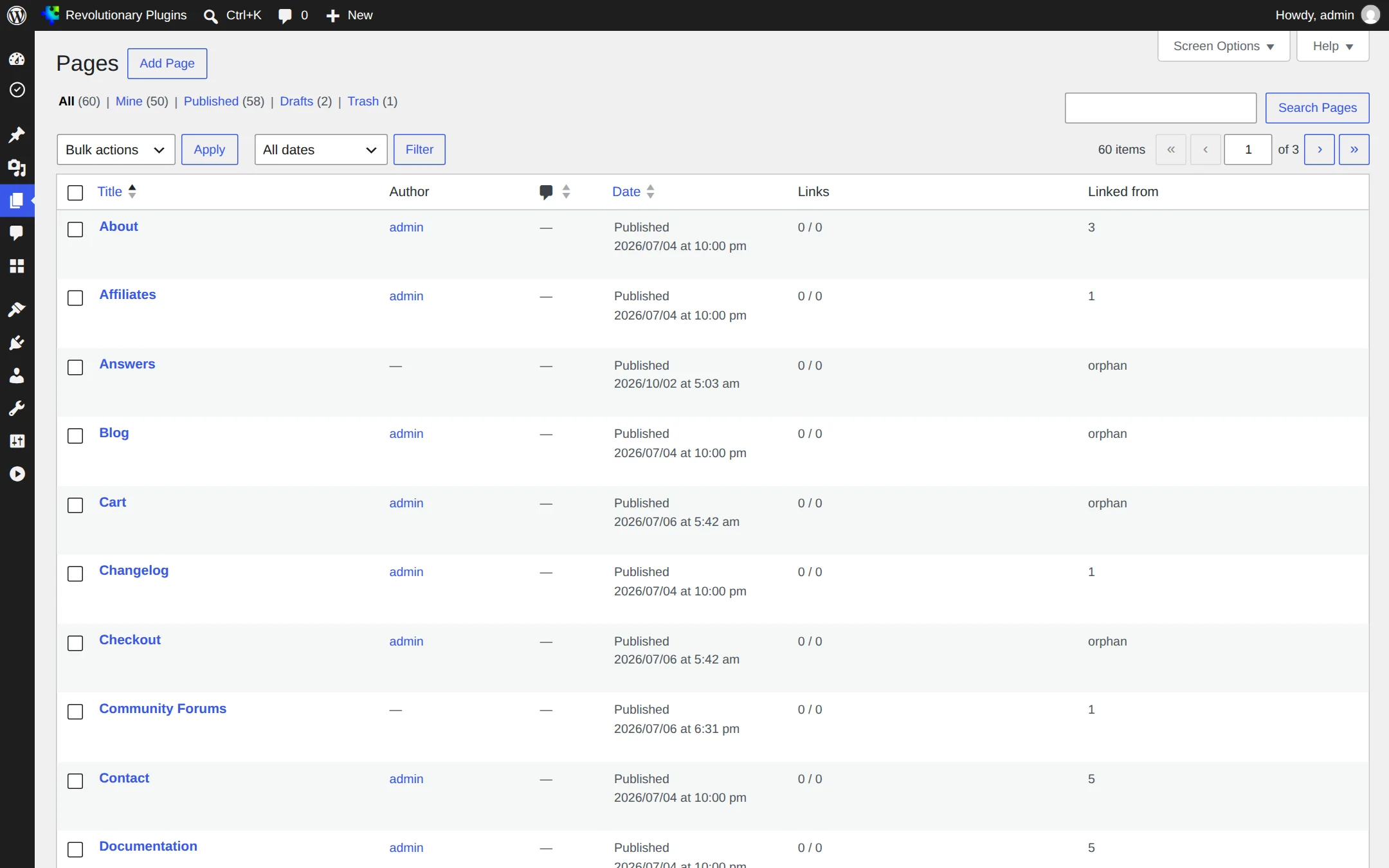
Posts and Pages lists
Links and Linked from columns show how many internal links each item has in and out. Content nothing links to is flagged as an orphan, so you know where to add links.
Open Graph and Twitter
Control how links to your site look when they are shared.
- Set a default share image in First-time configuration. It is used whenever a post has no image of its own.
- On the Social tab of the editor panel, set an Open Graph title, description and image for Facebook and LinkedIn.
- Set a separate Twitter title, description and image if you want X to show something different.
- Open Graph and Twitter output can each be switched off in First-time configuration.
Schema
Structured data
A JSON-LD graph is written into every page once Schema is switched on.
Site-wide graph
WebSite with a SearchAction, your Organization or Person (with logo or avatar and social profiles), Article on posts, and BreadcrumbList. The page and article type can be changed per page.
Rich-result types
On the Schema tab of the editor panel, add FAQ, HowTo, Product, Review, VideoObject, Event, Recipe, NewsArticle or SoftwareApplication data. FAQ entries use a question and answer repeater.
Validator
The built-in validator flags missing fields that Google requires for each rich-result type, so fix them before you publish.
SoftwareApplication
Offers can point at a pricing page without a price for quote-based products. Ratings are only output when you enter real values.
Crawling
XML sitemap, robots.txt and breadcrumbs
Help search engines find every page you want indexed, and none you do not.
Sitemap
The index lives at /sitemap.xml and links to child sitemaps per post type (sitemap-pt-<type>.xml) and per taxonomy (sitemap-tax-<taxonomy>.xml). They are paginated and cached. Anything set to noindex is left out.
Author sitemap
Off by default since 0.1.7, because author slugs reveal login names. Developers can opt in with the rseo_sitemap_include_authors filter.
robots.txt
The Sitemap: line pointing at your sitemap is added to WordPress's robots.txt automatically.
Breadcrumbs
Switch on Breadcrumbs in First-time configuration, then add to a template or page. The shortcode outputs nothing while Breadcrumbs is off.
Site health
Redirects
Send old or moved URLs to the right place.
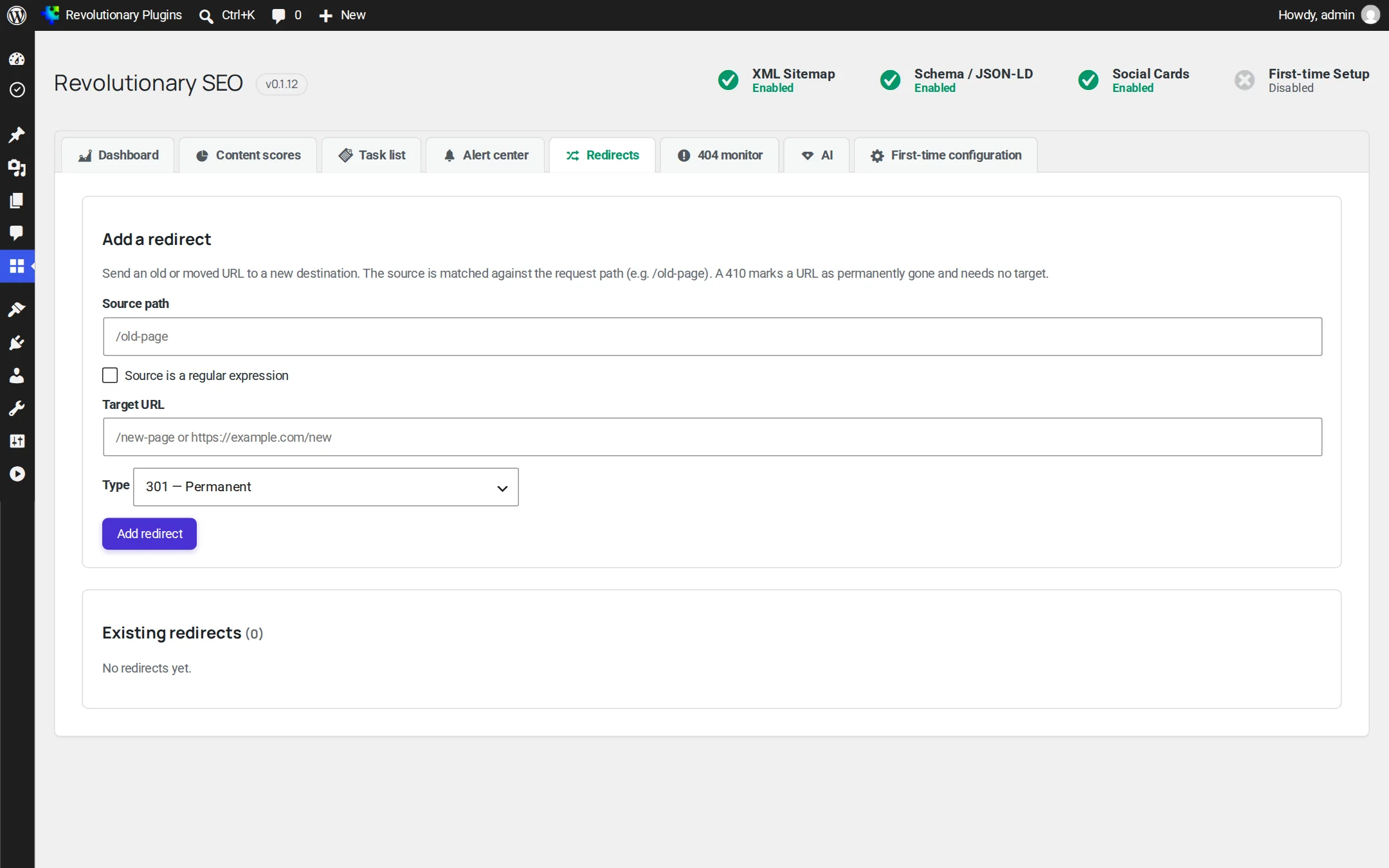
- 1. Open SEO, Redirects.
- 2. Enter the source path, such as /old-page.
- 3. Choose the type: 301 permanent, 302 temporary, 307 temporary that keeps the request method, or 410 gone.
- 4. Enter the target URL (a 410 needs none).
- 5. Tick Source is a regular expression if you need pattern matching, then add the rule.
Each rule shows its hit count. Rules are stored in their own table and cached, so a long list does not slow the site.
Automatic slug redirects
When the slug of a published post changes, a 301 from the old address is created for you. A redirect you made by hand is never overwritten.
Site health
404 monitor and broken links
Find the addresses people and search engines cannot reach.
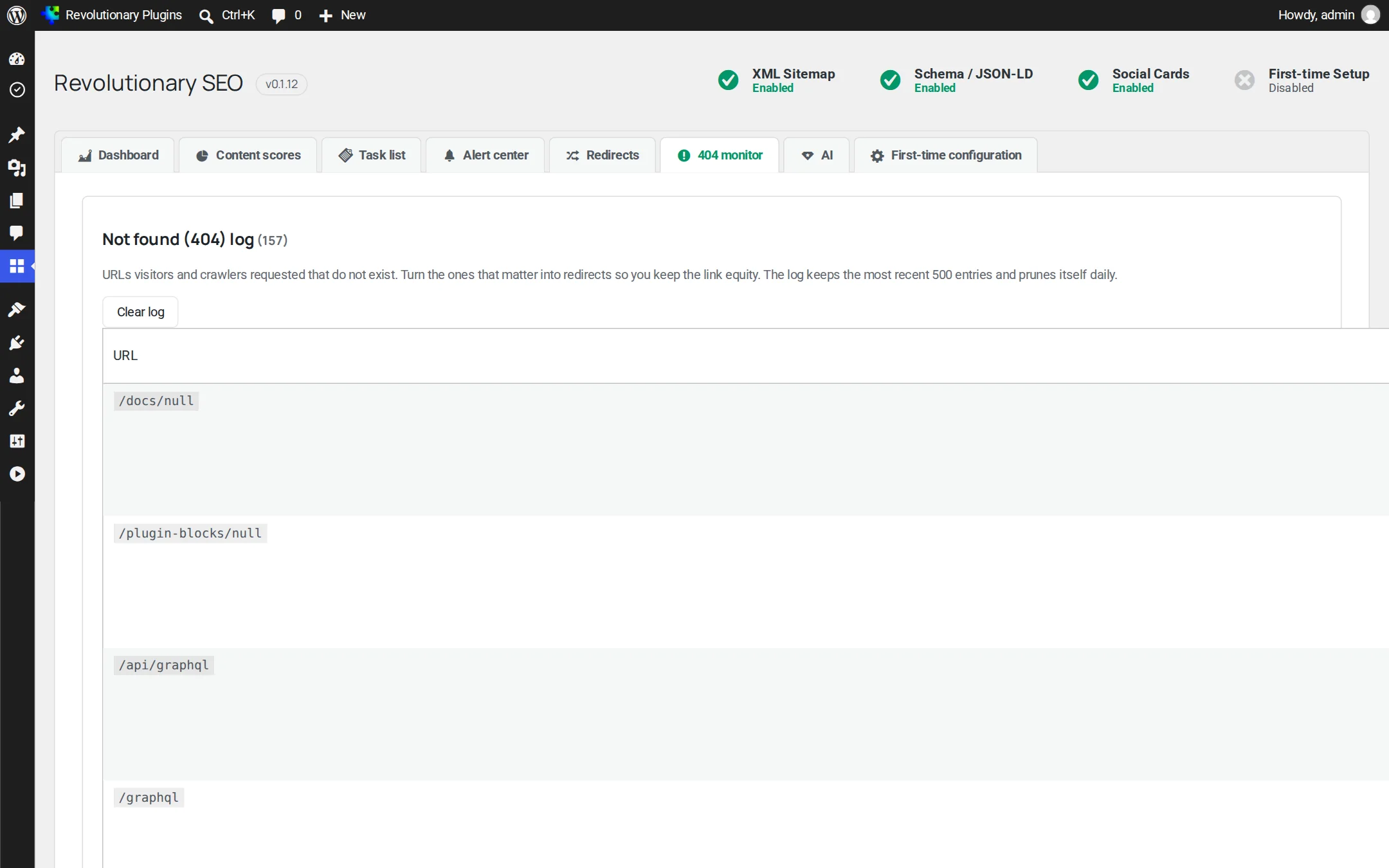
404 monitor
Every missing URL is logged with its hit count, when it was last seen and the referrer. The closest published page is suggested, and Create 301 turns the row into a redirect in one click. The log keeps the latest 500 entries and is pruned daily.
Broken outbound links
External links in your content are checked in small daily batches and rechecked weekly. Each broken link is listed with its status code and the post it sits on. Timeouts are not reported as broken.
Optional
AI tools
Optional AI uses the provider and model selected in the Multipurpose Dashboard AI tab. The SEO plugin has no separate provider-key fields.
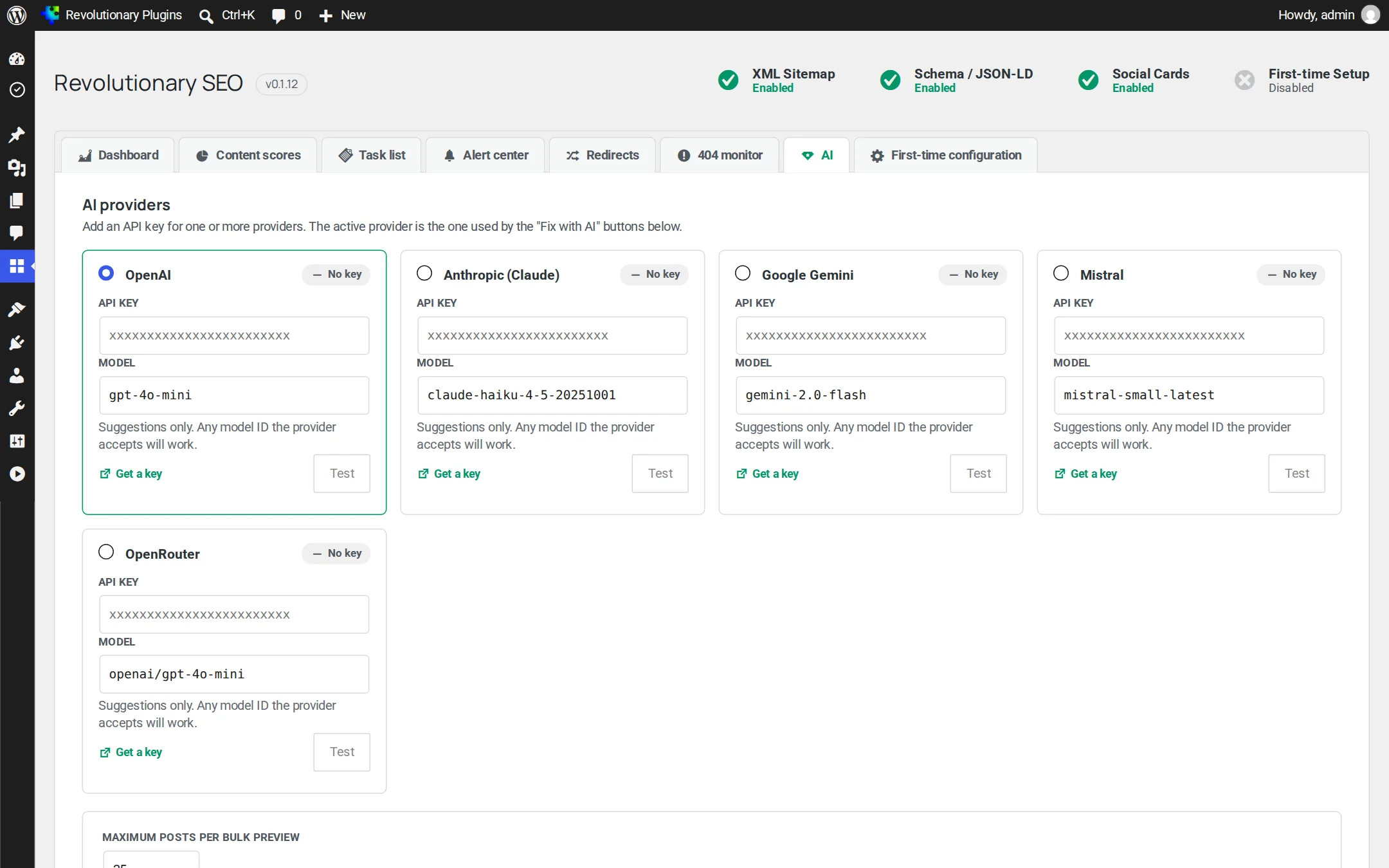
- 1. Open Multipurpose Dashboard, AI and configure the provider there.
- 2. Choose the provider for SEO under Which AI each plugin uses, or keep the default provider.
- 3. Open SEO, AI to review its connection status and prompt templates.
- 4. Generate a preview for one post. Review the proposed fields and select the ones to apply.
Review before applying
Metadata and schema suggestions open as previews. Applying is refused if the saved fields changed after generation. Undo is available for your most recent AI edit when those values remain unchanged.
Image descriptions
The AI tab lists images without alt text. Describe sends the image to the selected provider and suggests alt text, a title and a caption. Review each suggestion before applying it. An image used only for decoration can keep empty alt text.
Prompts, cache and usage
Edit prompt templates in SEO. Unchanged requests can use the result cache. The AI tab reports token usage from the selected provider.
Hooks
For developers
Filters and post meta keys for custom themes and integrations. There are no WP-CLI commands and no blocks.
| Filter | Use |
|---|---|
rseo_schema_nodes | Add, change or remove nodes in the JSON-LD graph |
rseo_sitemap_cache_ttl | How long sitemaps are cached |
rseo_sitemap_per_page | URLs per child sitemap page |
rseo_sitemap_include_authors | Opt in to the author sitemap |
rseo_ai_models | Change the suggested model list per provider |
Post meta keys
- _rseo_meta_title and _rseo_meta_description
- _rseo_focus_keyword
- _rseo_canonical and _rseo_noindex
- _rseo_schema_extra
Troubleshooting
Common questions
Check that XML sitemap is switched on in First-time configuration, then open Settings, Permalinks and click Save to refresh the rewrite rules.
Since 0.1.7 the author sitemap is off by default because author slugs reveal login names. Developers can opt in with the rseo_sitemap_include_authors filter.
Open Multipurpose Dashboard, AI. Check the selected provider, model and billing status, and the provider chosen for SEO. Return to SEO, AI to inspect its connection status. Do not paste keys into support messages.
Links are checked in small daily batches, so a new link can take a few days to be checked. Timeouts are not counted as broken.
It keeps the latest 500 entries and prunes the rest daily.
Stuck on something?
Search the forums, open a ticket, or write to us. A real person reads every message.
Social sharing