

Documentation · Revolutionary Testimonials 0.3.5
Revolutionary Testimonials, step by step.
How to add testimonials, collect new ones from customers, display them on your site, and import the ones you already have.
Released version 0.3.3
Current release setup and checks
Collect, approve and display customer testimonials with categories and ratings.
- The submission form follows the theme tokens for borders, labels and focus states.
- Approve submissions before displaying them, and obtain permission to publish each person's details.
Check your setup
- Add a fictional test testimonial and choose the intended category in the display widget.
- Submit the form on a phone in both theme modes and check its labels, focus and confirmation.
Quick start
Up and running in minutes
Step 1
Install and activate
Upload the plugin or install it from the Revolutionary Plugins menu.
Step 2
Add a testimonial
Testimonials, Add New. Fill in the client's name, company, rating and words, then publish.
Step 3
Show them on a page
Place the [revolutionary_testimonials] shortcode, or the Testimonial widget in Revolutionary Blocks.
Step 4
Start collecting
Place [revolutionary_testimonials_form] on a page and approve submissions as they arrive.
On this page
Start here
Getting started
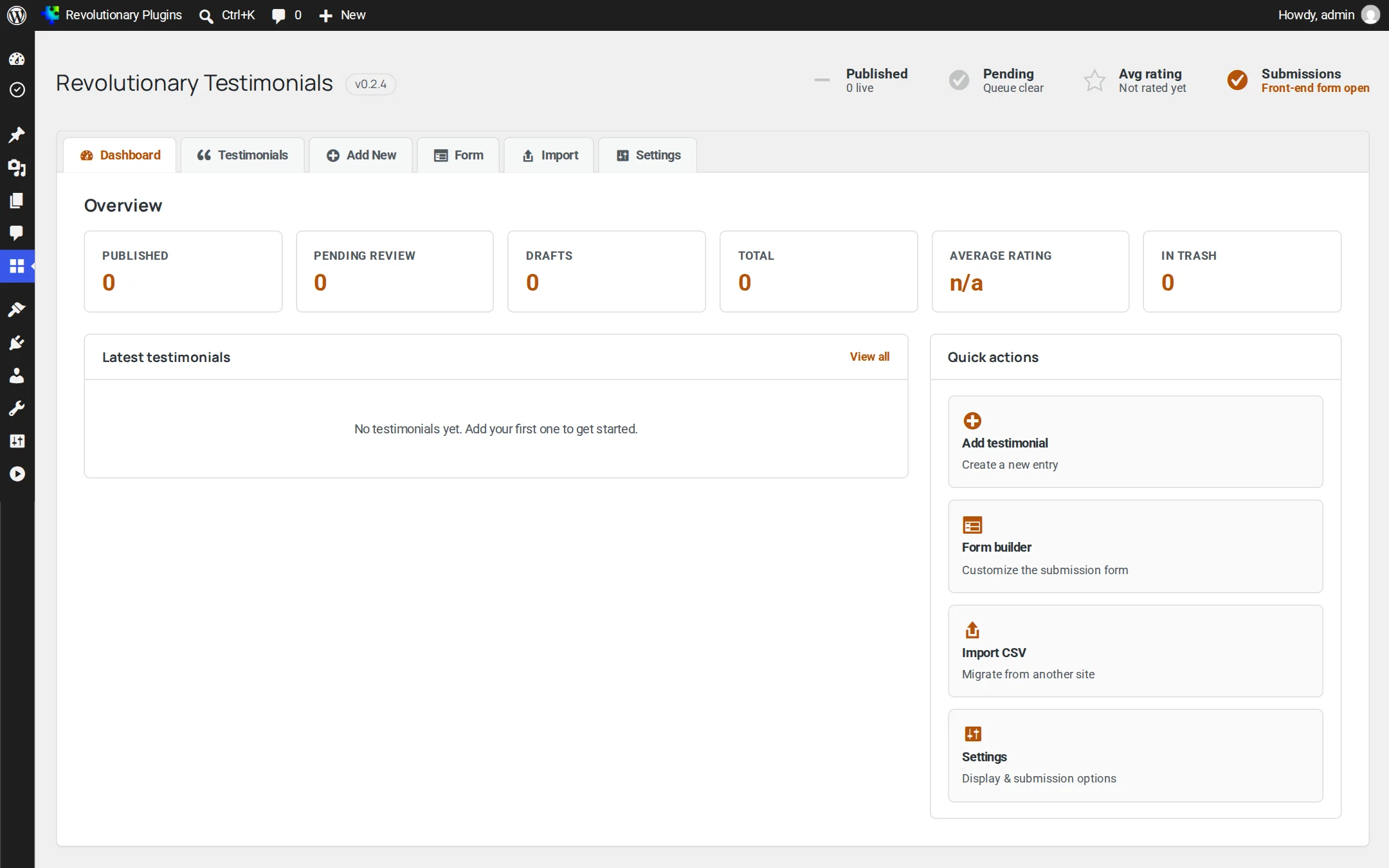
Everything lives under Revolutionary Plugins, Testimonials. The tab bar at the top links the overview, the list, Add New, Form, Import and Settings.
License and updates
Updates come from revolutionaryplugins.com under your Revolutionary license. Enter the key once in Multipurpose Dashboard, Welcome. There is no separate license screen in this plugin.
Who can do what
Anyone who can edit posts can view the overview and add or edit testimonials. People who cannot publish save as Pending. The Form, Import and Settings screens need administrator rights.
Overview
The dashboard
Stat cards, your latest testimonials, a breakdown of ratings from one to five stars, and quick actions.
Library
Adding and editing testimonials
Testimonials open in the plugin's own editor instead of the block editor.
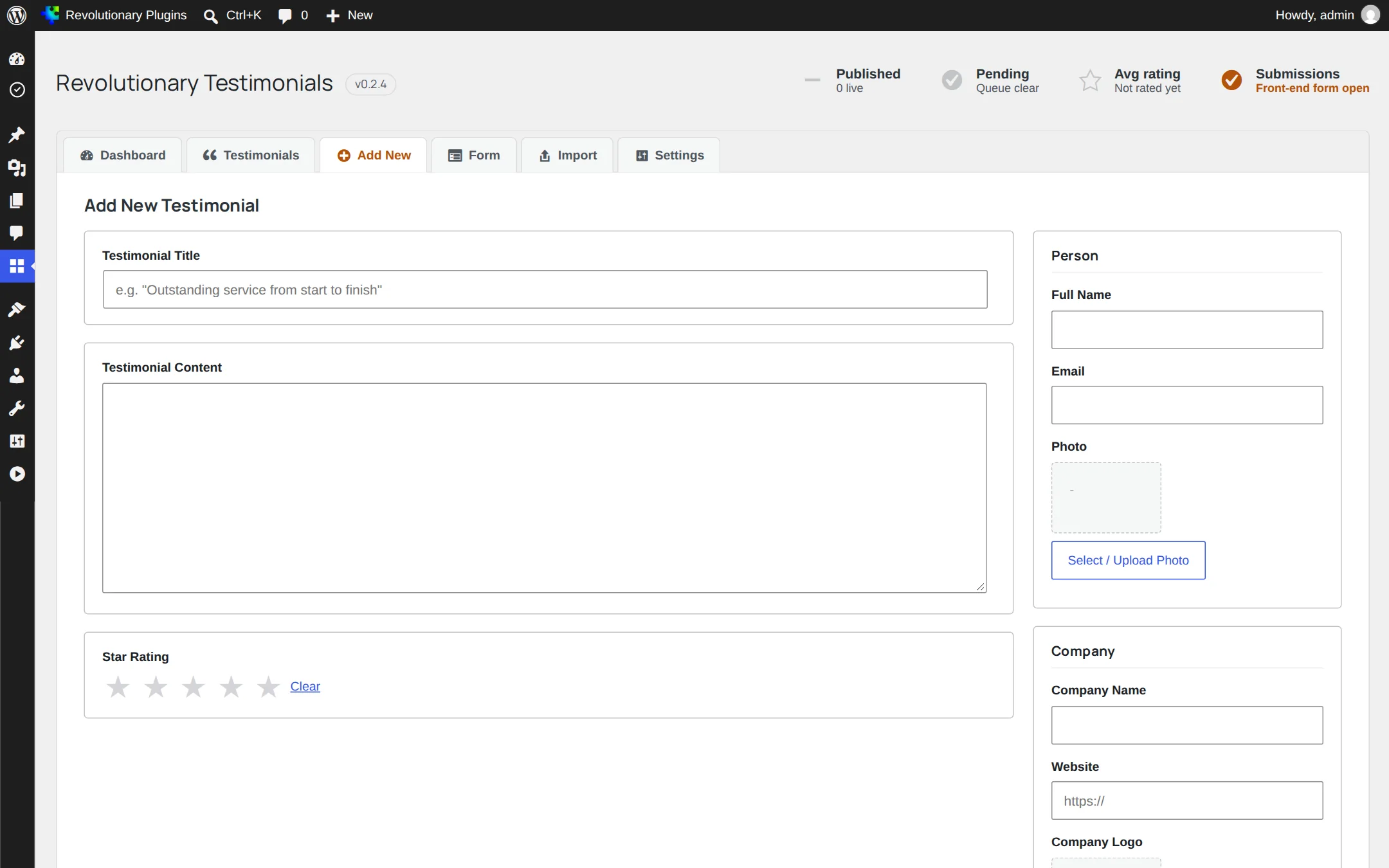
| Field | What it is for |
|---|---|
| Title | A short headline for the testimonial |
| Testimonial | The client's words |
| Client name | The person who gave the testimonial |
| For your records; hidden on the site unless you choose to show it | |
| Company | Shown with the name |
| Website | The client's site |
| Star rating | Zero to five stars |
| Photo | The person's photo |
| Company logo | Shown alongside the testimonial |
| Categories | One or more testimonial categories |
| Status | Published, Pending review or Draft |
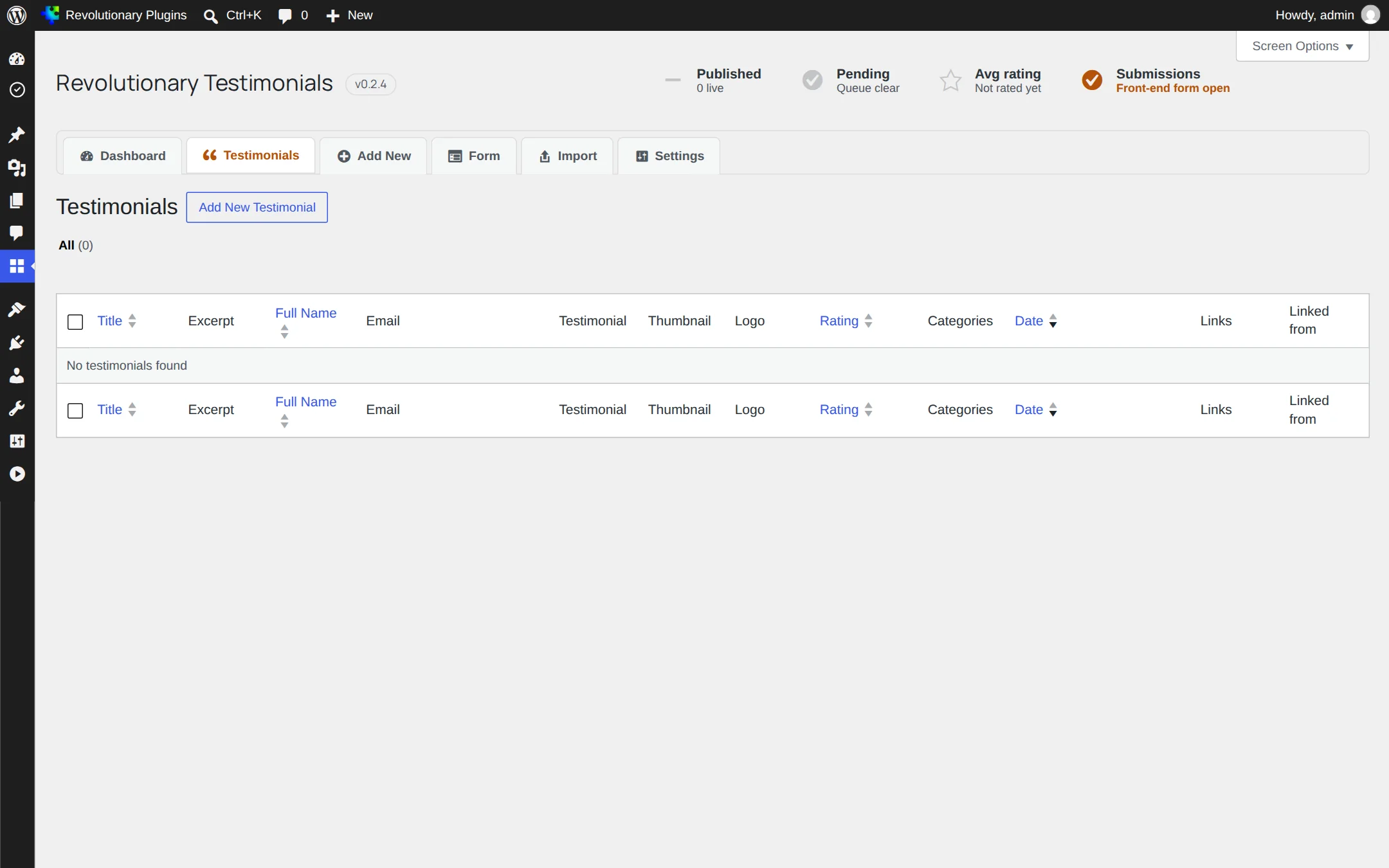
The All Testimonials list has sortable name and rating columns.
Organize
Categories
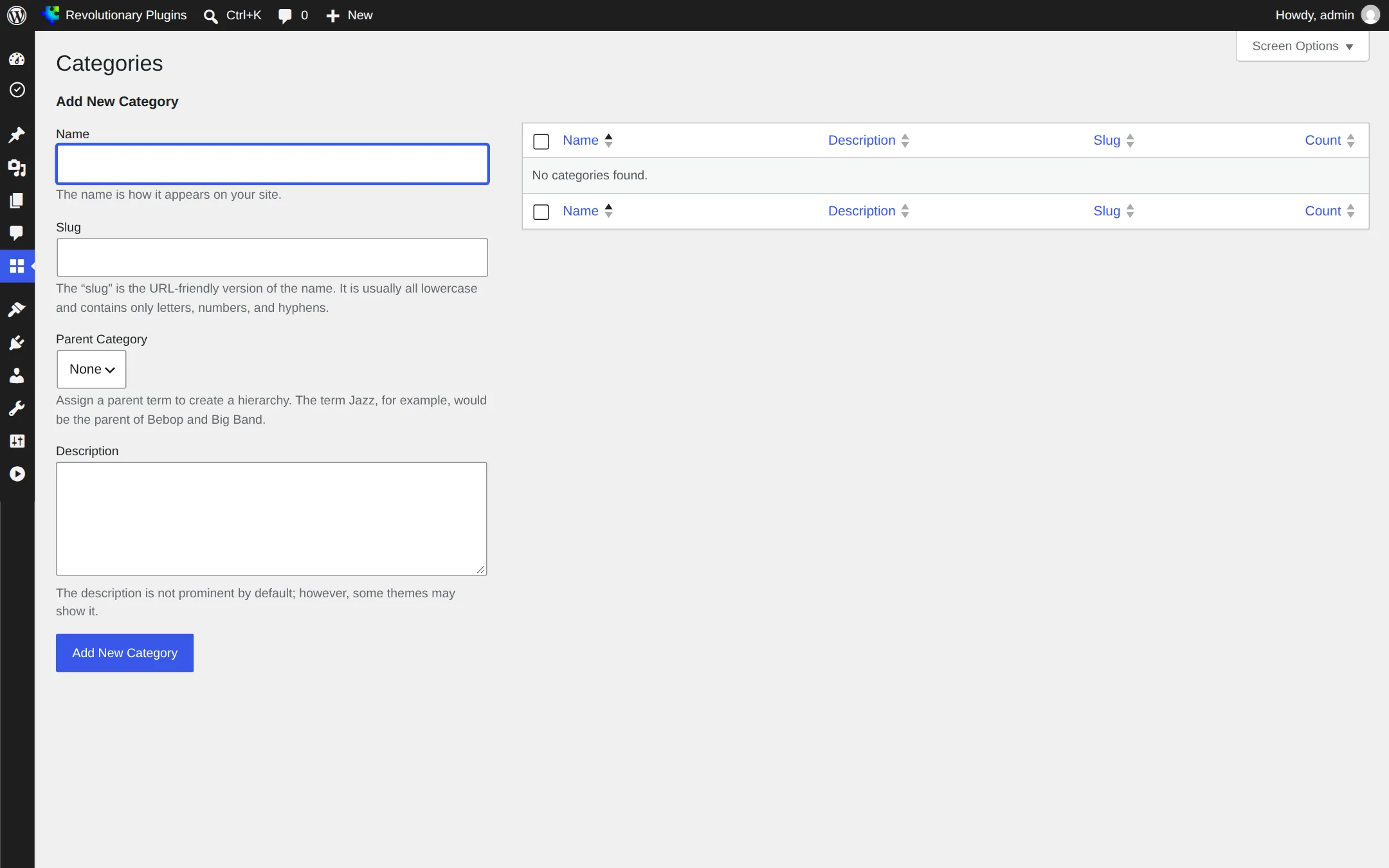
Group testimonials by product, service or audience, then show only the category that fits each page. Categories are also created automatically by the CSV importer.
On your site
Displaying testimonials
Use the shortcode anywhere shortcodes work, or the Testimonial widget in Revolutionary Blocks.
Example: [revolutionary_testimonials columns="3" rating="4" category="clients"] shows testimonials rated four stars or more from the clients category, in three columns.
| Attribute | Default | What it does |
|---|---|---|
| count | Testimonials per page setting (10) | How many to show |
| category | All | One or more category slugs, separated by commas |
| rating | Any | Minimum star rating, 1 to 5 |
| columns | Columns setting (1) | 1 to 4 |
| orderby | date | What to sort by |
| order | DESC | ASC or DESC |
Submissions
Collecting testimonials from customers
Let customers send testimonials through a form on your site.
- 1. In Settings, make sure Allow front-end submissions is on (it is by default).
- 2. Decide whether to keep Require moderation before publishing on (the default).
- 3. Place [revolutionary_testimonials_form title="Share your experience"] on a page, or use the Testimonials Form widget in Revolutionary Blocks.
- 4. Review new submissions in All Testimonials, where they wait as Pending, and publish the ones you want.
Built-in protection
- Logged-out visitors can submit at most ten times per ten minutes from one address.
- Photo and logo uploads must be JPG, PNG, GIF or WebP images.
- Every input has a label for screen readers, and the star rating is a labeled group.
Form builder
Customizing the submission form
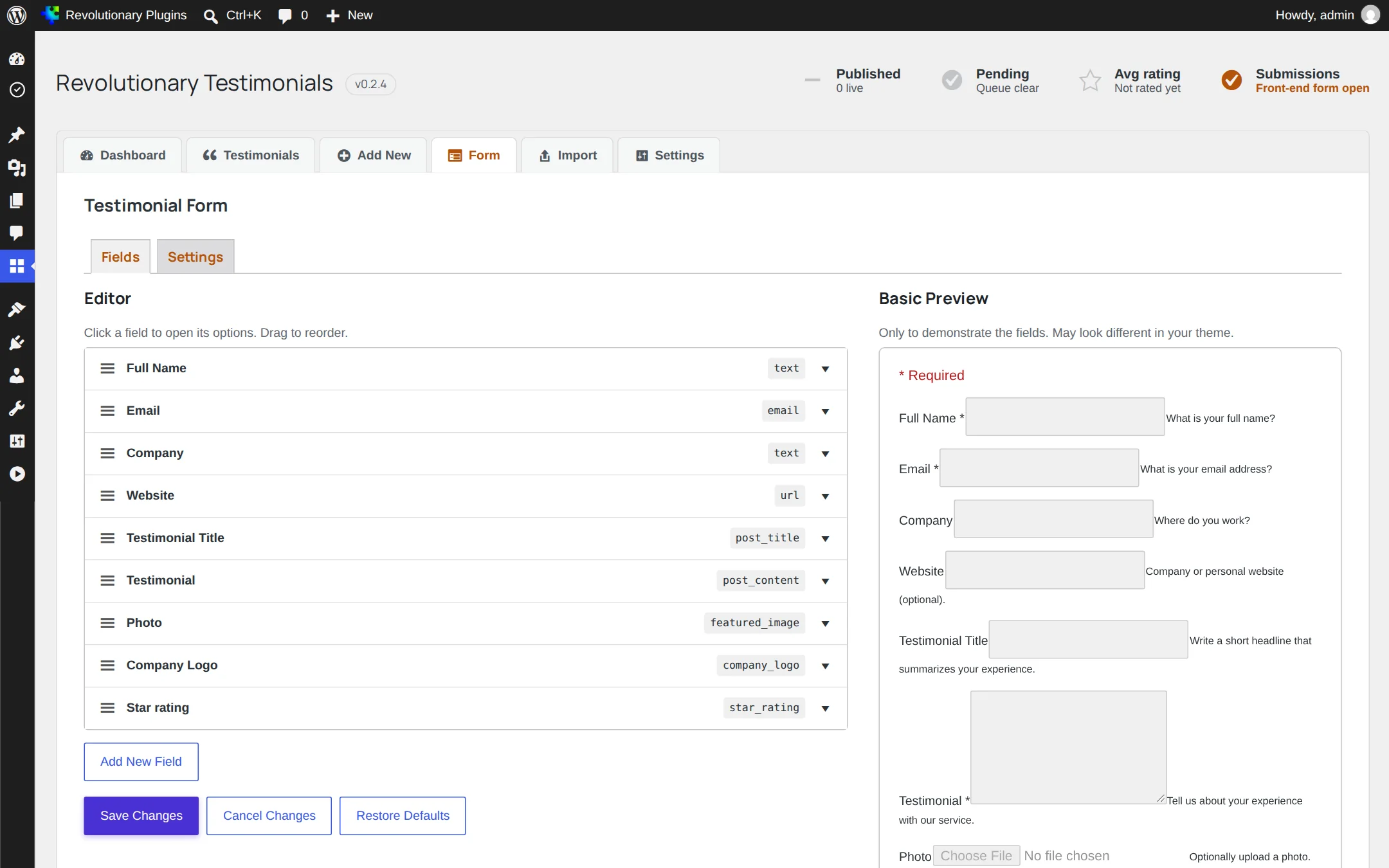
Testimonials, Form. Add, remove and reorder fields, and see a live preview that matches the real form.
Field types
| Group | Types |
|---|---|
| Post fields | Testimonial title, testimonial content, featured image (photo) |
| Custom fields | Text, email, URL, checkbox |
| Special fields | Category selector, category checklist, shortcode, star rating, company logo |
The default form asks for full name, email, company, website, a title, the testimonial, a photo, a company logo and a star rating.
Button and messages
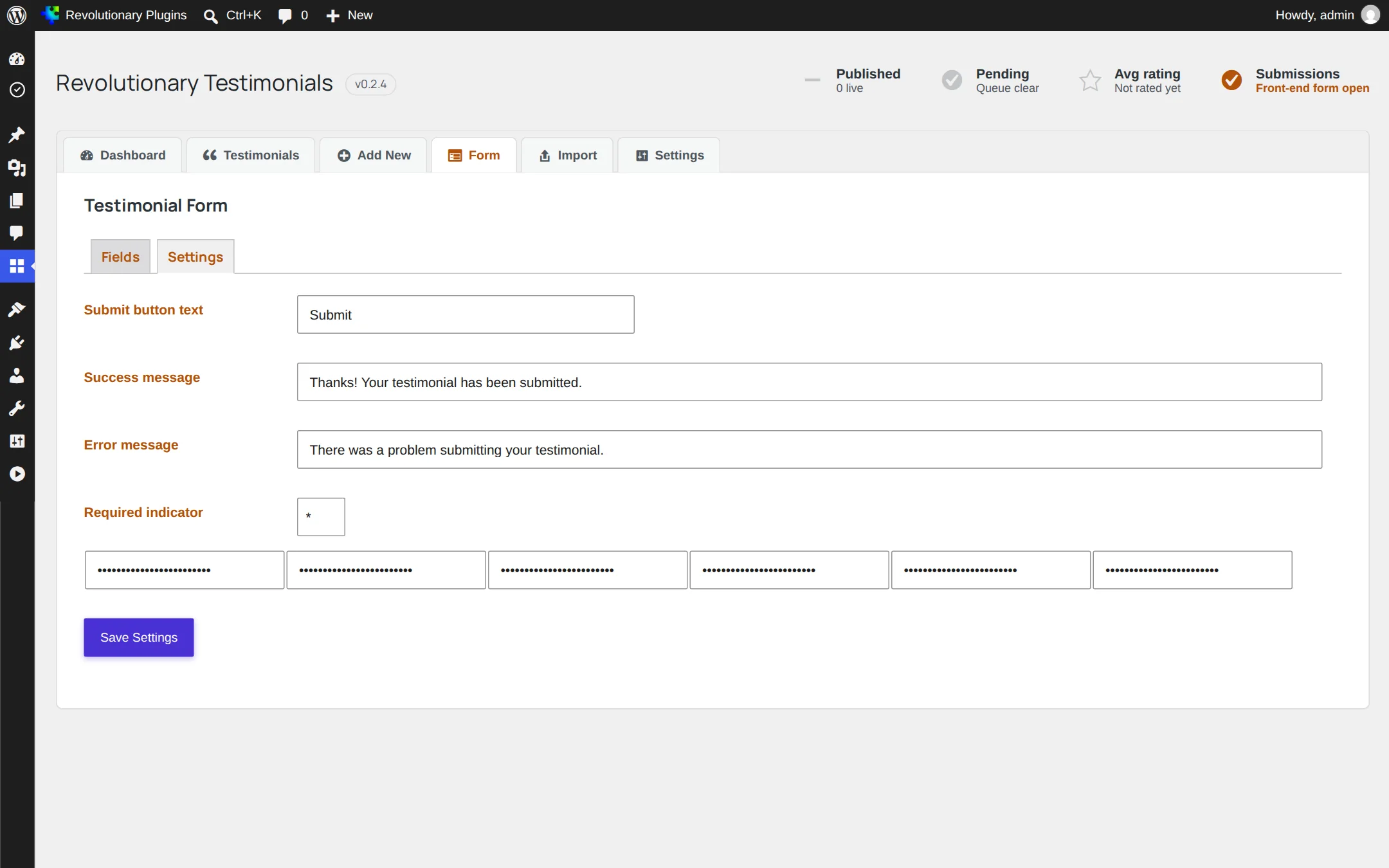
The Settings tab of the Form screen sets the submit button text and the success message. Restore defaults puts the original form back.
Moving in
Importing from another site
Testimonials, Import. Upload a CSV file whose first row names the columns. Unknown columns are ignored.
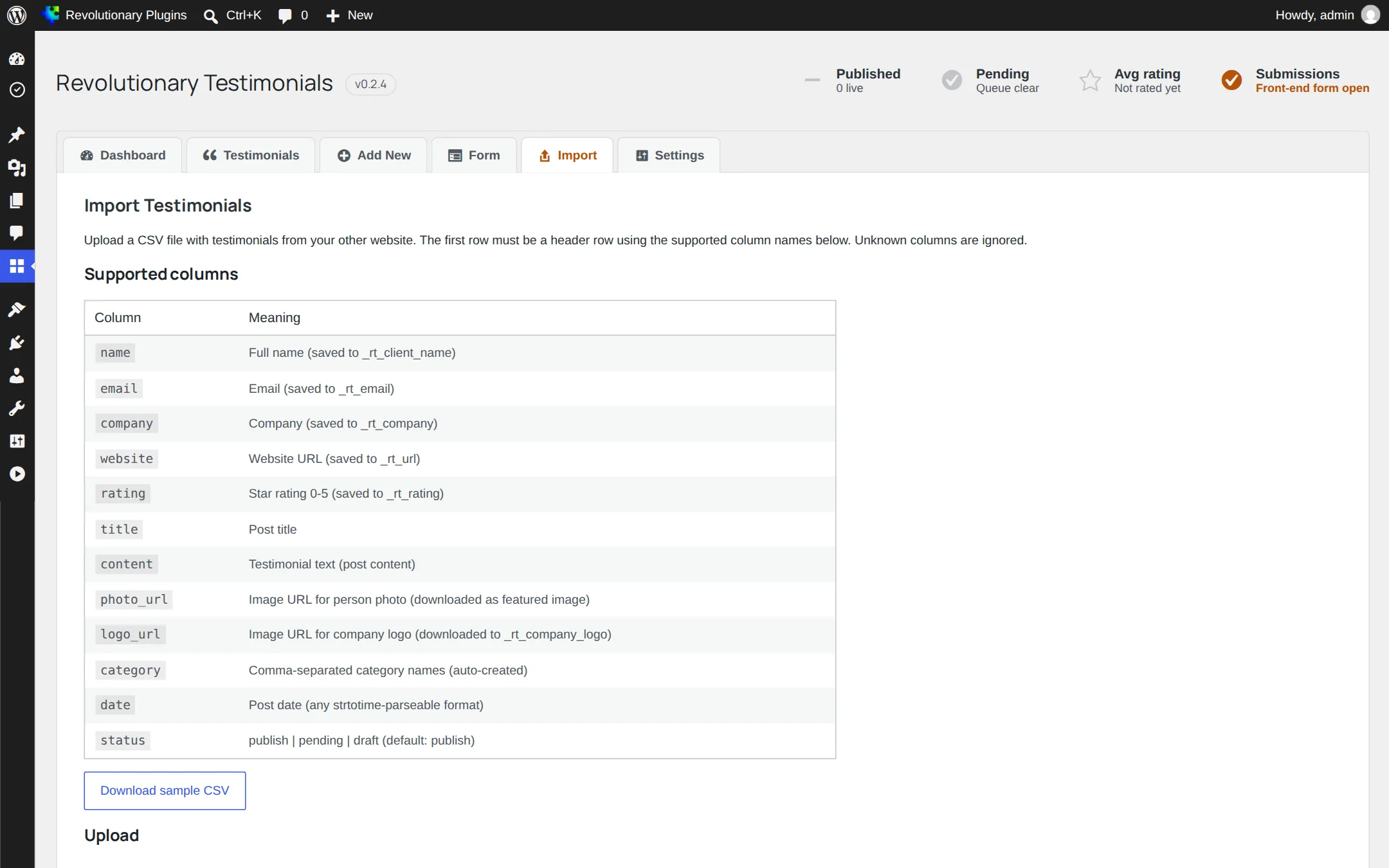
| Column | Meaning |
|---|---|
| name | Client name |
| Client email | |
| company | Company |
| website | Website |
| rating | Star rating |
| title | Testimonial title |
| content | The testimonial |
| photo_url | Photo to download |
| logo_url | Logo to download |
| category | Category name, created if new |
| date | Publish date |
| status | publish, pending or draft |
- Download remote photo_url / logo_url into the Media Library (on by default).
- Skip rows that look like duplicates, matched on name plus email (on by default).
- Default status for rows without a status column: Published, Pending or Draft.
- Rows with no name and no content are skipped and listed in the result.
Configuration
Settings reference
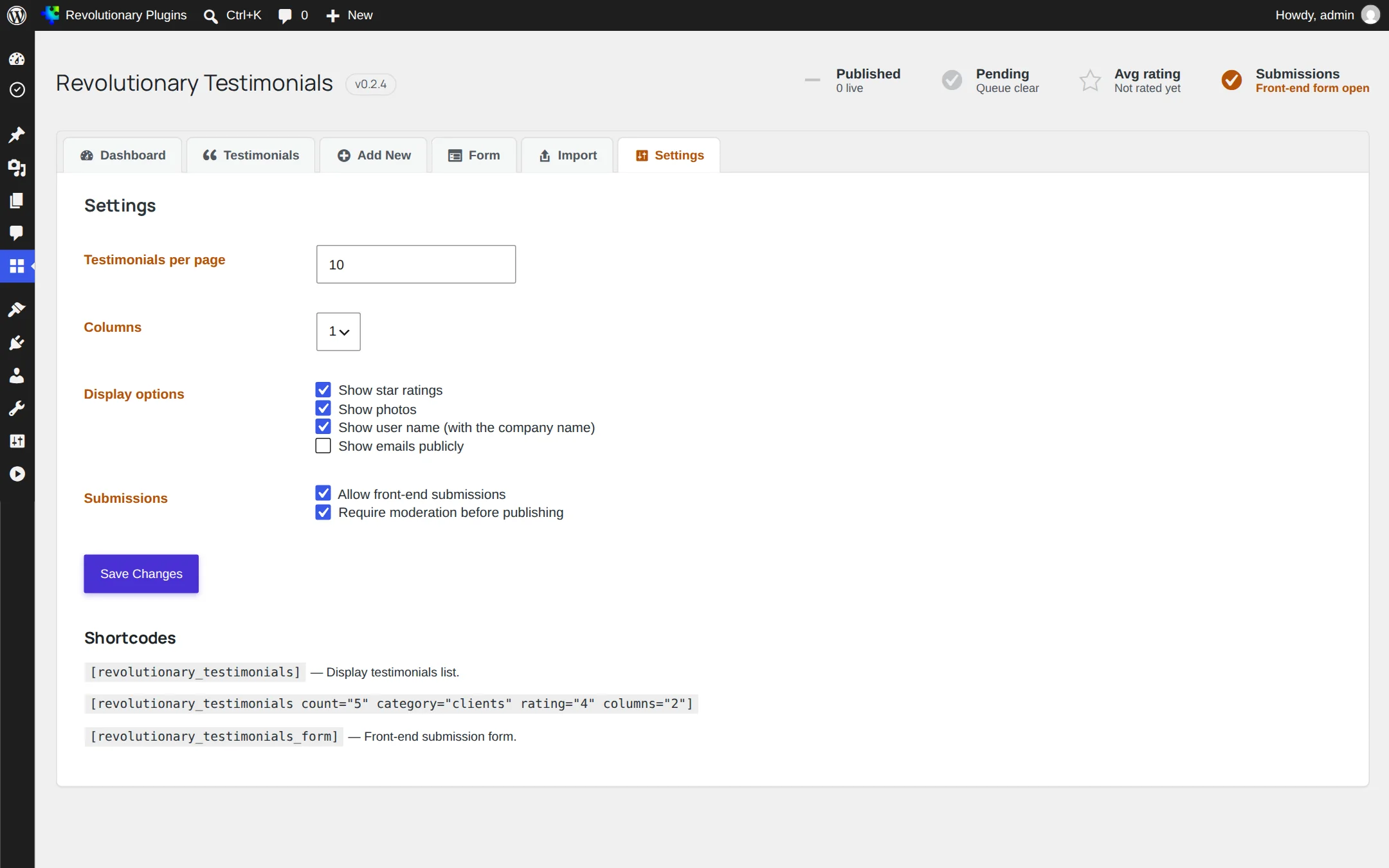
| Setting | Default |
|---|---|
| Testimonials per page | 10 |
| Columns | 1 |
| Show star ratings | On |
| Show photos | On |
| Show user name (with the company name) | On |
| Show emails publicly | Off |
| Allow front-end submissions | On |
| Require moderation before publishing | On |
Reference
Developer notes
- Post type rt_testimonial with public URLs under /testimonial/, and taxonomy rt_testimonial_category.
- Meta keys: _rt_client_name, _rt_email, _rt_company, _rt_url, _rt_rating, _rt_company_logo.
- Filter rt_submit_rate_limit changes the public submission limit.
- There are no WP-CLI commands, and no Gutenberg blocks or classic widgets; use the shortcodes or Revolutionary Blocks.
Troubleshooting
Common questions
With moderation on, it is waiting as Pending in All Testimonials. Open it and publish it.
The visitor reached the limit of ten submissions per ten minutes. Signed-in users are not limited.
Make sure Download remote photo_url / logo_url was on and that the image URLs are publicly reachable.
That is expected. The WordPress editor links go to the plugin's own testimonial editor.
Your testimonials and settings stay in the database, so they are still there if you reinstall.
Stuck on something?
Search the forums, open a ticket, or write to us. A real person reads every message.