

Documentation · Revolutionary Backups 0.6.12
Revolutionary Backups, from first backup to full restore.
How to schedule backups, connect remote storage, encrypt your archives, restore safely and script it all with WP-CLI.
Released version 0.6.10
Current release setup and checks
Schedule file and database backups, keep off-site copies and verify a backup before restoring it.
- Choose from ten destinations, including dedicated Backblaze B2 and Cloudflare R2 entries.
- SFTP / SCP uses bundled phpseclib and no longer needs the PHP ssh2 extension.
Check your setup
- Test the selected connection and run a small backup before relying on the schedule.
- Check the activity result and practice a restore on a separate test site. Keep the encryption passphrase outside WordPress.
Watch the walkthrough
Create a local WordPress backup and locate Restore
Create a manual local backup, verify its files and database components, and locate the Restore action without opening or running it. Recorded on a fictional demo site.
Recording release: 0.6.8. Captured on an isolated demonstration site.
Chapters
Quick start
Up and running in minutes
Step 1
Install and activate
Upload revolutionary-backups.zip under Plugins, Add New, then activate. Backups appears under the Revolutionary Plugins menu.
Step 2
Take your first backup
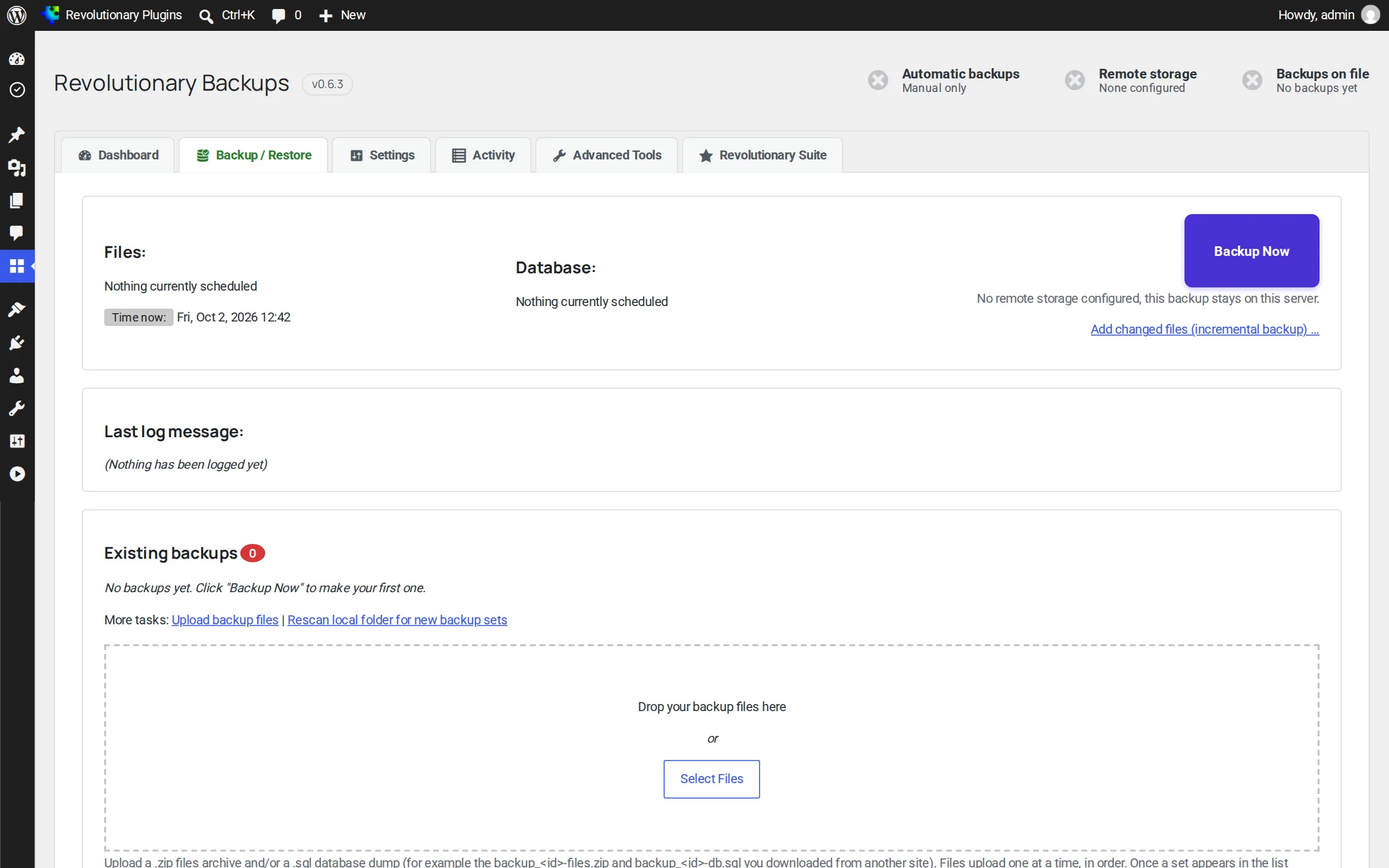
Open the Backup / Restore tab and click Backup Now. You get a files archive and a database dump on the server.
Step 3
Connect remote storage
On Settings, pick a destination, enter or connect its credentials and click Test connection before saving.
Step 4
Set a schedule
Choose how often files and the database run and how many backups to keep. Both schedules start on manual.
On this page
Start here
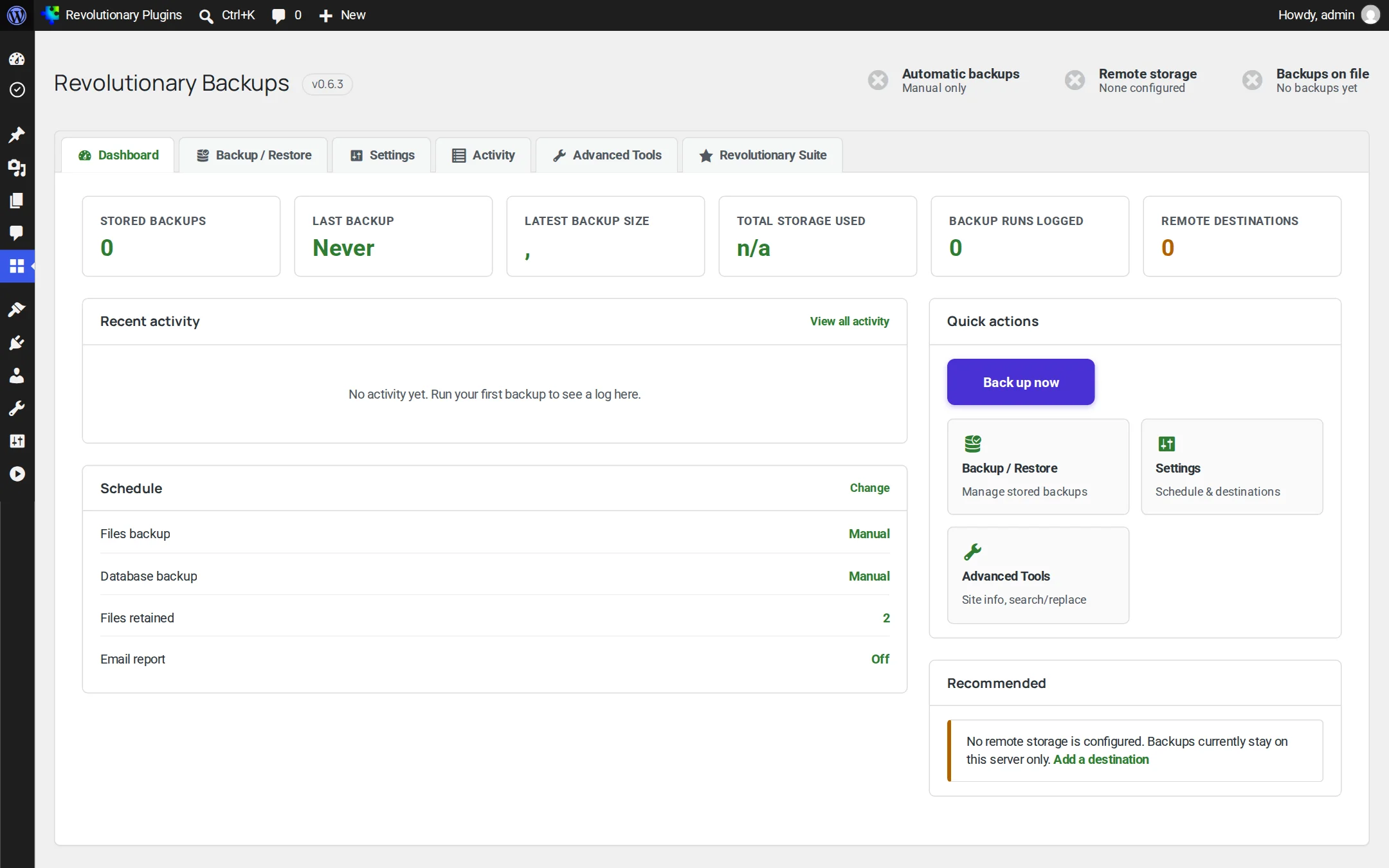
Where everything lives
Everything is on one page under Revolutionary Plugins, Backups. The tabs are Dashboard, Settings, Backup / Restore, Activity and Advanced Tools. You need the manage_options capability to see them.
Requirements
- WordPress 5.8 or later and PHP 7.4 or later
- The PHP ZipArchive extension
- No PHP ssh2 extension is required for SFTP / SCP
- OpenSSL with AES-GCM, for encrypted credentials and archives
License and updates
Your Revolutionary license key is entered once for the whole suite, in Multipurpose Dashboard, Welcome. Backups uses it for automatic updates from revolutionaryplugins.com. Backup / Restore is always available.
Off-site copies
Connecting remote storage
Pick a destination on the Settings tab, fill in its details, and test the connection before saving. Credentials are stored encrypted.
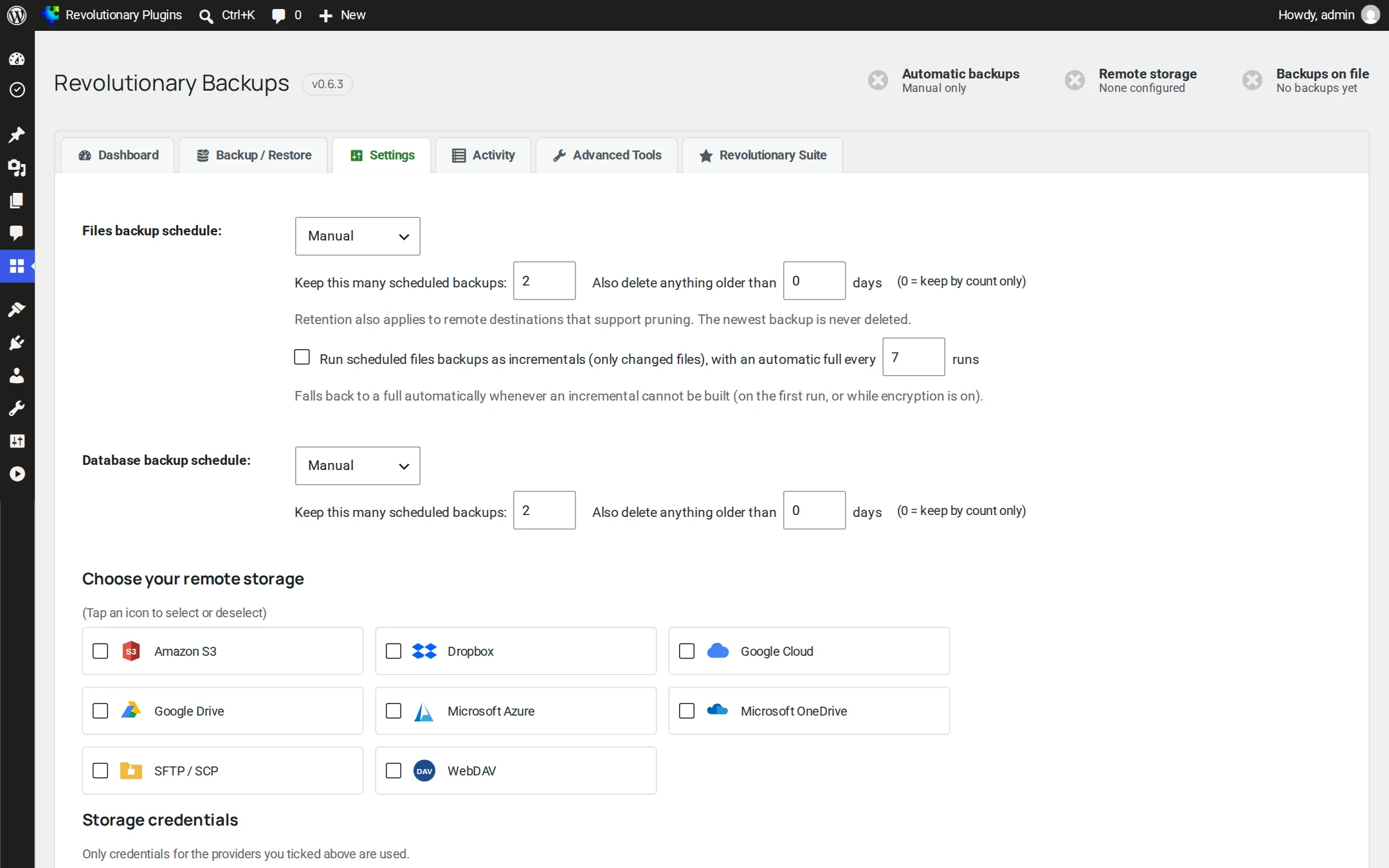
| Destination | How you connect | Notes |
|---|---|---|
| Amazon S3 | Access key, secret, bucket and region | Also works with S3-compatible providers through their S3 endpoint. Supports remote restore and remote pruning. |
| Backblaze B2 | Application key, key ID, bucket and region | Dedicated S3-compatible destination with multipart uploads, fetch-back and remote pruning. |
| Cloudflare R2 | Access key, secret, account endpoint and bucket | Dedicated S3-compatible destination with multipart uploads, fetch-back and remote pruning. |
| Dropbox | Connect button, or paste a refresh token | Uploads in 10 MiB chunks |
| Google Drive | Connect button, or paste a refresh token | Uploads in 10 MiB chunks |
| Microsoft OneDrive | Connect button, or paste a refresh token | Browse folders picker. Personal Microsoft accounts should paste a refresh token. |
| Google Cloud Storage | Service-account key | |
| Microsoft Azure Blob | Storage account name, account key and container | |
| SFTP / SCP | Host, port, login and path | Uses bundled phpseclib; no PHP ssh2 extension required |
| WebDAV | HTTPS address and login | HTTPS only |
Using the Connect button
- 1. Create an app with Dropbox, Google or Microsoft.
- 2. Copy the OAuth redirect URI shown on the Settings tab and register it on your app.
- 3. Enter your app's client details, then click Connect and approve access.
- 4. Click Test connection, then save.
Automation
Schedules and retention
Files and database have their own schedule and their own retention, so you can back up a busy database often without copying every image each time.
| Setting | Default | What it does |
|---|---|---|
| Files schedule | Manual | Every 2, 4, 8 or 12 hours, the standard WordPress intervals, fortnightly or monthly |
| Database schedule | Manual | Same choices as files |
| Keep (files / database) | 2 each | How many backups of each kind to keep |
| Keep for days (files / database) | Off | Also remove backups older than this many days |
| Scheduled incrementals | Off | Scheduled file runs add only changed files |
| Full backup after | 7 incrementals | Starts a fresh full backup when the chain reaches this length |
How retention decides
- The newest backup of each kind is never deleted.
- A full backup that a kept incremental depends on is never pruned.
- Remote copies on Amazon S3 follow the same rules.
Scope
What to include and exclude
Settings controls which folders go into the files backup.
- Plugins, themes, uploads, must-use plugins and other wp-content folders, each with its own checkbox (all on by default).
- Exclusion patterns with * wildcards. Common backup and cache folders from other plugins are excluded out of the box.
- A skip files larger than N MB limit to leave out big videos or archives.
Privacy
Encryption
Turn on encryption in Settings to encrypt every archive and database dump at rest with AES-256-GCM, derived from a passphrase you choose.
- 1. Open Settings and turn on encryption.
- 2. Enter a strong passphrase and save.
- 3. Note the key fingerprint shown beside it.
Restoring on another site
Encrypted sets end in .enc. On the other site, enter the same passphrase and confirm the fingerprint matches before you upload and restore.
Encryption with incrementals
Incremental backups work with encryption. If no passphrase is configured, incrementals fall back to full backups.
The part that matters
Restoring
Restore any set from the Existing backups table on Backup / Restore, and choose files, database or both.
What happens during a restore
- 1. The set's SHA-256 checksums are verified. A mismatch stops the restore.
- 2. A snapshot is taken of the files and database about to be overwritten.
- 3. The backup is restored. Incremental chains are applied in order, starting from their full backup.
- 4. If anything fails, the snapshot is restored automatically.
Restoring a backup from another site
Drag the backup files onto the upload zone. Uploads run in the background, survive switching tabs, resume after an interruption and go past PHP's upload size limit. The set then appears in Existing backups.
Restoring from Amazon S3
Click Rescan remote storage under Remote backups, fetch the set back to the server, then restore it like any local set.
Staying informed
Notifications and activity
Know when a run fails without checking the dashboard.
| Setting | Default | What it does |
|---|---|---|
| Email on failure | On | Sends an email when a run fails |
| Success report | Off | Also emails after successful runs |
| Notification address | Admin email if empty | Where emails go |
| Webhook URL | Empty | Receives a JSON payload after each run, for Slack, Teams or monitoring |
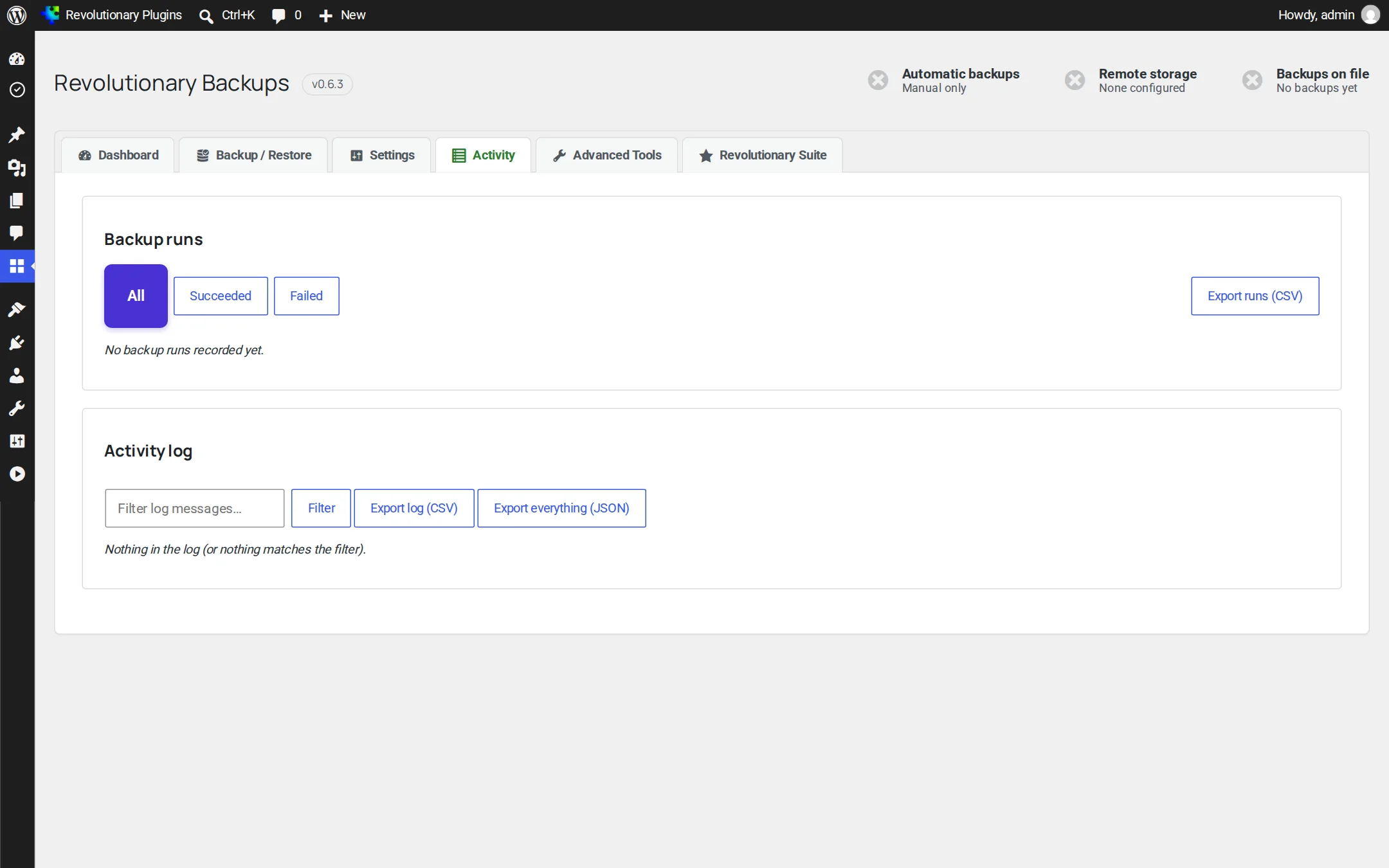
The Activity tab
Run history shows each run's outcome, trigger, duration, parts and errors, and can be filtered by status. The log below it is searchable. Export either as CSV or JSON.
Maintenance
Advanced Tools
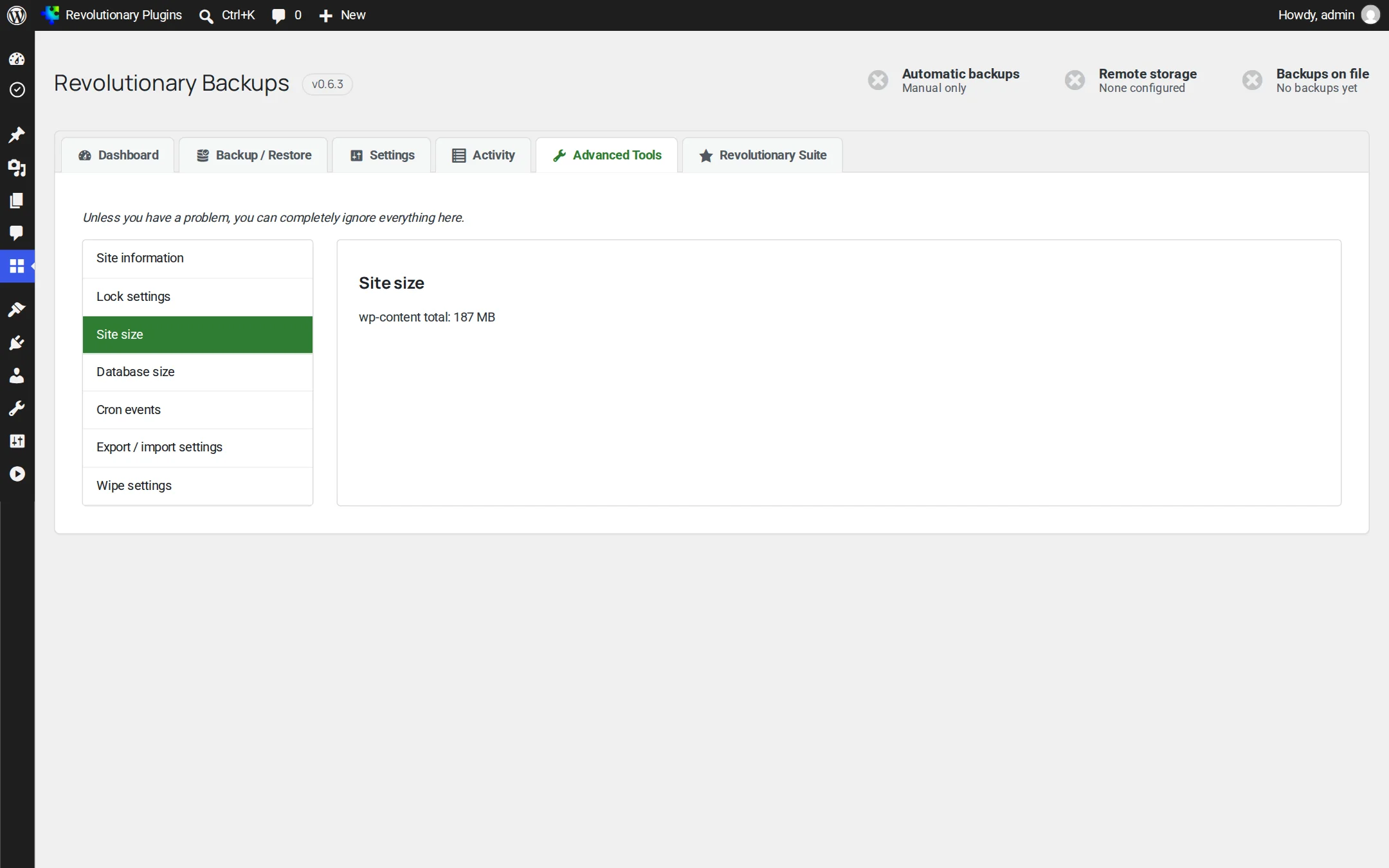
A sidebar of tools for checking the site and managing the plugin.
| Tool | What it shows or does |
|---|---|
| Site information | Server software, PHP and MySQL versions, paths and table prefix |
| Plugin lock | Sets a password that gates every Backups screen, action and download. Each unlock lasts one hour. |
| Site size | How much space each part of the site uses |
| Database size | Every table and its size |
| Cron | Scheduled events, including the plugin's own backup jobs |
| Export / import settings | Copy your settings to or from JSON. Credentials stay encrypted in the export. |
| Wipe settings | Resets the plugin's settings to defaults |
For developers
WP-CLI
Every core task is available from the command line under wp revbackups.
| Command | What it does |
|---|---|
wp revbackups backup [--incremental] [--files-only|--database-only] [--skip-remote] | Runs a backup |
wp revbackups list [--format=table|json|csv|yaml] | Lists backup sets |
wp revbackups restore <backup-id> [--components=files,database] [--yes] | Restores a set |
wp revbackups verify [<backup-id>] | Checks checksums. Exits non-zero on any failure. |
wp revbackups send <backup-id> [--destination=<key>] | Sends a set to remote storage |
wp revbackups test-connection [<destination>] | Tests a destination's credentials |
Troubleshooting
Common questions
Scheduled runs depend on WP-Cron, which only fires when the site gets visits. Load any admin page to re-arm missing events, and set up a real system cron on low-traffic sites.
Make sure the OAuth redirect URI shown on the Settings tab is registered on your app exactly as shown. For personal Microsoft accounts, paste a refresh token instead.
The archive changed or was damaged after it was made. Try another set, or fetch a fresh copy from remote storage.
Apache and IIS protection files are written for you. On nginx, add a location rule that denies access to wp-content/uploads/revolutionary-backups/.
It was removed in 0.6.0 so Backups can focus on backup and restore.
Stuck on something?
Search the forums, open a ticket, or write to us. A real person reads every message.