DOCUMENTATION
Revolutionary Duplicator Documentation
Clone any post, page or custom post type in one click, with every meta field, taxonomy term and block carried across. This guide covers installation, day-to-day duplicating, bulk cloning, the settings that shape each copy, and the developer hooks that let you change exactly what gets cloned.
Getting started
Install the plugin and clone your first page in ten seconds.
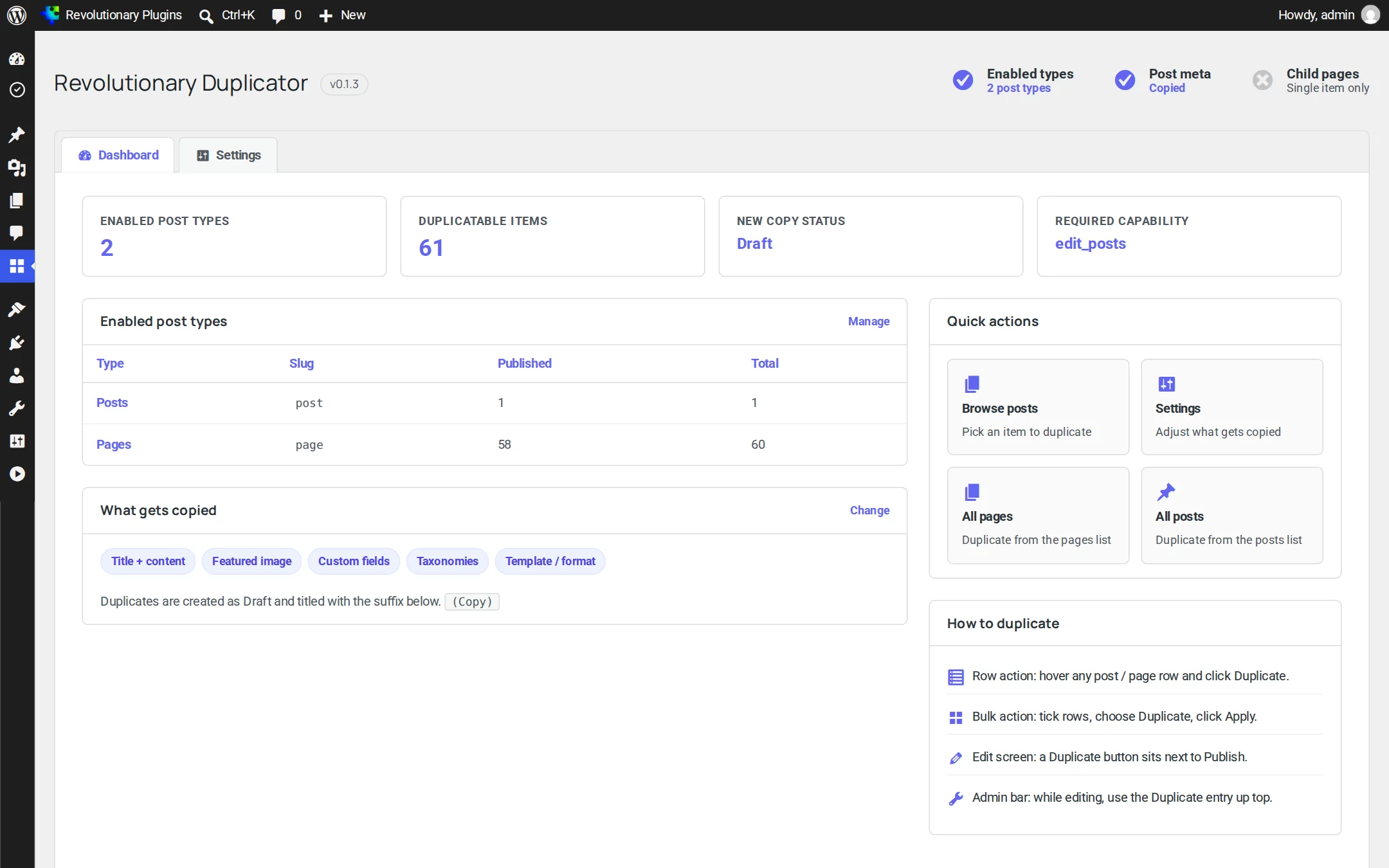
What gets copied
See exactly which parts of a record carry across to the copy.
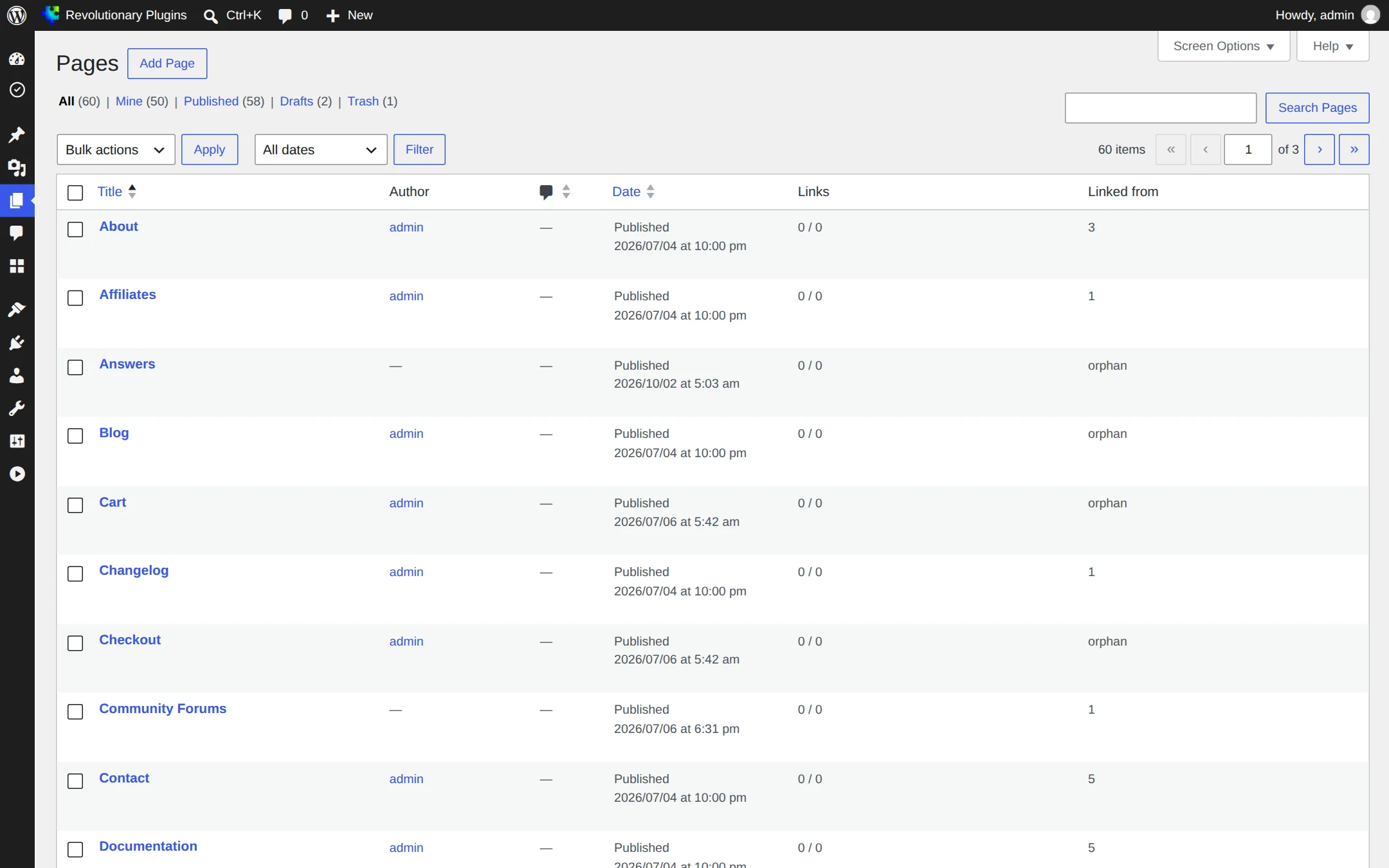
Bulk duplicate
Clone many selected items in a single action.
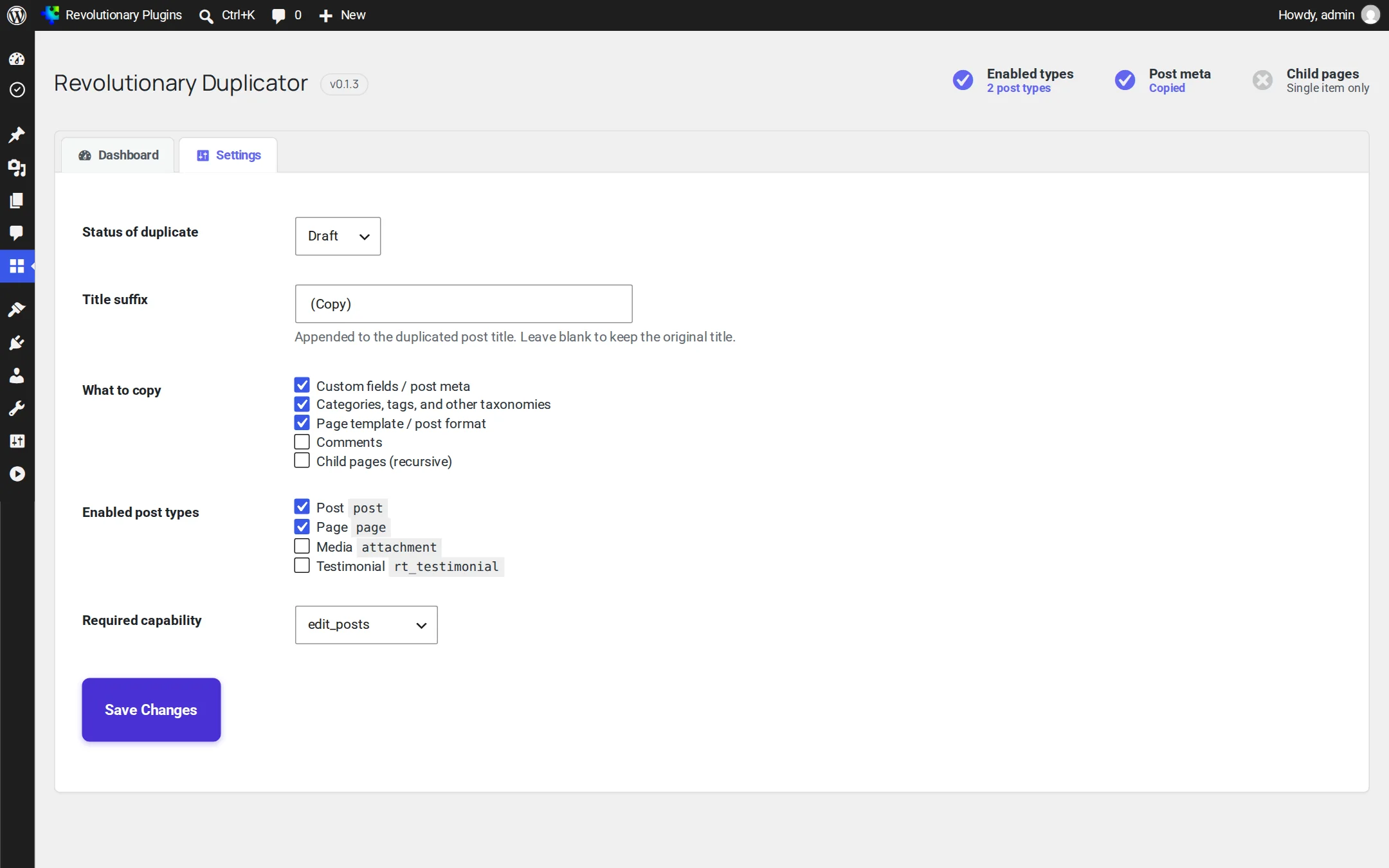
Settings
Choose post types, title suffix and redirect behavior.
Hooks & filters
Shape the clone or react to it with a focused API.
Capabilities
Control who can duplicate content and how it is secured.
Introduction
Revolutionary Duplicator adds a single, dependable action to WordPress: take any post, page or custom post type and create a complete draft copy of it. The copy is a true clone, not just the body text. It carries the full record, every custom field, all taxonomy terms, the featured image, the page template, the parent, the menu order and the entire block structure.
The plugin does one job and stays out of your way. There are no extra database tables, no front-end scripts, and nothing to learn beyond the Duplicate link that appears in your list tables. Most people install it, click Duplicate once, and never open the settings page.
Tip: Every clone is created as a draft, so duplicating is always safe. Nothing reaches your visitors until you review the copy and publish it yourself.
Installation
Revolutionary Duplicator installs like any standard WordPress plugin. Use the bundled .zip archive or grab it from the Revolutionary Plugins hub.
- Upload the plugin. In your WordPress admin, go to Plugins -- Add New -- Upload Plugin and choose
revolutionary-duplicator.zip. Click Install Now. - Activate. Once installed, click Activate. A Duplicate link immediately appears in the row actions of your posts and pages, no configuration needed.
- Pick your post types (optional). Visit Settings -- Duplicator to choose which post types show the Duplicate action and set a default title suffix. Defaults work for most sites out of the box.
- Verify your license. Paste your license key under Settings -- Duplicator -- License to unlock bulk duplicate, automatic updates and priority support.
Zero-setup by design: The free version is fully functional the moment it activates. The settings page only exists for the people who want to fine-tune behavior.
Your first clone
Let's duplicate a page and edit the copy. Start to finish, this takes about ten seconds.
- Open your list table. Go to Pages (or Posts, or any custom post type) in the admin sidebar.
- Hover the item. Move your cursor over the title of the item you want to clone. The row actions appear underneath it: Edit, Quick Edit, Trash, View, and now Duplicate.
- Click Duplicate. The copy is created instantly as a draft and a success notice confirms it. The new item is named after the original with your suffix appended, for example "Pricing (copy)".
- Open the copy. Click Edit on the new draft. Every block, field, term and the featured image are already in place.
- Change what's different and publish. Update the title and the parts that need to change, then hit Publish. That's the whole loop.
That's it. There's no separate clone screen and no waiting, the copy appears in the same list you were already looking at.
Row & editor actions
Revolutionary Duplicator surfaces the same action in the two places you're most likely to want it.
- List table row action: a
Duplicatelink sits in the hover actions of every enabled post type, alongside Edit and Trash. This is the fastest path for cloning an item you can see in a list. - Editor toolbar button: while editing a post, a Duplicate button appears in the editor's tools menu so you can clone the item you're currently working on without leaving it.
Both actions do exactly the same thing, create a draft copy, fire the same hooks, and respect the same settings. The success notice links straight to the new draft so you can jump in and edit immediately.
What gets copied
A clone is a faithful copy of the source record. The table below shows what comes across by default and how each part behaves on the new draft.
| Item | Copied? | Notes |
|---|---|---|
| Block / post content | Yes | Copied byte for byte, the full Gutenberg block structure is preserved. |
| Post meta & custom fields | Yes | Includes ACF fields, page-builder data and SEO meta. Excludable per key. |
| Taxonomies | Yes | Categories, tags and every custom taxonomy term are re-assigned to the copy. |
| Featured image | Yes | The same attachment is set as the copy's featured image; no media is duplicated. |
| Page template & parent | Yes | Template, parent page and menu order are matched to the original. |
| Status | No | The copy is always a draft, regardless of the original's status. |
| Title | Modified | The original title plus your configured suffix, for example "(copy)". |
| Comments | No | Comments are not copied, the clone starts with a clean discussion. |
The featured image is shared by reference, the plugin sets the same attachment ID rather than re-uploading the file, so your media library stays clean and your storage doesn't balloon.
Bulk duplicate
When you need more than one copy, bulk duplicate clones every selected item in a single action. It's available in Suite Pro.
- Select your rows. In any enabled list table, tick the checkbox next to each item you want to clone.
- Choose the action. Open the Bulk actions dropdown at the top of the table and select Duplicate.
- Apply. Click Apply. Each selected item is cloned as a draft with your title suffix, and a notice reports how many copies were created.
Heads up: Cloning a very large batch in one request can hit your server's PHP time limit. If you're duplicating hundreds of items at once, work in groups of fifty or raise max_execution_time for that request.
Settings
Everything lives on a single page under Settings -- Duplicator. The defaults suit most sites, so treat this page as optional fine-tuning.
- Enabled post types: tick the post types that should show the Duplicate action. By default this covers posts, pages and any public custom post type.
- Title suffix: the text appended to a clone's title. Defaults to
(copy). - Redirect after duplicate: stay on the list, or open the new draft in the editor automatically.
- Excluded meta keys: a list of meta keys to skip when copying, one per line.
All four settings are also adjustable from code through the filters in Hooks & filters, which is handy for agencies that ship a fixed configuration across client sites.
Title suffix & status
By default a clone's title is the original title followed by the configured suffix, and its status is always draft. You can change the suffix per duplicate from code with the revdup_title_suffix filter, for example to use a dated suffix like "(Jun 25)" instead of "(copy)".
add_filter( 'revdup_title_suffix', function( $suffix, $post ) {
if ( 'page' === $post->post_type ) {
return ' (' . date_i18n( 'M j' ) . ')';
}
return $suffix;
}, 10, 2 );
The filter receives the current suffix and the source post object, so you can branch on post type, author, or any meta value. Return an empty string to clone with the original title unchanged.
Excluding meta
Some meta keys shouldn't travel with a clone, think view counters, cached values, or a per-post unique identifier. List those keys in Settings -- Duplicator -- Excluded meta keys, or filter the full meta array in code with revdup_clone_meta.
add_filter( 'revdup_clone_meta', function( $meta, $source_id, $new_id ) {
$skip = [ '_view_count', '_cached_html', '_unique_ref' ];
foreach ( $skip as $key ) {
unset( $meta[ $key ] );
}
return $meta;
}, 10, 3 );
The revdup_clone_meta filter is passed the assembled meta array, the source post ID and the freshly created clone ID. Whatever you return is written to the copy, so you can rewrite values as well as remove them.
Hooks & filters
Revolutionary Duplicator exposes a small, focused API so developers can shape the clone or react to it. The most useful entry points are listed below.
| Hook | Type | Purpose |
|---|---|---|
revdup_clone_meta |
filter | Add, remove or rewrite meta before it's written to the copy. |
revdup_title_suffix |
filter | Change the text appended to a clone's title, per post. |
revdup_new_post_args |
filter | Adjust the wp_insert_post args, for example to set a different status. |
revdup_after_duplicate |
action | Run custom logic once a clone is created, with both IDs. |
Use the revdup_after_duplicate action to react after a clone is created, here we log it and clear a cache:
add_action( 'revdup_after_duplicate', function( $new_id, $source_id ) {
error_log( sprintf( 'Duplicated #%d into draft #%d', $source_id, $new_id ) );
do_action( 'my_theme_flush_listing_cache' );
}, 10, 2 );
The clone is created with the standard wp_insert_post pipeline, so core hooks such as save_post and wp_insert_post also fire on the new draft.
Capabilities
The Duplicate action is only shown to users who already have permission to edit the post type in question, so an Author won't see it on a page they can't edit. Internally the plugin checks the post type's edit_posts capability before rendering the link and again before performing the clone.
To restrict cloning further, filter the required capability with revdup_capability:
add_filter( 'revdup_capability', function( $cap, $post_type ) {
return 'edit_others_posts';
}, 10, 2 );
The clone is also nonce-protected end to end, so the Duplicate link can't be triggered by a forged request. Together these mean only the people you intend can ever create a copy.
Troubleshooting
Revolutionary Duplicator is small, so most issues come down to one of these:
- No Duplicate link appears: confirm the post type is ticked under Settings -- Duplicator, and that your user role has edit access to it. Custom post types must be registered as editable to qualify.
- A custom field didn't copy: check the Excluded meta keys list and any
revdup_clone_metafilter in your theme. Some plugins store data in a custom table rather than post meta, which the duplicator can't see; userevdup_after_duplicateto copy it yourself. - Bulk duplicate times out: reduce the batch size or raise
max_execution_time. Cloning many block-heavy pages at once is the usual cause. - The copy is published, not draft: another plugin is likely changing the status on
save_post. Check for arevdup_new_post_argsfilter and any auto-publish logic. - Featured image missing on the copy: verify the original actually has a featured image set; the duplicator copies the attachment ID, so a broken or deleted attachment won't appear.
Tip: If a clone looks incomplete, open both posts in Tools -- Site Health -- Info or a database viewer and compare their meta. Nine times out of ten the missing value lives in a custom table, not post meta.
FAQ
Frequently asked questions
No, and that's deliberate. The clone is set to use the same attachment IDs as the original, so the featured image and inline media point at the existing files. Nothing is re-uploaded, which keeps your media library and disk usage clean.
Always. Every clone is created as a draft no matter what status the original has, so the copy never reaches visitors until you review it and publish it yourself.
Yes, any public, editable post type can be enabled. Bear in mind that data a plugin stores outside post meta, in its own database tables, isn't visible to the duplicator; use the revdup_after_duplicate action to copy that data yourself if you need it.
No hard limit. Single duplicates are instant. For bulk duplicate the only real ceiling is your server's PHP time limit, so very large batches are best run in groups of around fifty.
No. One-click duplicate, full meta and taxonomy copying, custom post type support, the title suffix and always-draft clones are all free. Suite Pro adds bulk duplicate, meta-key exclusion rules and priority support.
Was this helpful?
Browse the rest of the documentation or see what is included in each plan.
Back to all docs